
Sales
Create Sales
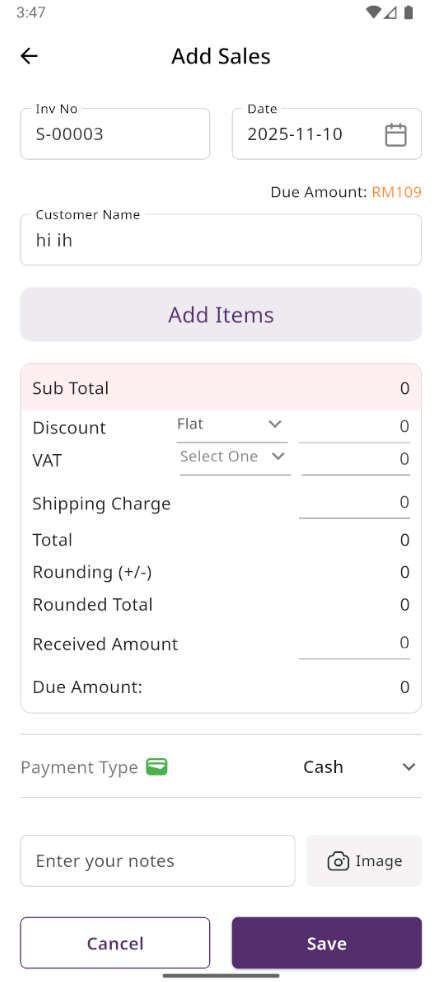
By choosing a customer, you can create a new sale. If you choose "Guest," an optional field is available to provide a phone number. By selecting register customer the product prices displayed on the right will automatically update based on the selected customer's type (Retailer, Wholesaler, or Dealer).
Select Product
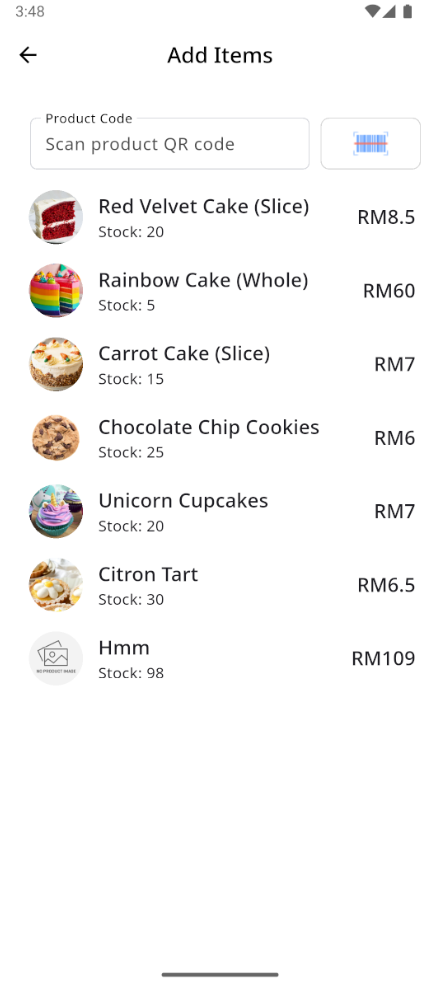
Next, you need to select a product for the sale. You have the option to search by product code or QR code.
Add to Cart & store product
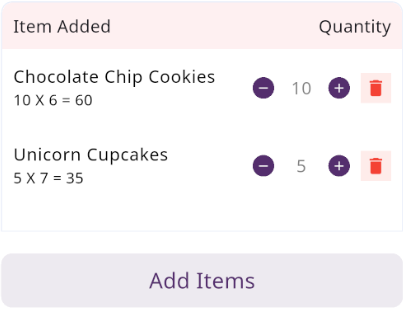
When you click on a product, it will be automatically added to the cart if this product available in stock. You can adjust the quantity by using the plus or minus buttons, or directly update the quantity by entering a value. To remove a product from the cart, simply click the red trash icon.
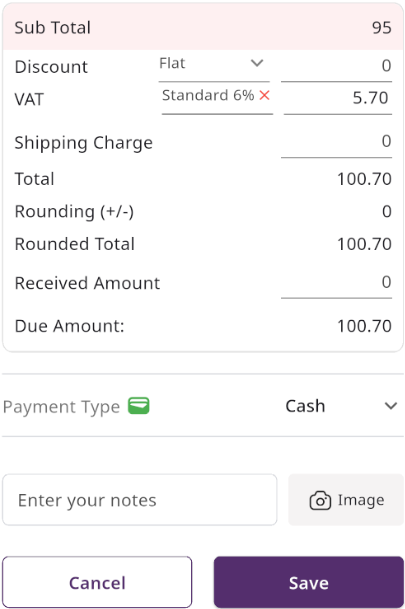
Below, you will see the subtotal of all products. You can also add VAT or a discount to the subtotal. After the calculations, the total amount will be displayed. Next, you can enter the received amount. If the received amount is greater than the total amount, the remaining balance will be shown in the "Change Amount" field. If the received amount is less, the "Due Amount" field will display the difference. If you want to remove all products from the list, click the cancel button. Once everything is correct, click the save button to complete the sale.
Sale List
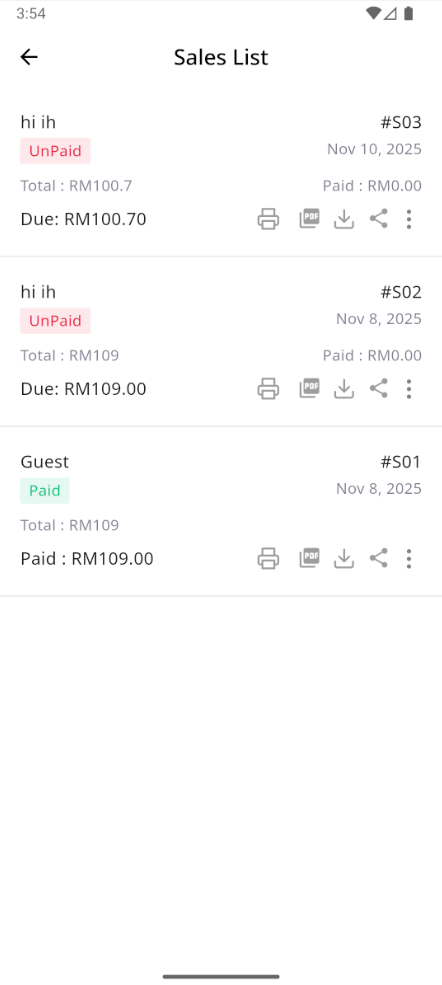
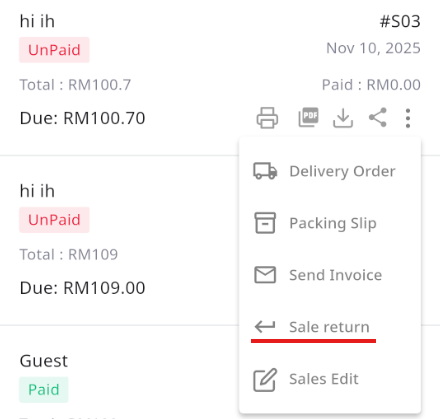
This is the Sale list page, where you can see all sale transaction. Additionally, you can view invoices, as well as edit, delete. Furthermore, you will have the option to initiate a Sale Return from this list. Please note, once a sale return is processed, you will no longer be able to update or delete the sale.
Create Sale Return
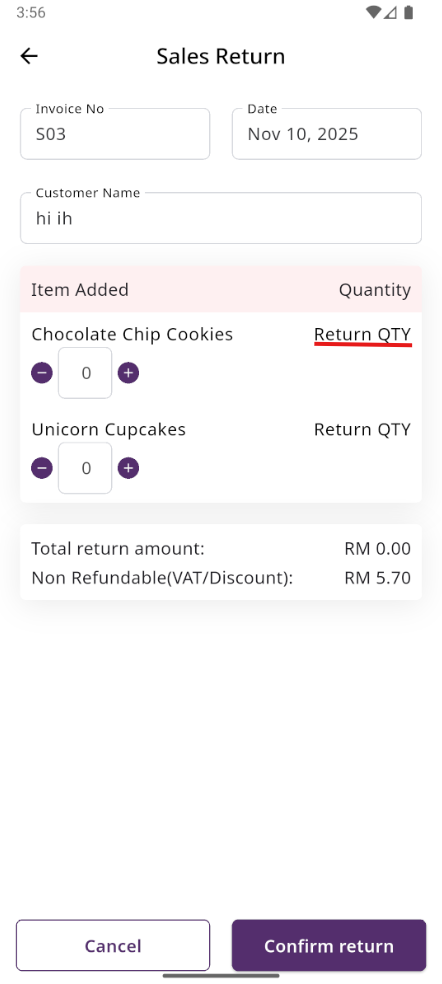
From the Sale list, when you click on Sales Return, this page will appear. By adjusting the quantity, you can return the desired amount. However, you cannot return more than the quantity sold.
Sale Return List
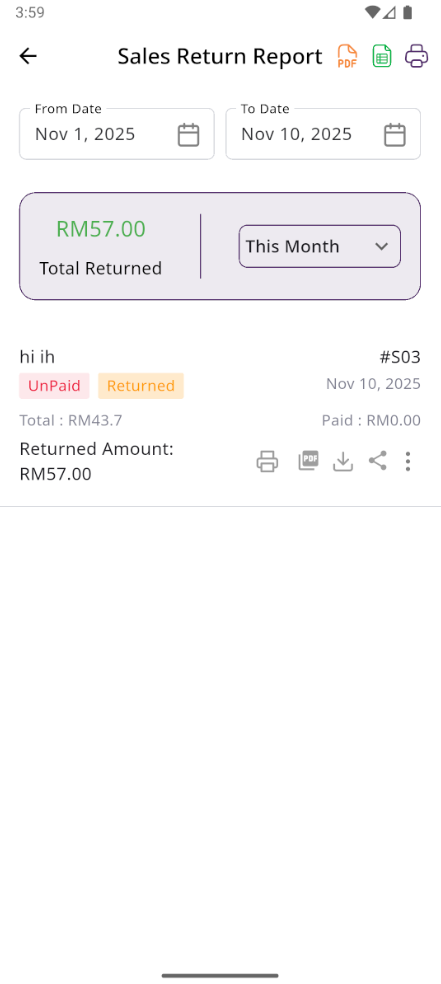
Here, you can view the complete list of sale returns with a filtering option. To view an invoice, simply click on the invoice No.
No comments to display
No comments to display