Products
Create Product
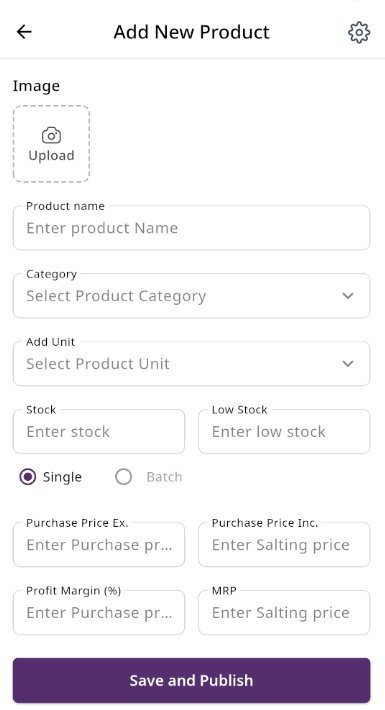
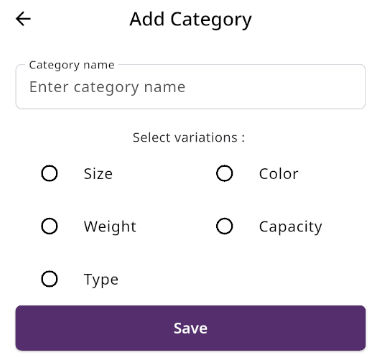
You can create a product by filling in the required fields. When you select a Product Category, the associated variation fields (such as capacity, color, size, type, or weight) linked to that category will appear. You can then provide the necessary variations. The Product Code field will suggest a code by default, but you can update it if needed. Ensure you carefully input the product price. If everything is correct, click the save button to store the product.
Expired Product List
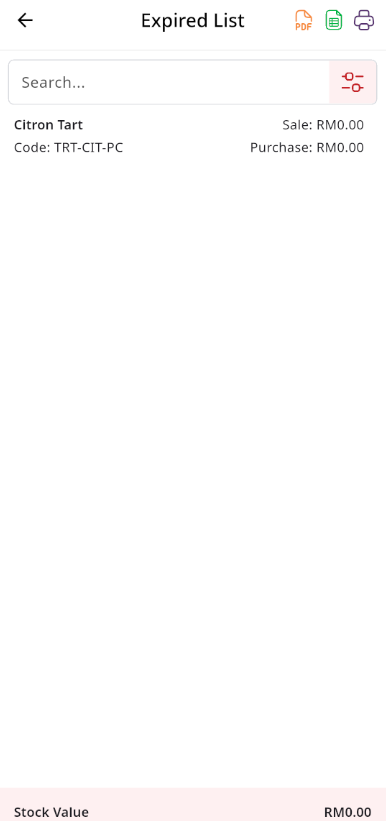
Here, you can view the expire Product list with filtering options available. The list can be exported as Excel, CSV, and there is also a print option. By clicking the product, you can see details in a drop-down view.
Print Labels
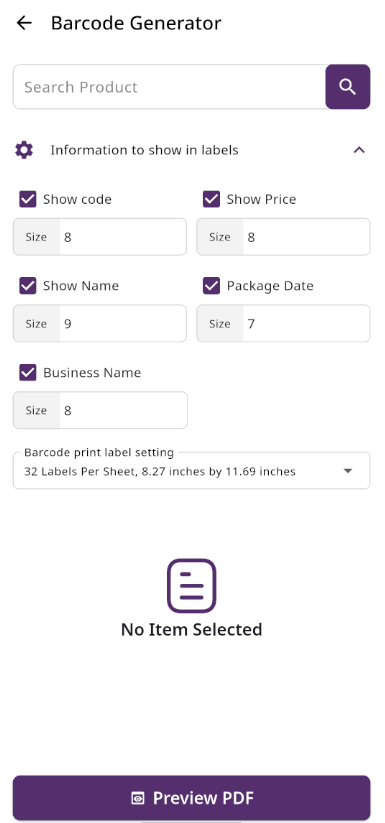
The Barcode Label Module in SenangUrus DNA allows users to generate and print barcode labels for selected products. Users can choose which information appears on the labels, including business name, product name, price, product code, packing date, and barcode. Each label uses the size defined for the product, and paper settings can be adjusted to ensure proper printing.
Bulk Uploads
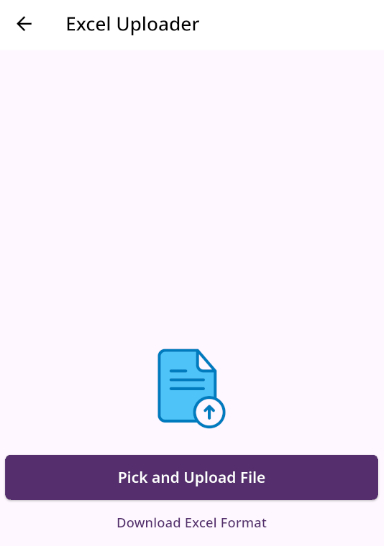
From the Bulk Upload module, users can upload a list of products in bulk. You can download a Excel file format by clicking the download file button. This file contains all the columns that need to be filled, and columns marked with an asterisk (*) indicate mandatory fields. After completing the file, use the Upload File option to select your edited file for bulk upload, then click the Submit button. All roles, conditions, and instructions are illustrated in the image below for better understanding.
Category List
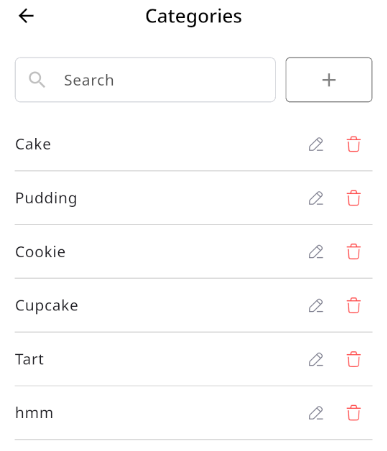
You can view the Category list with available filtering options. Furthermore, you have the ability to edit or delete.
Create Category
You can create a Category by filling in the required fields and selecting the desired variation.
Brand List
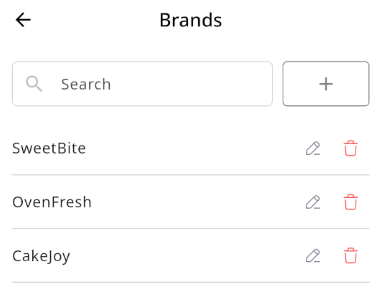
You can view the Brand list with available filtering options. Furthermore, you have the ability to edit or delete.
Create Brand
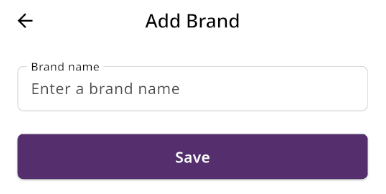
You can create a Brand by filling in the required fields.
Unit List
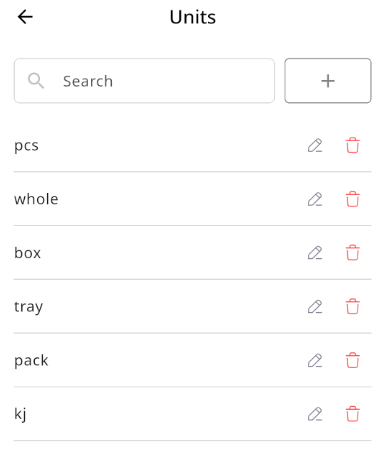
You can view the Unit list with available filtering options. Furthermore, you have the ability to edit or delete.
Create Unit
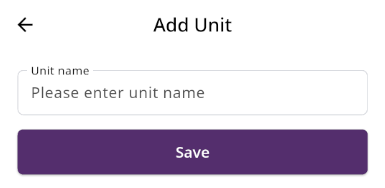
You can create a Category by filling in the required fields.
Model List
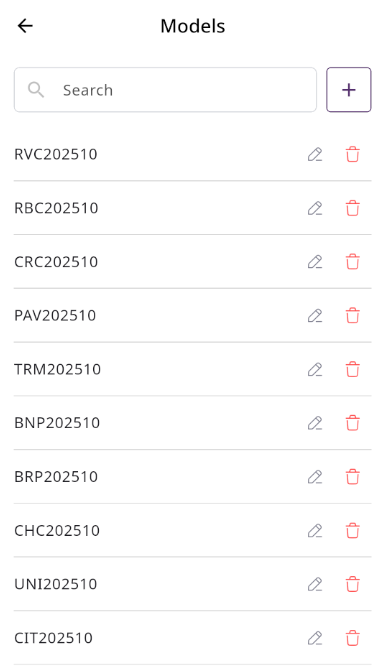
You can view the model list with available filtering options. Furthermore, you have the ability to edit or delete.
Create Model
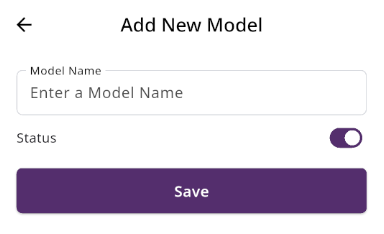
You can create a model by filling in the required fields.
No comments to display
No comments to display