
Registering your Business in Senangurus
Registering a new business
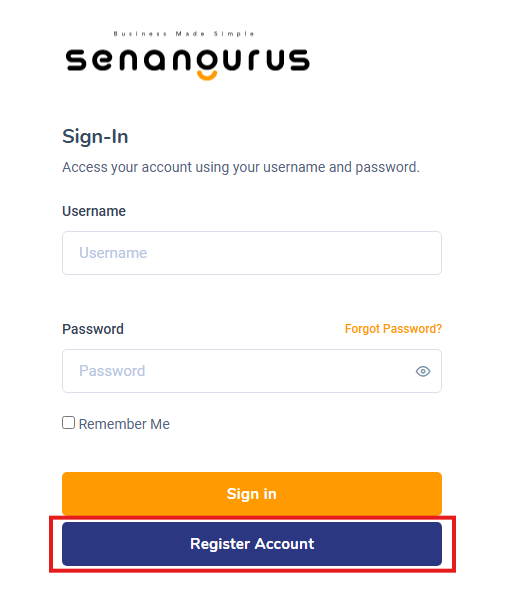
Follow the steps below to register a new business in the system:
Step 1: Click on the “Register Business” Button
-
On the Welcome Page, click the Register
BusinessAccount button to begin the registration process.
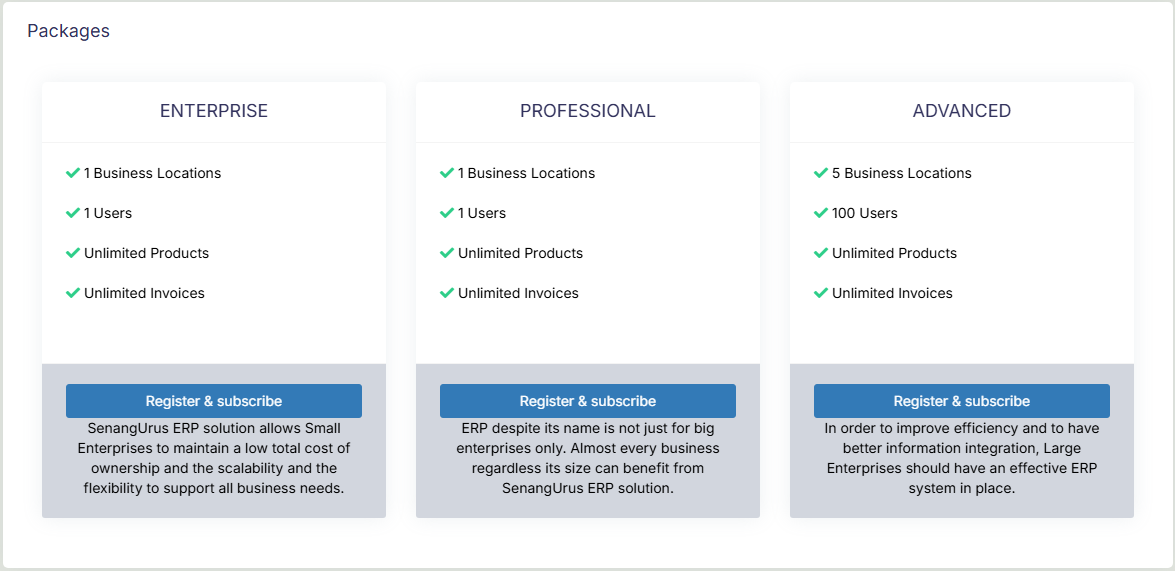
Step 2: Fill in Business Details
-
Enter the relevant information such as Business Name, Start Date, etc.
-
Select the appropriate Currency and Time Zone.
-
Click Next to proceed.
Note: Currency and Time Zone can be different for each registered business.
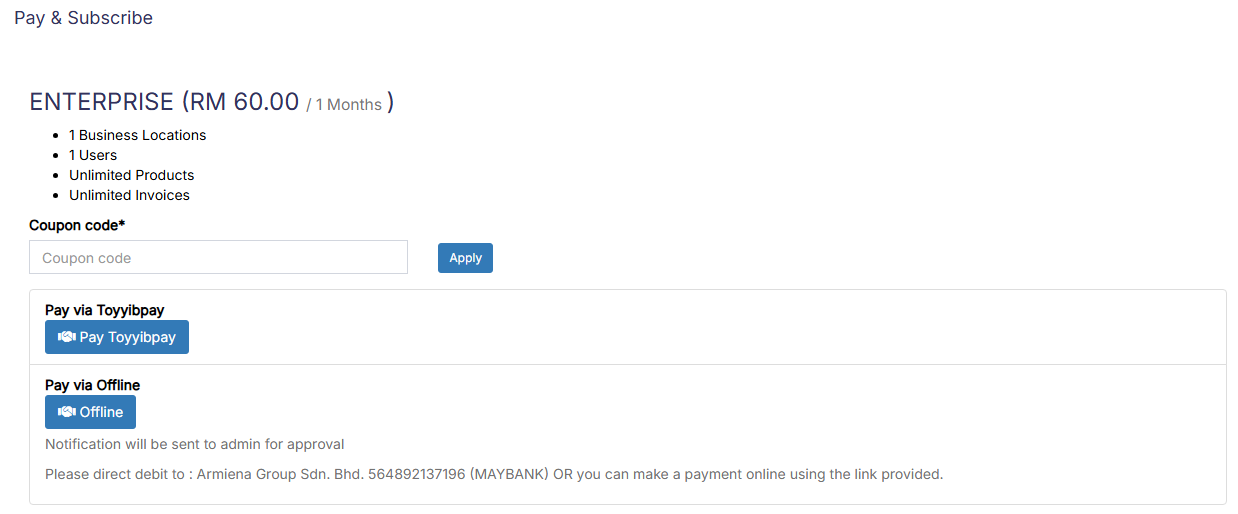
Step 3: Enter Tax Details
-
Provide the Tax Name and Tax Number (e.g., GST, VAT).
-
Tax fields are not mandatory and vary based on country regulations.
-
Click Next after filling out the tax information.
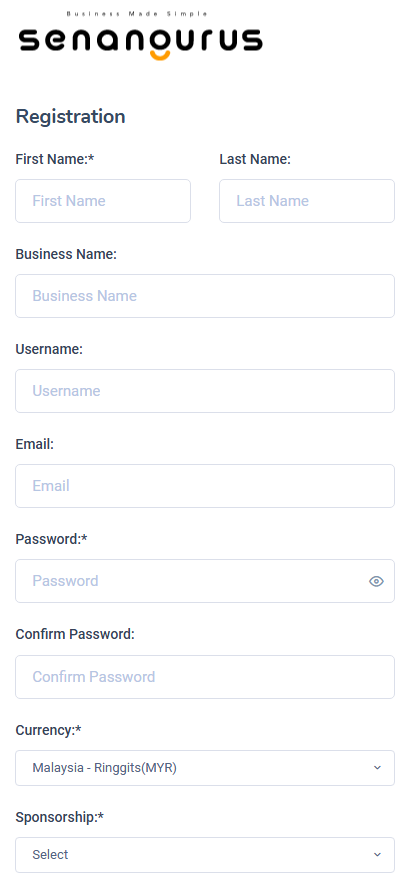
Step 4: Add Business User Details
-
Fill in the required User Name, Email, Username, and Password.
NOTE: These credentials will be used to log in, so make sure to remember them.
- The user created during this step will be the Admin of the business.
NOTE: Additional admins can be added, edited, or deleted later from the User Management section.
Step 5: Complete Registration
-
Click the Register button.
-
After successful registration, you will be redirected to the Login Screen.
-
Use the Username and Password created in Step 4 to log in.
Note:
All registered details—Business Information, Tax Info, and User Details—can be updated anytime from the Business Settings section.
Removing/Disabling register link:
UltimatePOS allows you to add multiple businesses. But many times you don’t want to allow external visitors to register there business. So you can disable registration by following these steps.