
Lot number
(Not available in UltimatePOS-LITE)SenangUrus-Enterprise)
What is Lot Number?
Enabling Lot Number
To To enable Lot Number tracking in the system, follow the steps below:
-
Go
toto Settings → Business Settings → Purchases -
Check
thethe Enable Lot Number -
ClickClick Update Settings
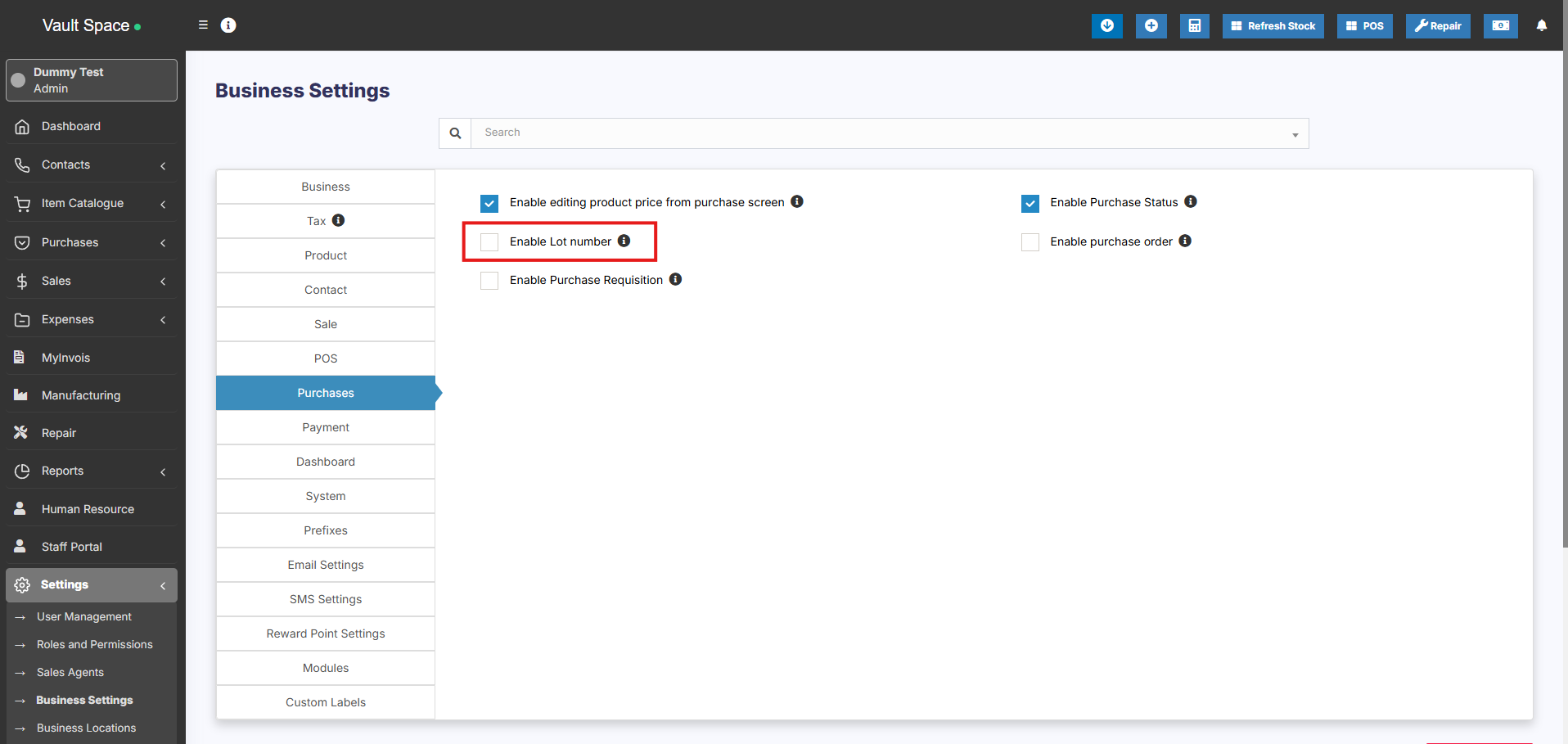
Once enabled, you’ll be able to assign assign Lot Numbers during both purchases and opening stock entries.
Two Methods to Add Lot Numbers
Method 1: Adding Lot Number from Purchases
-
When adding
aa Purchase Entry, the system will displayaa Lot Number -
Enter
thethe Lot Number
Method 2: Adding Lot Number from Opening Stock
-
When
addingadding Opening Stock,aa Lot Number -
Fill in the
appropriateappropriate Lot Number
Selling products from specific Lot
Refer to the the POS selling documentation Lot number description.
Displaying product lot number in the invoice
- Make sure the lot number feature is enabled as mentioned above.
- Go to invoice layout and enable “Show lot number”
- If the lot number is added when adding Purchase or Opening stock then when making sales it will display the lot number & product expiry dropdown. Select the lot number which you want to sell.