Multi-Branch Add-on
Overview
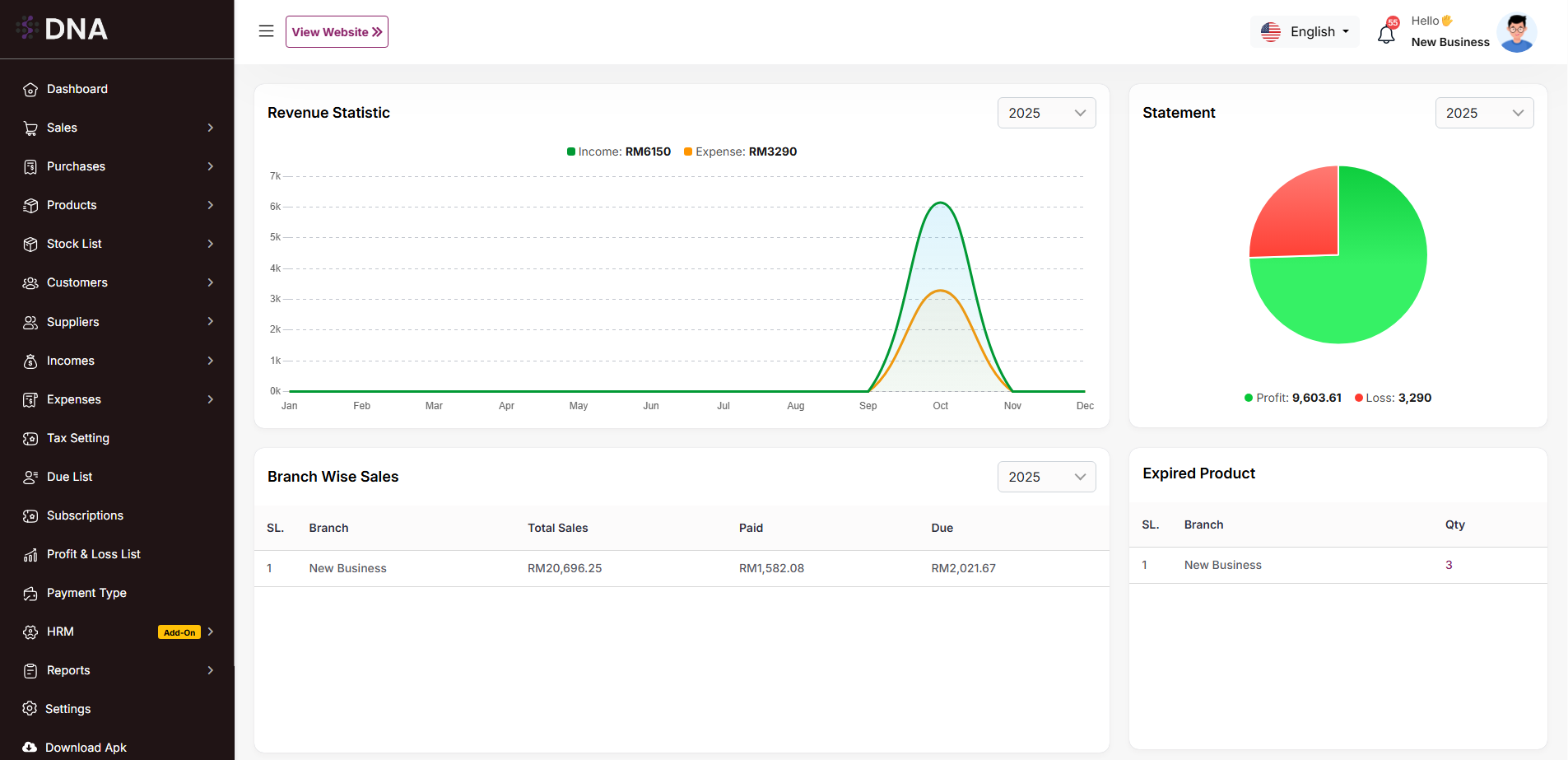
Here, you can view an overview of all branches. The revenue statistics are displayed, and you can select a year to dynamically update the chart for the chosen period. A pie chart shows profit and loss, with a yearly dropdown available for selection. Similarly, you can view branch-wise sales and purchase lists. The system also displays the quantity of expired products in each branch, as well as an employee overview showing the number of employees per branch.
Branch List
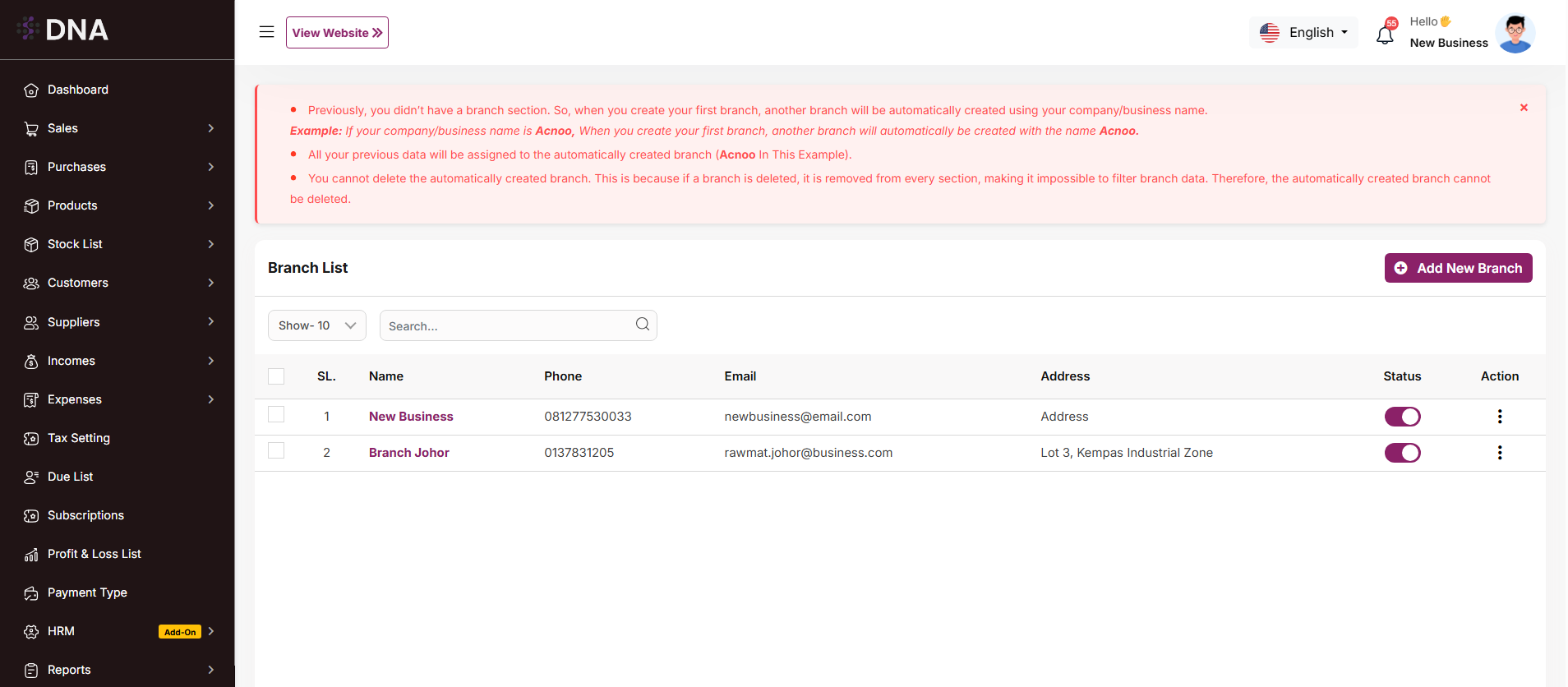
Here, you can view a list of all branches, including the first branch. At the top of the table, instructions are provided on how to create a branch. When creating a new branch, the system will automatically generate it (if it does not already exist), and relevant data will be moved to the new branch. For example, when a branch is created, the new branch will be generated automatically using the business name. Note that the first branch cannot be deleted.
In the listing, you can filter branches using the search input field or adjust the number of entries displayed per page. From here, you can also add a new branch, edit or delete branches, or perform a multi-delete. Additionally, by click on business name, also have the "Login" button allows you to log in directly to the selected branch.
Branch
Create New
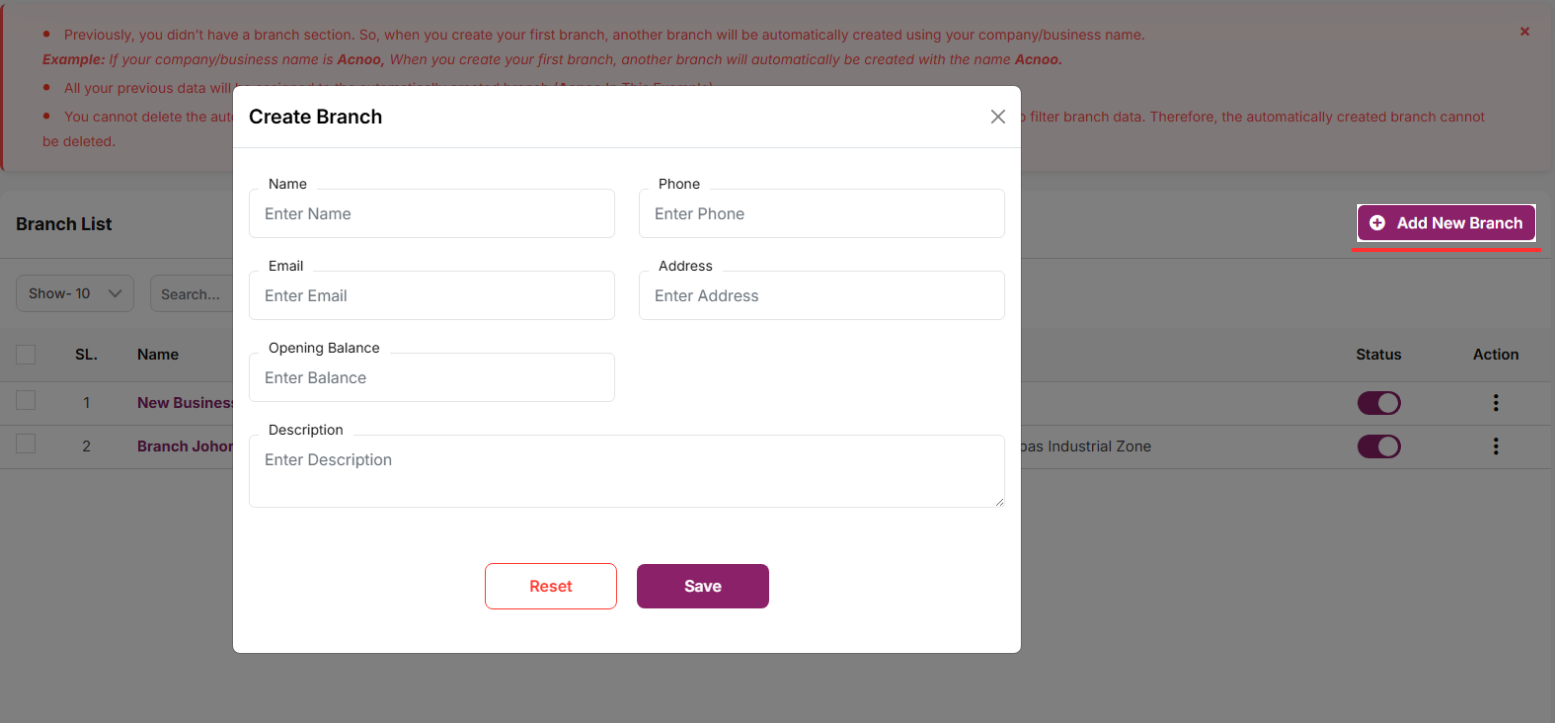
After clicking on "Add New Branch" a modal will open where you need to fill in the required information. Once completed, click the "Save" button. The new branch will be created successfully, and you will be redirected to the branch list. If you are logged in to a branch, the name of that branch will be displayed in the header.
Profile
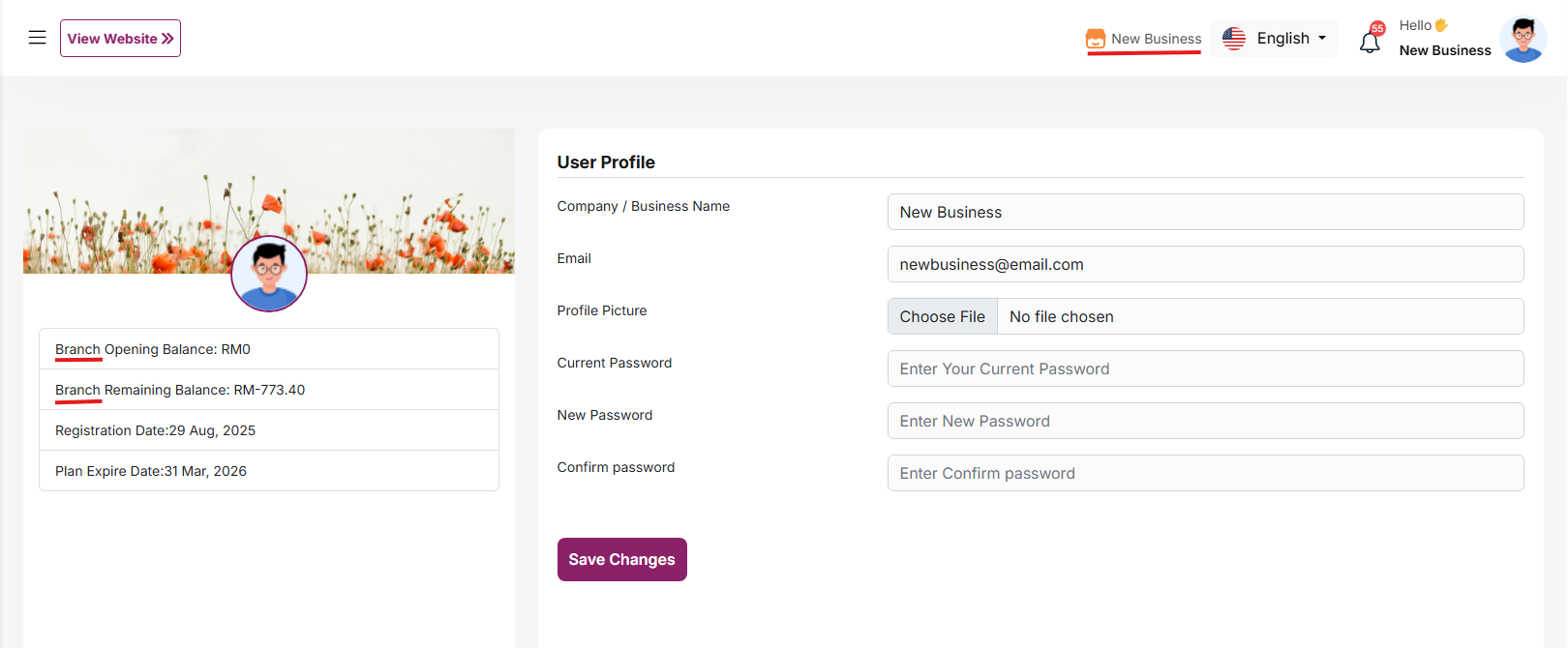
If you are logged in to a branch, you will see the Branch Opening/Remaining Balance. Otherwise, the Shop Opening/Remaining Balance will be displayed
Role & Permission List
Here, you can view a list of roles and permissions. The list displays name along with the number of features accessible to users. You can filter the list using the search input field or the per-page filter option. From here, you can also add a new user role, edit an existing role, or delete one. Multi-delete functionality is also available.
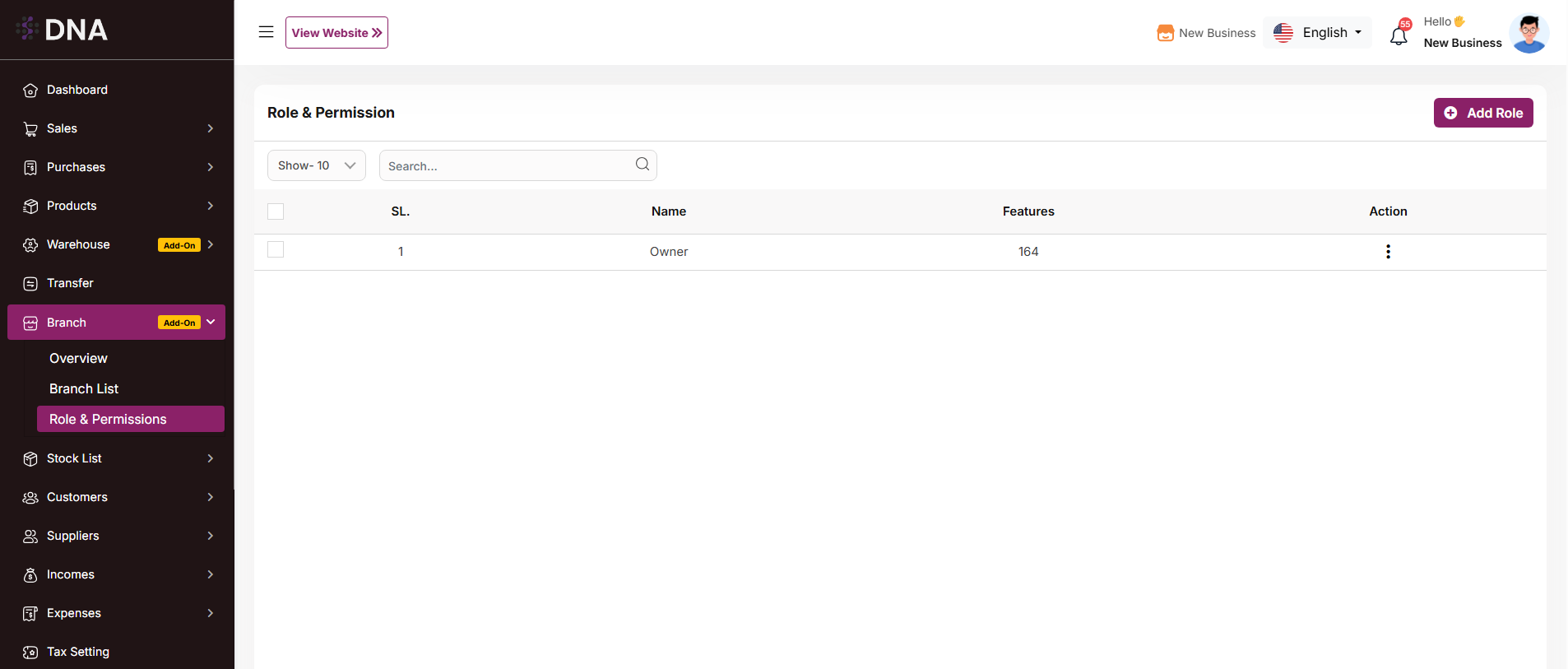
Add Role
After clicking on "Add Role," you will be redirected to the create page, where you need to fill in the required information. Once completed, click the "Save" button. The new user role will be created successfully, and you will be redirected back to the user role list. If you are not under any branch, a new field will appear where you can select the branch for which you want to assign the role and permissions.

Transfer List
Here, you will see the complete transfer list. The warehouse column will be visible only if the Warehouse Add-on is installed. In the listing, you can filter transfers using the search input field or adjust the number of entries displayed per page. From here, you can also add a new transfer, edit or delete a transfer, or perform a multi-delete. Please note that transfers with a status of "Pending" cannot be edited. The Edit page works the same way as the Create page, except that in the status section, an additional "Cancel" option will be available.
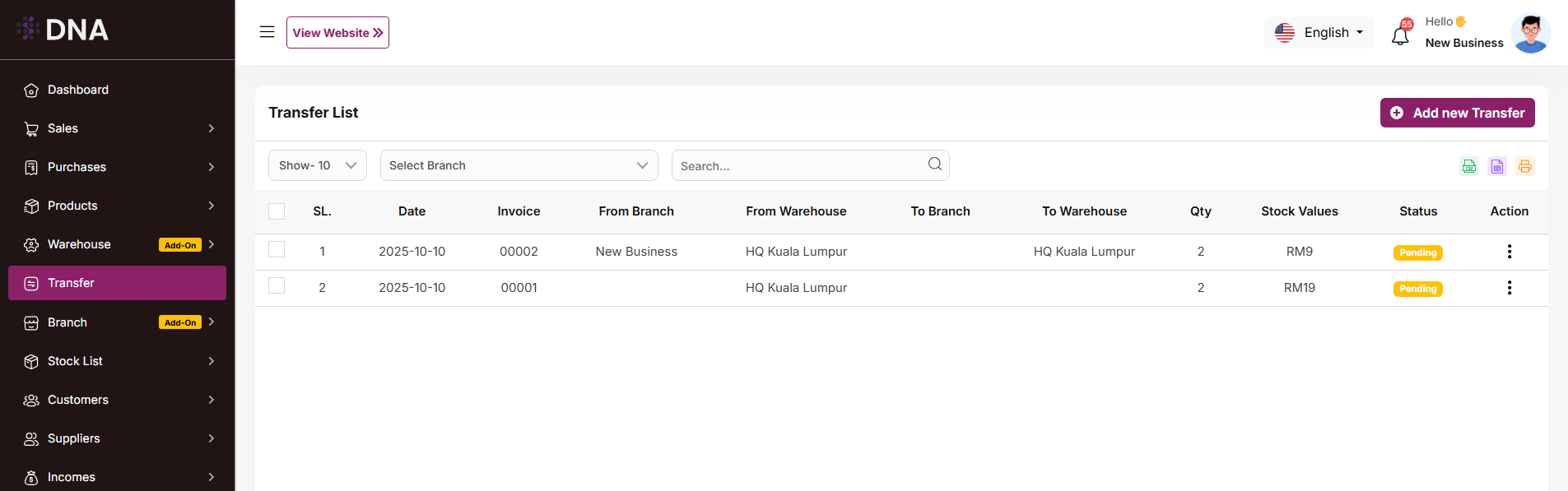
Create Page
If you are not logged in under any branch, you will get the option to transfer products from one branch to another. If the Warehouse Add-on is installed, you can also transfer products between warehouses.
* You can transfer products from one branch to another branch.
* You can transfer products from one warehouse to another warehouse.
* You can also transfer products from a warehouse in one branch to a warehouse in another branch.
Once the transfer is completed, product stock will be automatically updated (increased or decreased) based on the transfer.
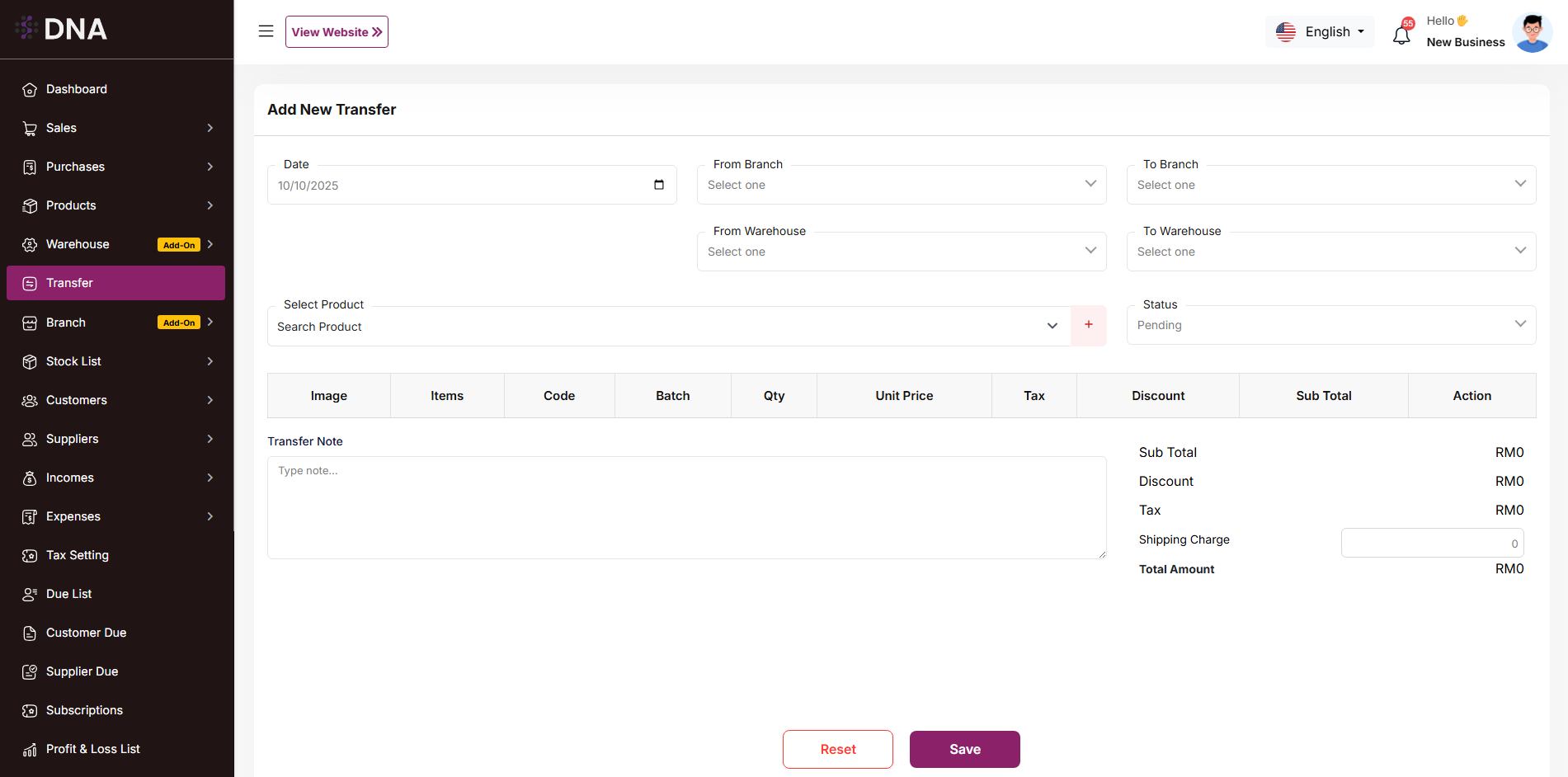
When login into a branch
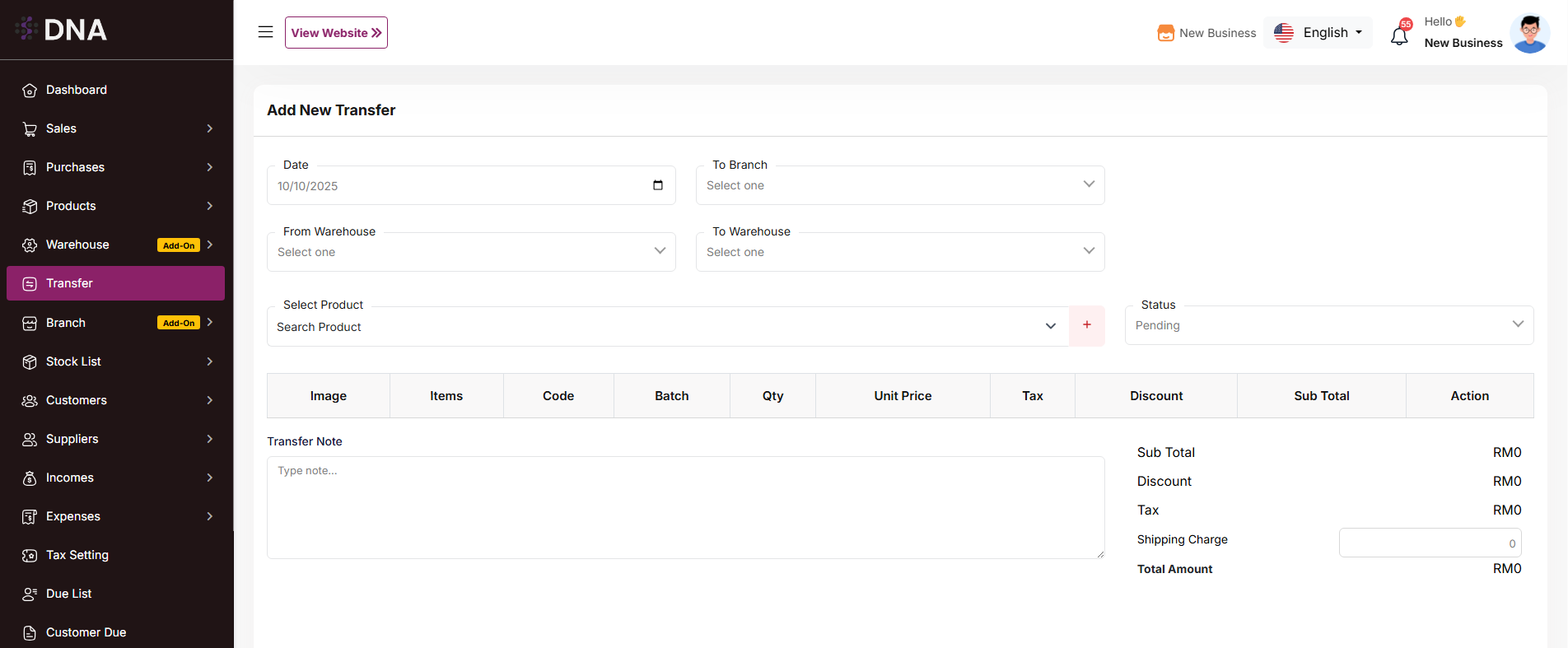
If you are logged in to a branch, you do not need to select a "from branch" because you are already under a branch. If the Warehouse Add-on is installed, you can also transfer products between warehouses.
* You can transfer products from your branch to another branch.
* You can transfer products from a warehouse to another warehouse in your branch.
Once the transfer is completed, product stock will be automatically updated (increased or decreased) based on the transfer.
Due Collect
Collect Due
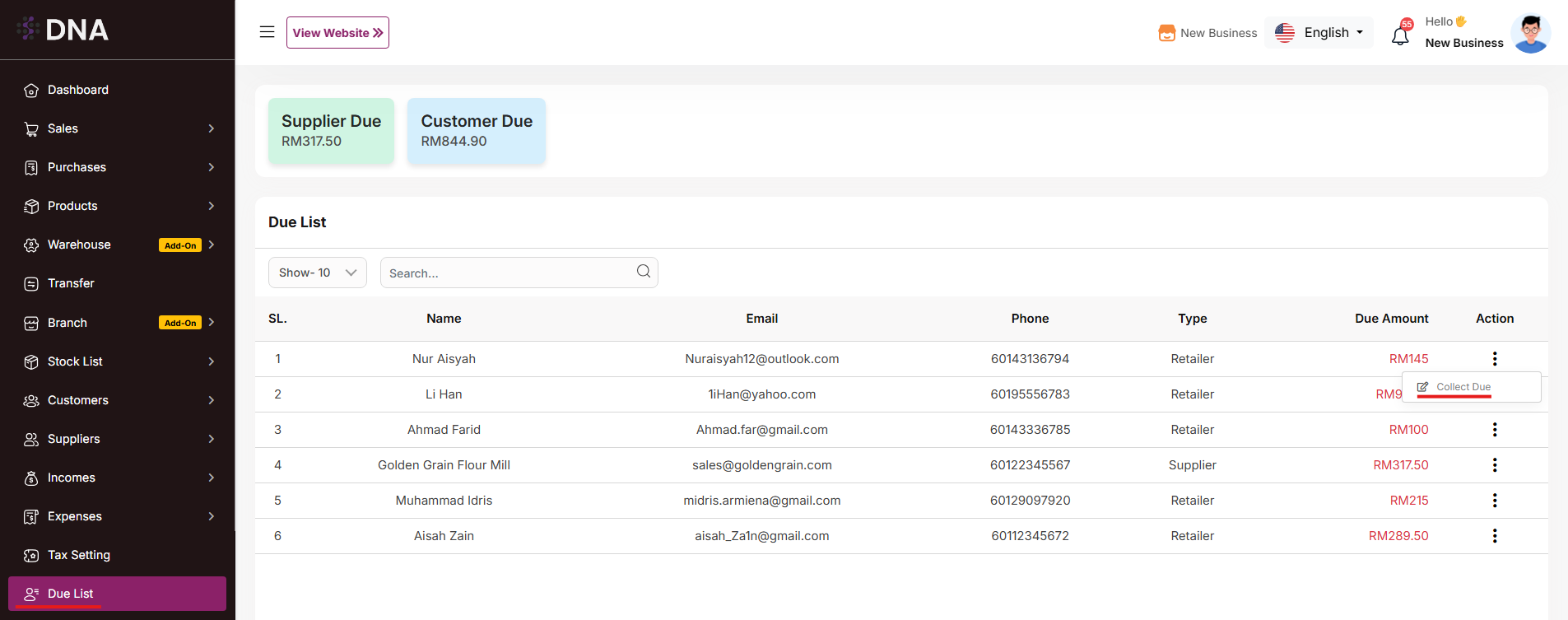
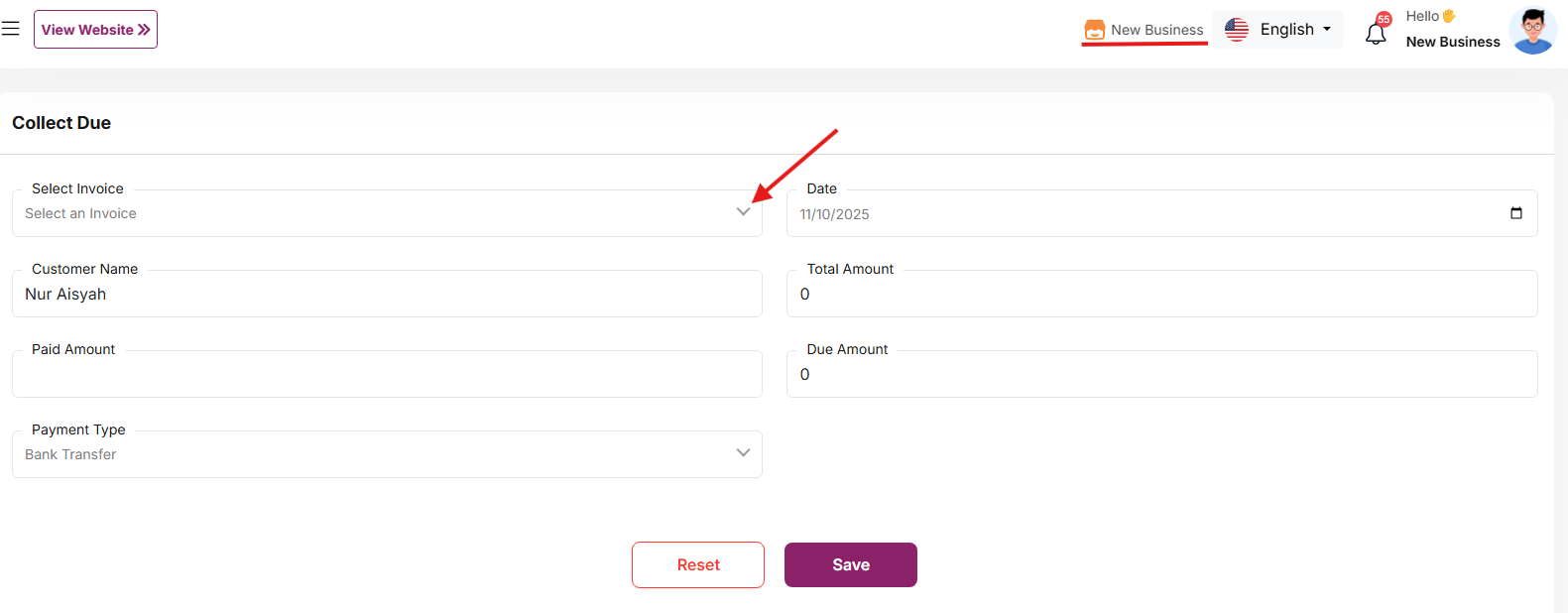
In the Due List section, when you click "Collect Due," you will be taken to the page below. If you are logged in under an active branch, you can only collect dues from the selected invoices. The invoices will be filtered according to your branch, and the balance will be updated from the branch to which the invoice belongs. If you are not under any branch, you can collect dues without selecting invoices. In this case, the due will be adjusted from the shop's overall balance. If you collect dues along with invoices, the balance of the branch to which each invoice belongs will be updated accordingly.
Change Logs
Multi Branch Add-on Change Logs
Note: Before updating to the new version, please ensure you have a database and full project backup, and that your project is already updated to the latest version. This is extremely important!
Version: 1.1 ( 20 September 2025 )
- Layouts changed.
- System Architecture updated.
Note: Please click here to update your addon.
Note: If you face any issues with the update, please contact us.
Version: 1.0.0 ( 15 september 2025 )
- Initial Release
Note: Please click here to update your addon. Before updating this addon, you must first update Super-Admin.zip to version 5.5
Note: If you face any issues with the update, please contact us.