Multi-Branch Add-on
Branch List
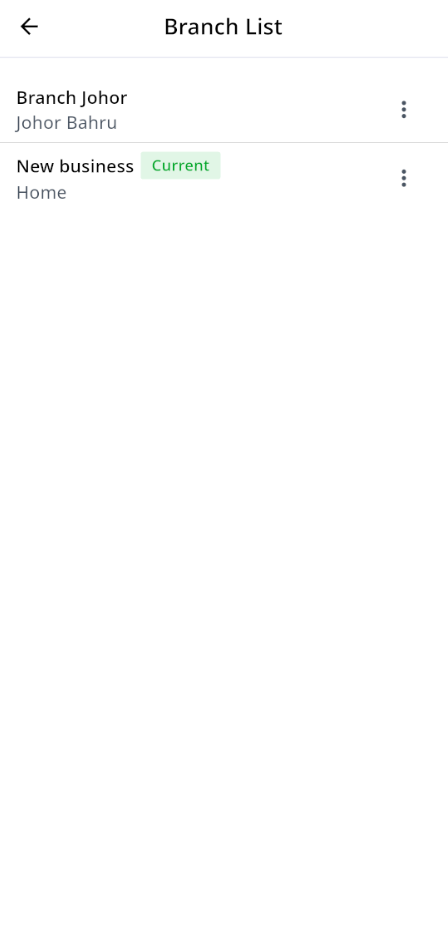
This is the branch list, it shows all the available branches. If you are logged in to a branch, a green card with the word Current will be displayed beside it.
Profile
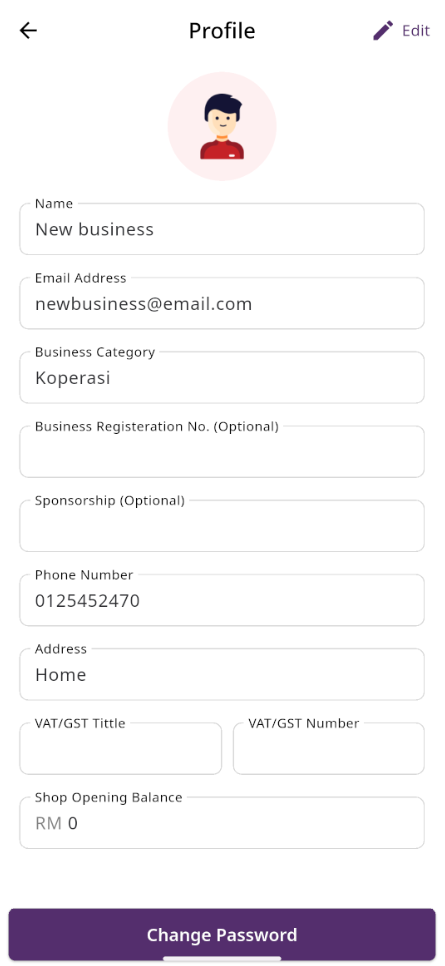
Here, you can view your business profile. You can change your name, email address, Business Category, Business Registration No. (Optional) and etc.
Role & Permission List
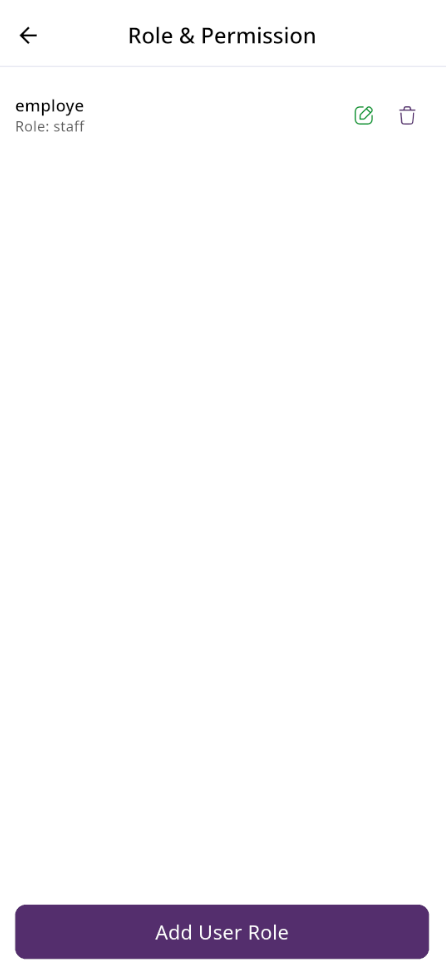
Here, you can view a list of roles and permissions. The list displays name along with the number of features accessible to users. From here, you can also add a new user role, edit an existing role, or delete one.
Add Role
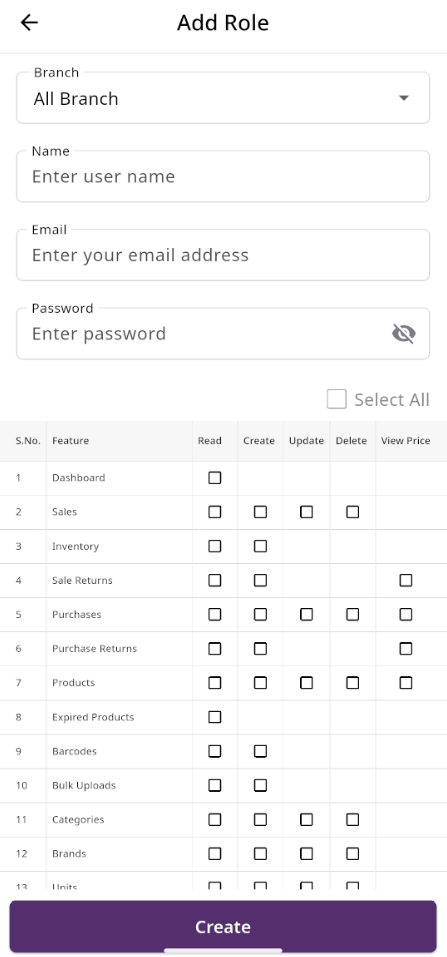
After clicking on "Add User Role," you will be redirected to the create page, where you need to fill in the required information. Once completed, click the "Create" button. The new user role will be created successfully, and you will be redirected back to the user role list. If you are not under any branch, a new field will appear where you can select the branch for which you want to assign the role and permissions.
Due Collect
Collect Due
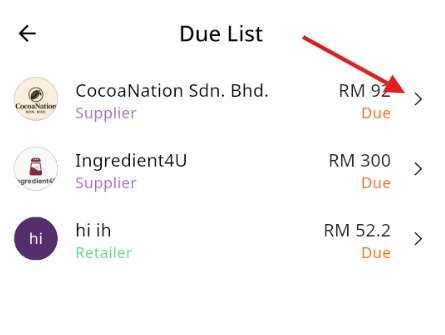
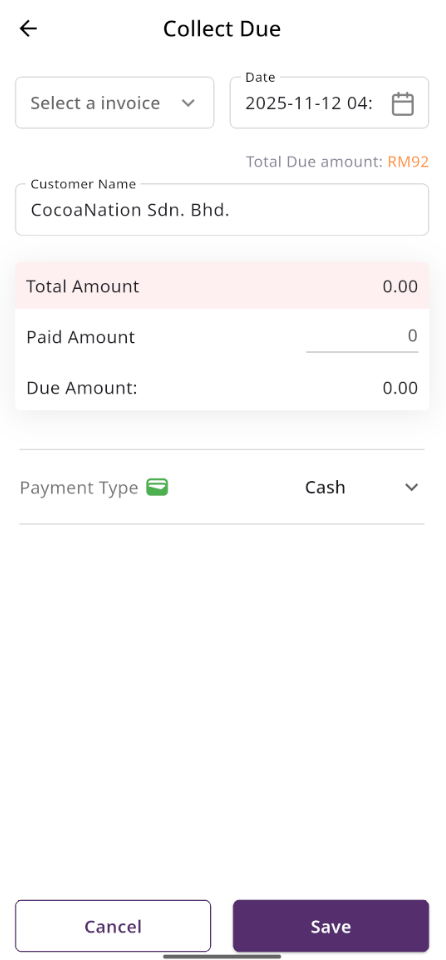
In the Due List section, when you click on a user you will be taken to the page below. If you are logged in under an active branch, you can only collect dues from the selected invoices. The invoices will be filtered according to your branch, and the balance will be updated from the branch to which the invoice belongs. If you are not under any branch, you can collect dues without selecting invoices. In this case, the due will be adjusted from the shop's overall balance. If you collect dues along with invoices, the balance of the branch to which each invoice belongs will be updated accordingly.