# Shipments, Home Delivery or parcel management
## Adding a Delivery person option for Shipments
While adding shipment details during a sale, the delivery person can also be added.
## Adding Delivery Note for Sale
#### How do we print the Delivery Receipt?
To add a delivery note, follow the steps below.
**Step 1**: While adding the sales, be sure to include shipping details (You can refer to the video guide provided below for assistance).
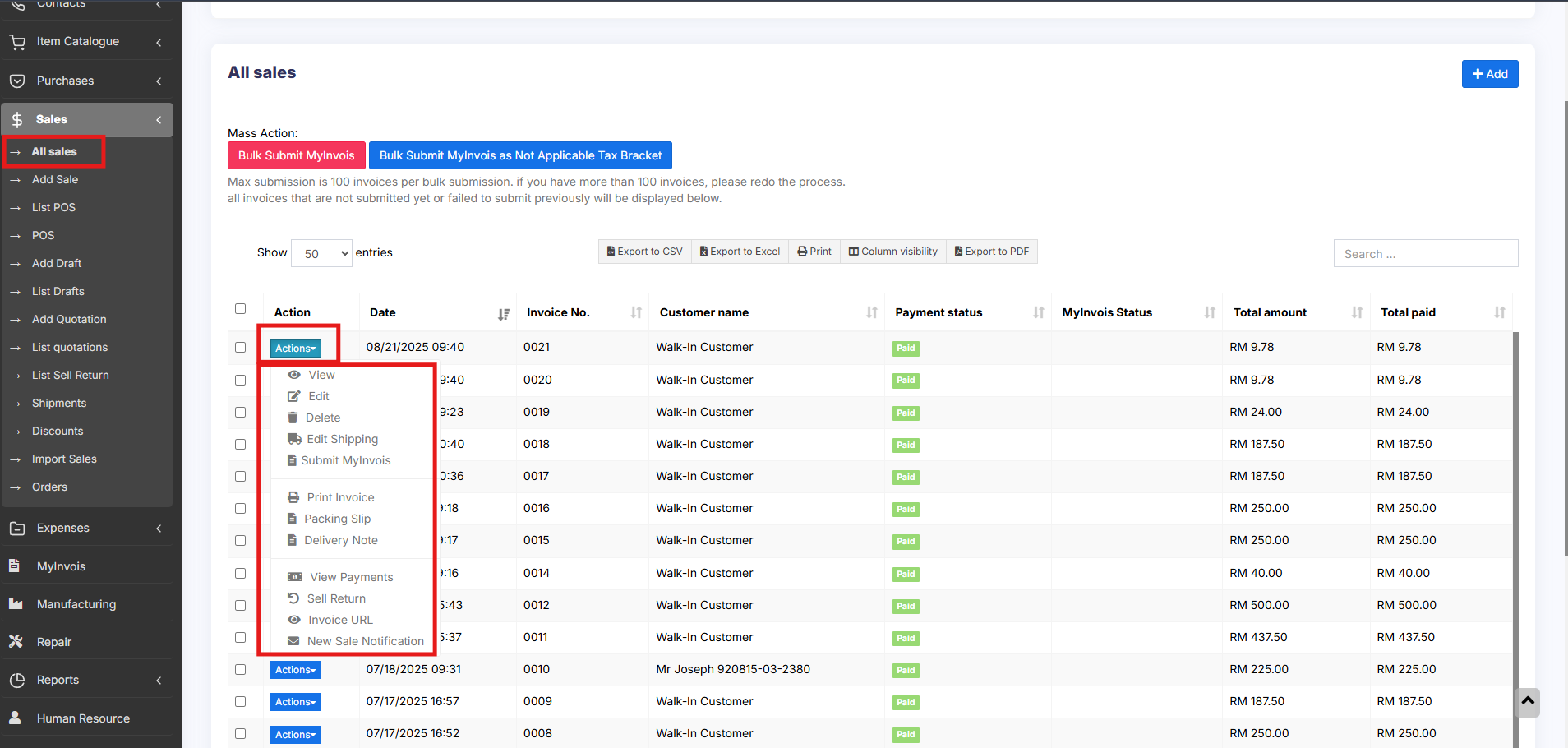
**Step 2**: Navigate to the **All Sales** screen and click on the **Action** dropdown menu for the specific sale added in Step 1.
**Step 3**: From the **Action** dropdown menu, select the ‘**Delivery Note**‘ option, and proceed to print the delivery note directly.
[](https://docs.senangurus.com/uploads/images/gallery/2025-10/3o4image.png)