# Setting Business Multiple Locations or WareHouse or Storefronts
**SenangUrus ERP** comes with the option to handle multiple business locations or warehouse or Storefronts for your business.
A default location is added to the newly created business.
**Invoice Scheme:** Before creating a new location or storefront, you can define a new Invoice scheme or you can use existing invoice schemes. But having different invoice schemes for locations can help you to identify them.
Invoice Scheme is invoice number format. ([Read More](https://docs.senangurus.com/books/senangurus-business/page/setting-invoice-scheme))
**Invoice Layout:** If you wish to have a different invoice layout for the location then you should create an invoice layout before creating a new location. ([Read More](https://docs.senangurus.com/books/senangurus-business/page/invoice-layout))
**Default Selling Price Group:** Select the selling price group that will be used in this location. ([Read More](https://docs.senangurus.com/books/senangurus-business/page/selling-price-groups-sell-in-different-prices-wholesaleretail-or-for-different-prices-for-different-locations))
**Payment Options:** [Enable/disable payment methods](https://docs.senangurus.com/books/senangurus-business/page/adding-editing-payment-method-or-pay-via-options-custom-payments) and [set default payment methods](https://docs.senangurus.com/books/senangurus-business/page/setting-default-payment-accounts-for-payment-methods) to different payment account.
You can always change invoice scheme & Invoice Layout for a Business location anytime.
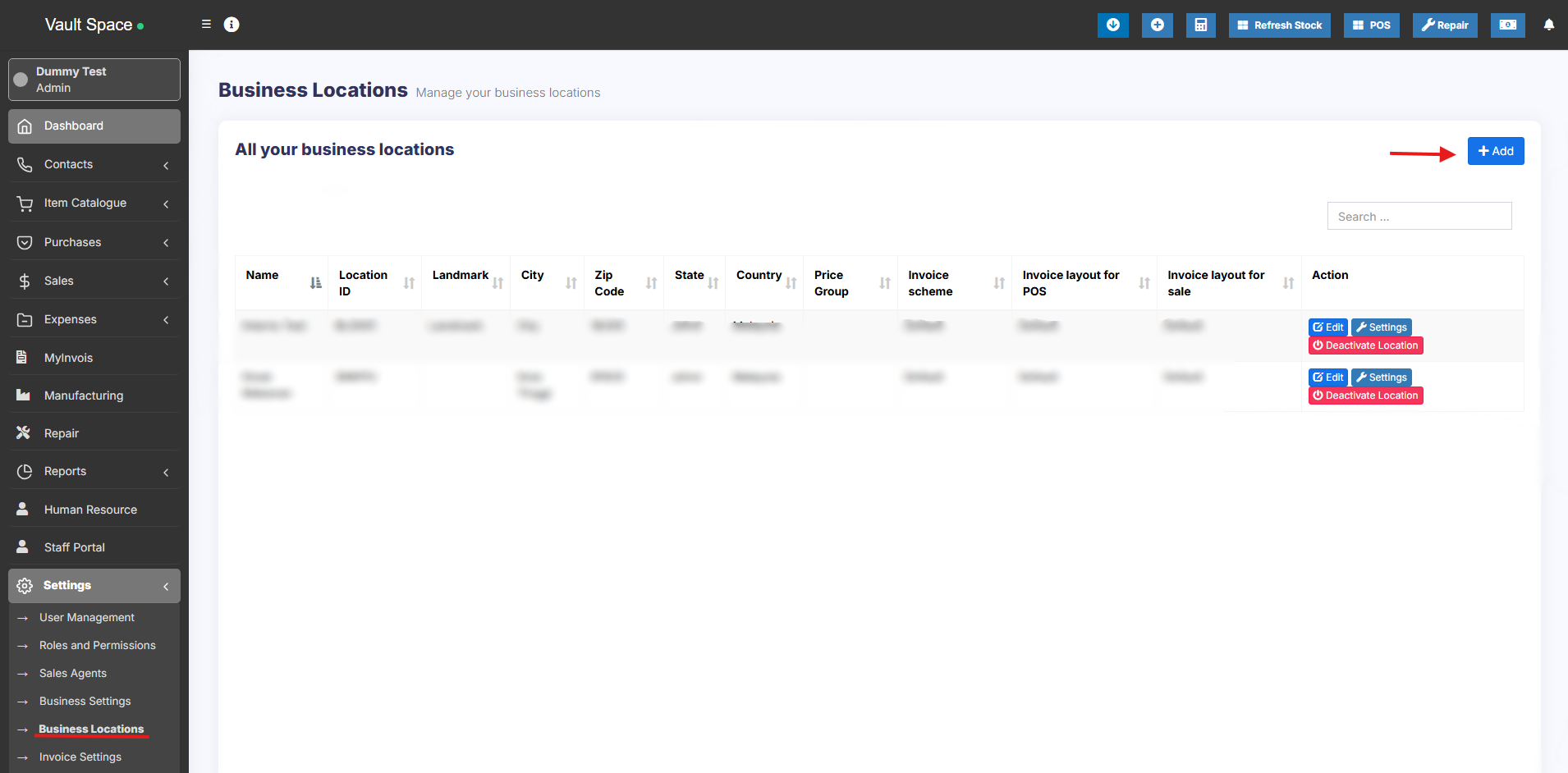
1. To create a new Business Location / Storefront or warehouse go to “**settings -> Business Locations -> Add**”
[](https://docs.senangurus.com/uploads/images/gallery/2025-10/screenshot-2025-10-07-011858.png)
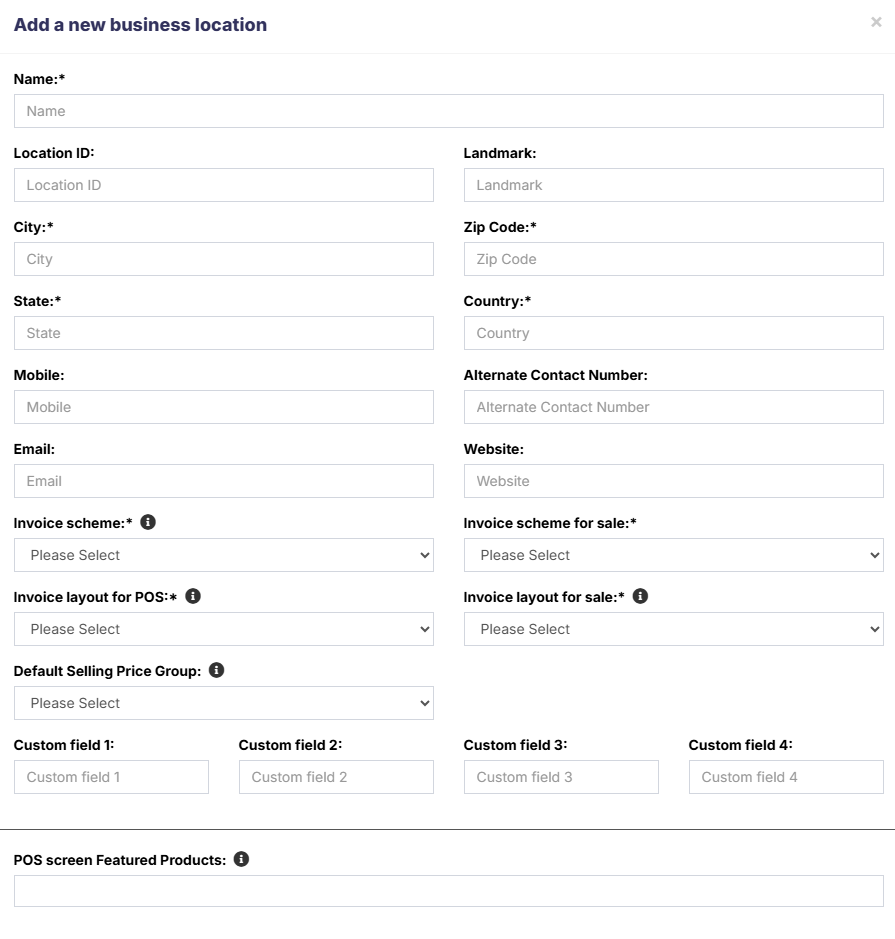
2. Fill the **business details**.
[](https://docs.senangurus.com/uploads/images/gallery/2025-10/vQNimage.png)
3. Choose an **Invoice scheme** & **Invoice Layout** for the location.
[](https://docs.senangurus.com/uploads/images/gallery/2025-10/Gxmimage.png)
When having multiple locations you will have to select the Location while adding purchases or in the pos screen.
- Inventory and transactions are managed separately for each location you create so that you can easily track and analyze them for each location.
**Disabling Business Location:**
[](https://docs.senangurus.com/uploads/images/gallery/2025-10/screenshot-2025-10-07-013508.png)
To disable a business location click on Disable button present in List Business Location.
- After a business location is disabled any users assigned to that business location must be assigned to other non-disabled business location. 1 business location non-disabled. If all business location is disabled then the application will throw errors.
- You must keep at least 1 business location non-disabled. If all business location is disabled then the application will throw errors.