# Sales Return
There are 2 ways of adding sales return
### **First way:**
Edit existing invoice for the sales by going to edit the invoice and remove the product or reduce the quantity of the product. And save it. The system will automatically add the returned quantity back to stock. This is a simple & recommended way of doing.
### **Second Way:**
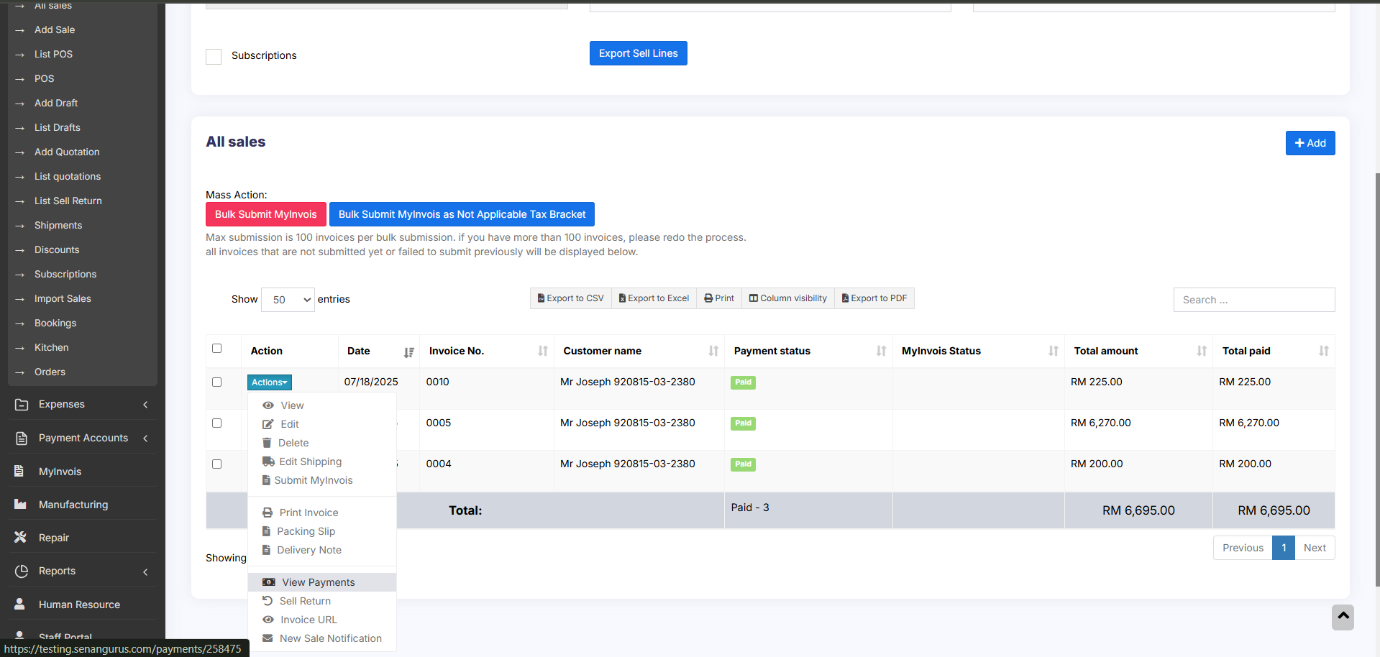
Follow the screenshot below:
[](https://docs.senangurus.com/uploads/images/gallery/2025-10/58Fimage.png)
### **Payment for Sale Return:**
When a **Sale Return** is created, the system considers the return amount as a **Due Payment,** indicating that the amount needs to be refunded to the customer.
To complete the return process, you must **add a payment** to record the refund.
To add the payment for sale return, follow the steps.
- Go to **Sales → List Sale Return**.
- In the list, locate the **Payment Status** column for each sale return entry.
- If the status shows **Due**, click on the **Due** button.
- This will open an **Add Payment** pop-up window.
- Enter the **Refund Amount** and click **Save**.
- The **Payment Status** will now update to **Paid**.
#### **Question: Why sell return value not decrease the payment value from the parent invoice?**
- SenangUrus Business will adjust these values in the Profit & Loss report.
- Regarding payment, users have to add a transaction for receiving payment from the customer and then paying them back. This way all the transactions are recorded.