# Registering your Business in Senangurus
# Registering a new business
Follow the steps below to register a new business in the system:
**Step 1: Click on the “Register Business” Button[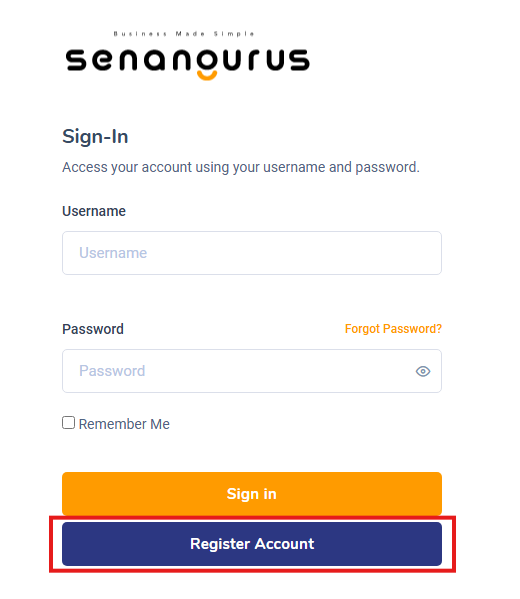](https://docs.senangurus.com/uploads/images/gallery/2025-10/image.png)**
- On the **Sign-in Page**, click the **Register Account** button to begin the registration process.
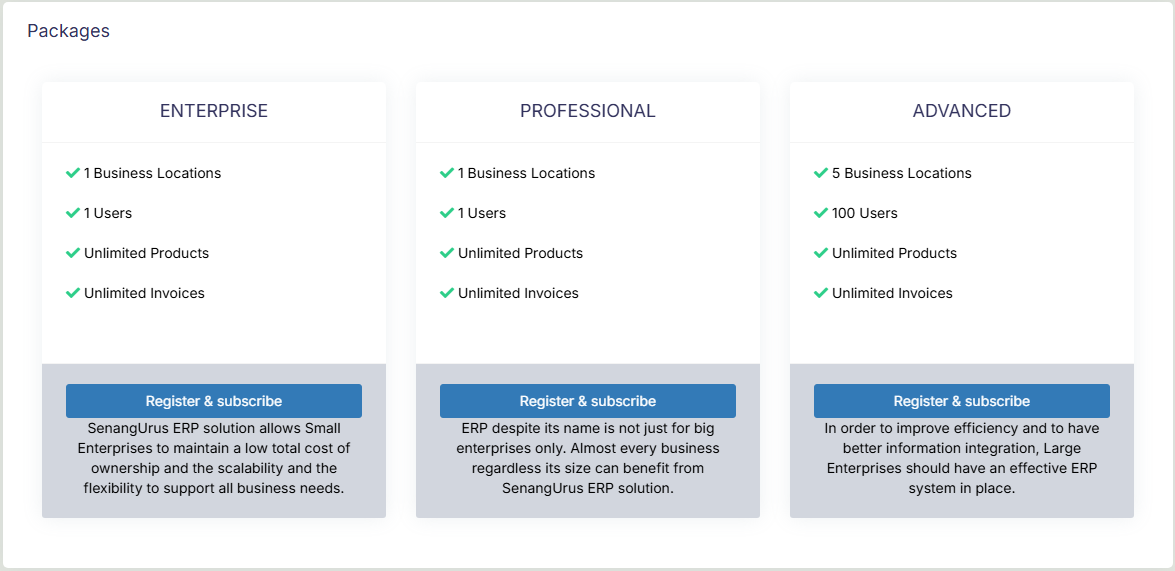
**Step 2: Choose your preferred pricing plans**
[](https://docs.senangurus.com/uploads/images/gallery/2025-10/zI0image.png)
- There are three to choose from (**Enterprise**, **Professional** & **Advanced**) with varying prices.
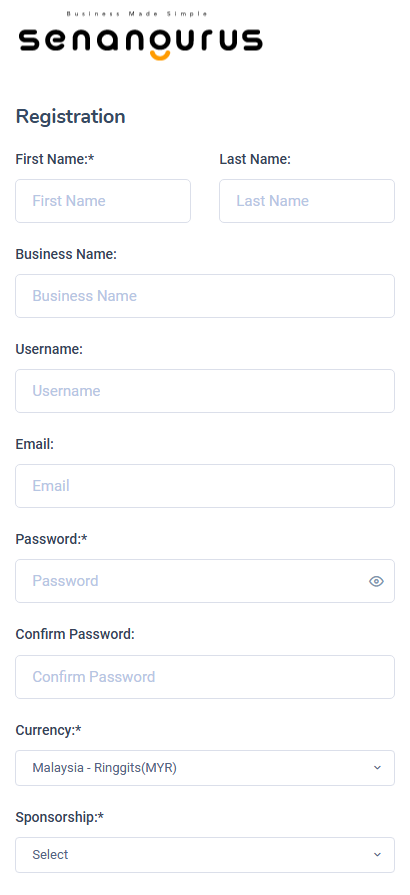
**Step 3: Enter Owner details & Business Details**
[](https://docs.senangurus.com/uploads/images/gallery/2025-10/Ynv5ncimage.png)
- Fill out the relevant fields: **Full Name**, **Business Name**, **Currency type**, and enter your **Username** & **Password**.
- The owner created during this registration will be **super admin** of the business. More super admin can be added from user management section.
**Username** and **Password** will be used for sign-in, make sure you remember them.
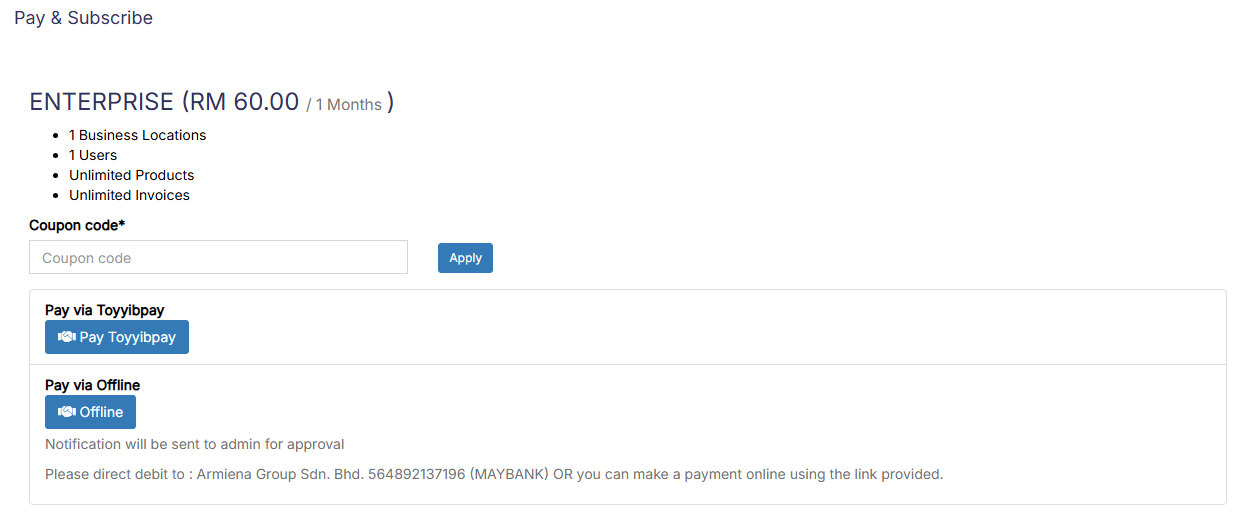
**Step 4: Choosing payment**
[](https://docs.senangurus.com/uploads/images/gallery/2025-10/i9l7ktimage.png)
- Payment can be done either through **online** or **offline.**
**Step 5: Complete Registration**
- Click the **Register** button.
- After successful registration, you will be redirected to the **Login Screen**.
All registered details (**Business Information**, **Tax Info**, and **User Details)** can be updated anytime from the **Business Settings** section.