# Purchase Management
### Adding Purchase
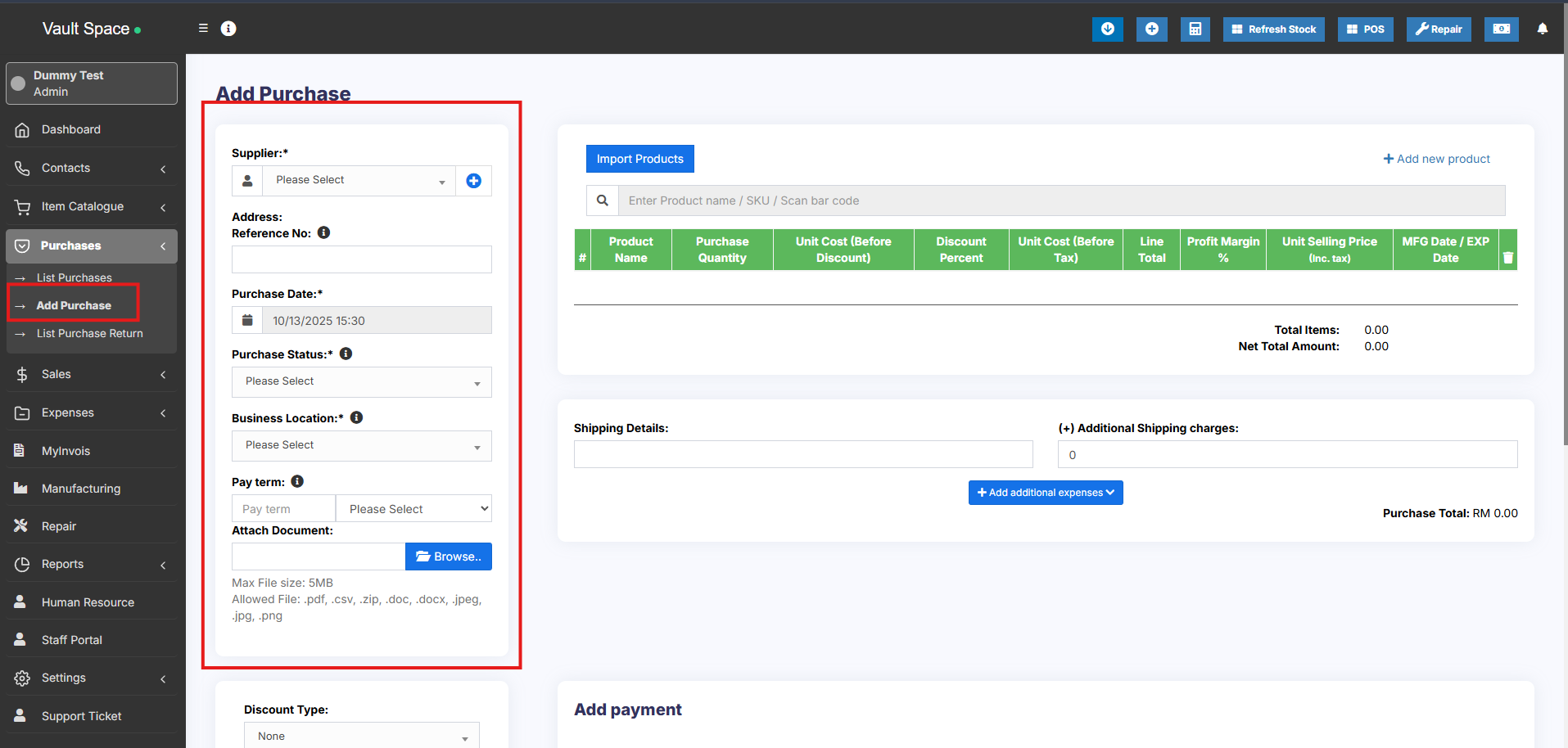
1. Go to – Purchases -> Add Purchases
2. Type Supplier Name or Business name in the Supplier field. If the supplier doesn’t exist you must add them from Contacts -> Suppliers -> Add
3. Enter Purchase reference number, Purchase date & Order Status.
4. **Select Business Location**: Select a location where you want to add the purchase. You can add a new Location from Settings -> Business Locations.
5. Type product name or scan the product barcode number. It will show related matched products, select a product to add it to the purchase list.
6. On adding a new product you can enter purchase quantity, purchase price, and tax information.
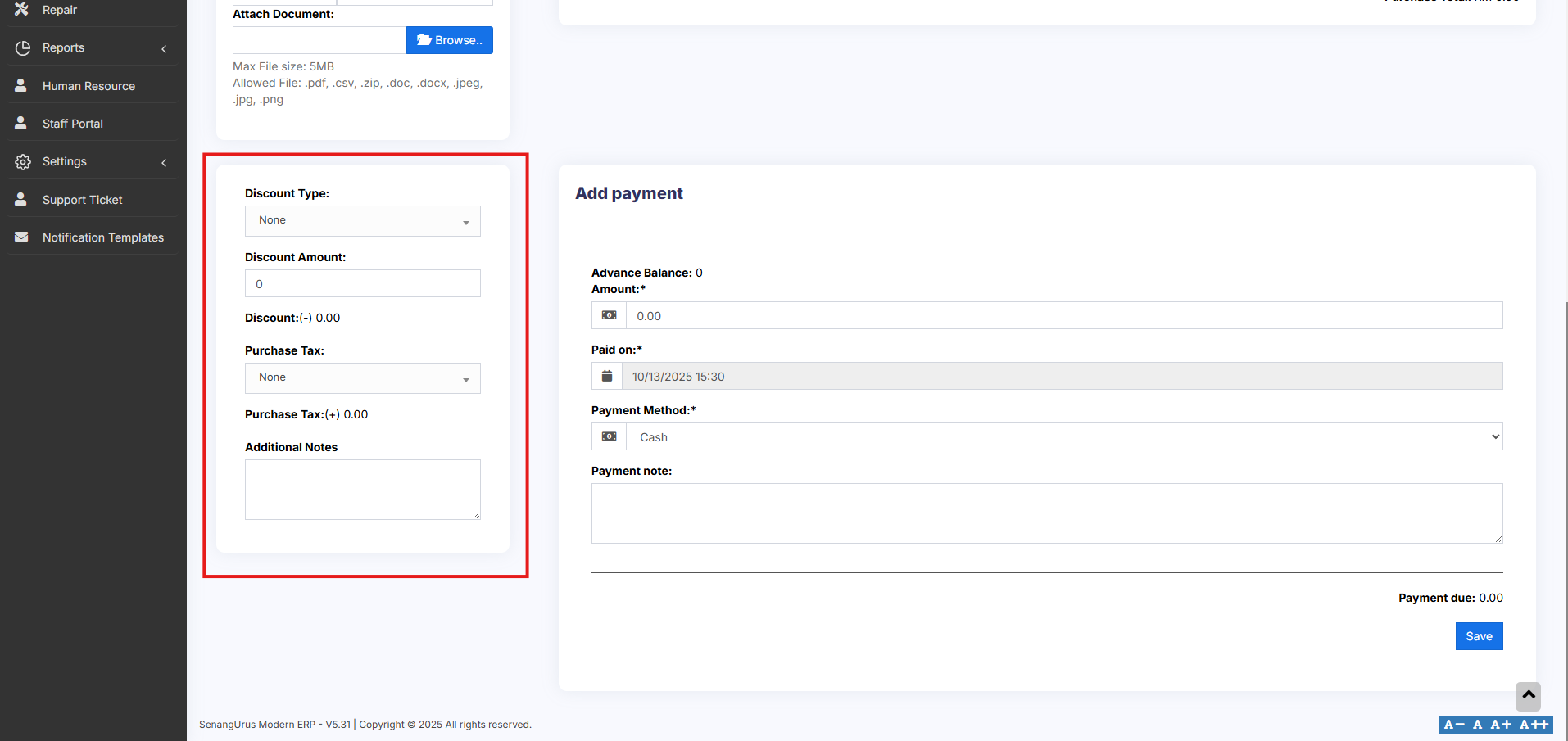
7. **To add a discount**: Select the discount type (fixed or percentage) and enter the amount. ultimatePOS will auto-calculate the amount after discount.
8. Enter purchase tax, Shipping Details, Additional Shipping charges, Payment status, & Additional notes.
[](https://docs.senangurus.com/uploads/images/gallery/2025-10/qYuimage.png)
[](https://docs.senangurus.com/uploads/images/gallery/2025-10/gIzimage.png)
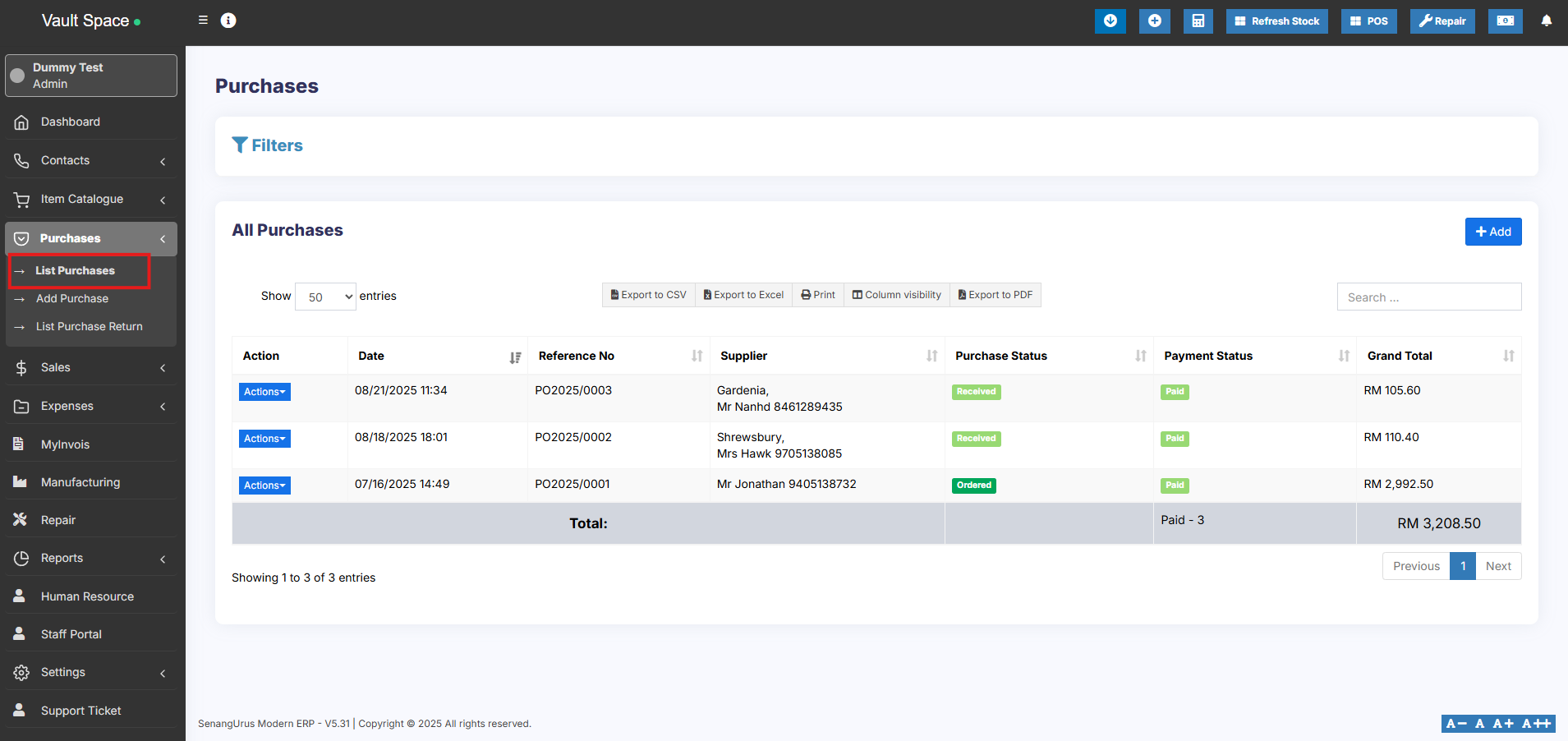
You can view the list of purchases from Purchases -> List Purchases.
[](https://docs.senangurus.com/uploads/images/gallery/2025-10/IHfimage.png)
You can Print Labels for your purchase by Clicking “Print Labels” in List Purchases screen.
See details on printing Labels [here](https://docs.senangurus.com/books/senangurus-business/page/printing-labels).
### No matching product found
This error will be displayed in 3 conditions:
1. **Reason 1:** There are no products matching the name or SKU which you have entered. Check it once in the list products.
2. **Reason 2:** Check the business location selected in add purchase have that product. So if the business location is Location-1, then in add/edit product the product must be assigned to that location. Check More here in [Add/Edit Products](https://docs.senangurus.com/books/senangurus-business/page/products-management)
3. **Reason 3:** Make sure the product has **Stock-Management ENABLED** in Add/edit product. If stock management is not enabled in products then it won’t show in the add/edit purchase.
### Difference between Default Purchase Price and Current Purchase Price:
Sometimes, the purchase price shown in **View Product** may differ from the value in reports where *current stock by purchase price* is calculated.
This difference occurs because the **Default Purchase Price** and the **Current Purchase Price** are not always the same.
#### **Default Purchase Price**
- The purchase price entered when the product is first added.
- Displayed in the **View Product** page.
- Remains the same unless updated manually.
#### **Current Purchase Price**
- The most recent purchase price based on your latest purchase entry.
- Can vary over time depending on market changes or supplier costs.
- Used in the **Current Stock Value by Purchase Price** report for calculation.
**Example:**
- Last month’s steel purchase price(when product is first added to the system) : **$120**
- This month’s steel purchase price: **$125**
- **View Product** shows: **$120** (default purchase price)
- **Stock Value Report** shows: **$125** (current purchase price)