For services (e.g., **Repairing**, **Haircutting**, **Web Development**), stock management is not required.
When stock management is disabled, the product can be sold in unlimited quantities.
**Step 8: Select Business Location(s)** - Choose the **Business Locations** where this product will be available for sale or purchase. [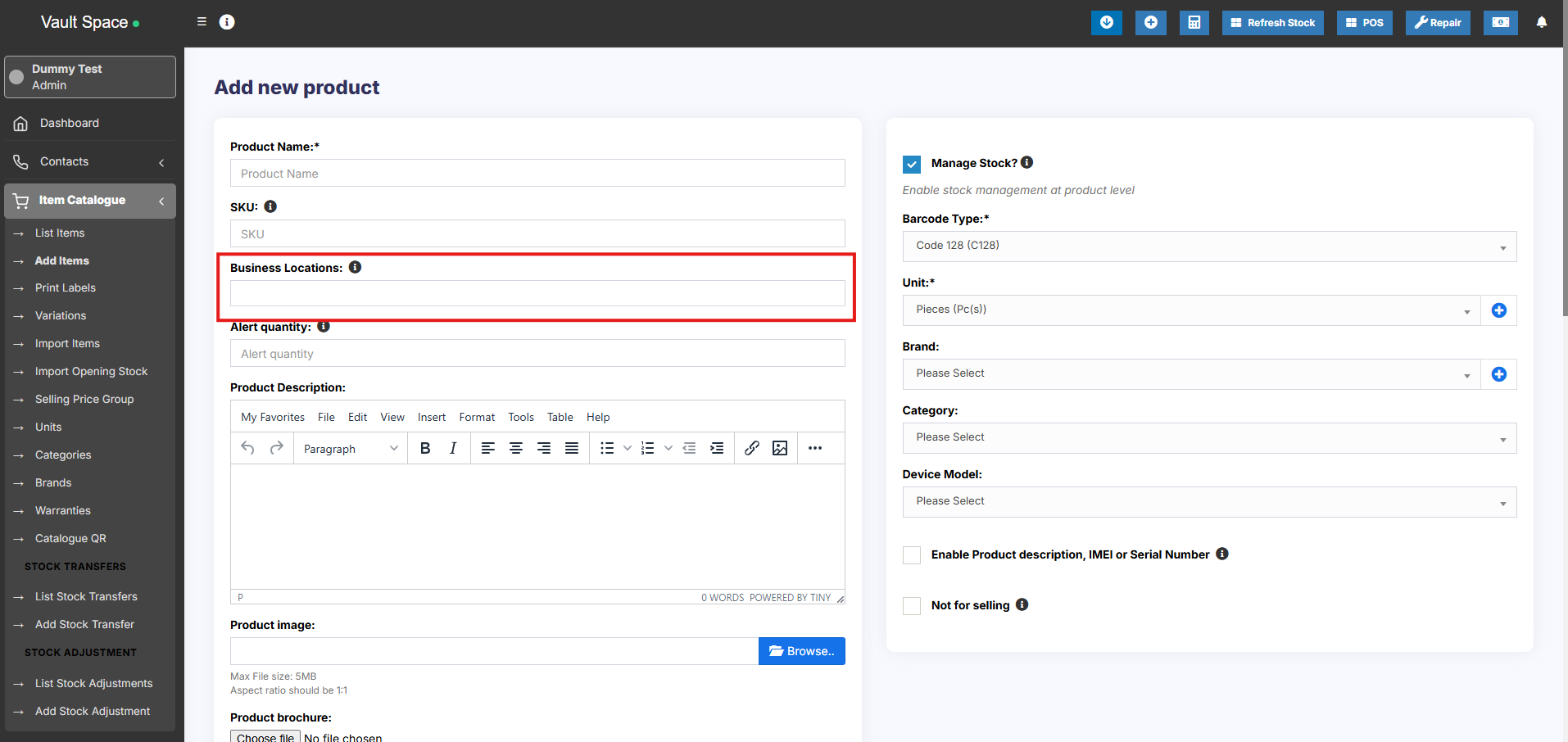](https://docs.senangurus.com/uploads/images/gallery/2025-10/39oimage.png) **Step 9: Set Applicable Tax** - Select the **Applicable Tax** (e.g., GST, VAT) for this product. [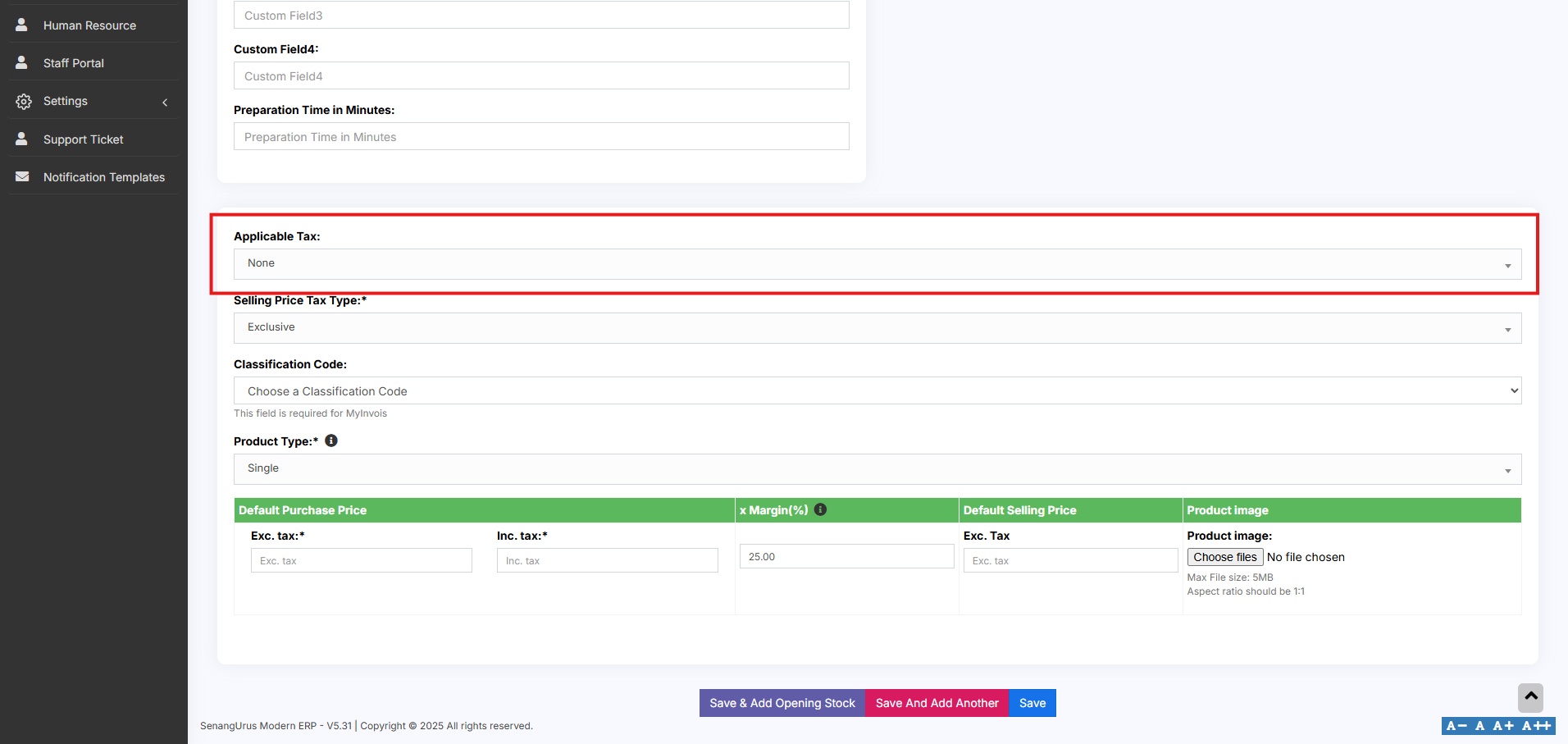](https://docs.senangurus.com/uploads/images/gallery/2025-10/yDWimage.png)Make sure tax rates are configured in the system beforehand.
**Step 10: Choose Product Type** - Select the appropriate **Product Type** (e.g., Single, Variable, Combo) based on your inventory structure. [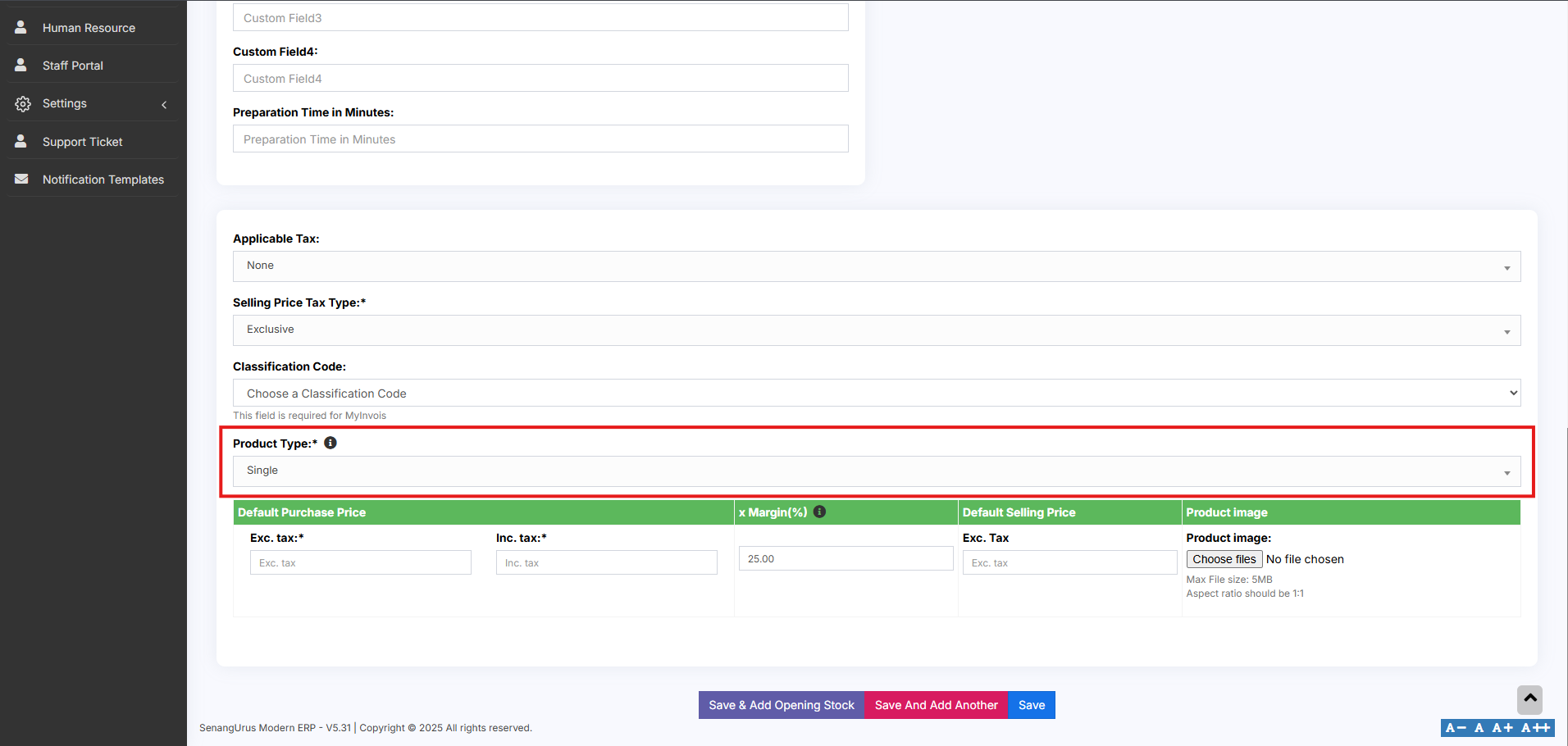](https://docs.senangurus.com/uploads/images/gallery/2025-10/6E7image.png) Now click on the save button to add the product. ### **Single Product:** The **Single Product** type is applicable for items that do **not have any variations** (e.g., size, color, weight). Follow the steps for adding the product as mentioned above, then follow the steps given below **Step 1: Select Product Type** - Choose **Single** as the **Product Type**. [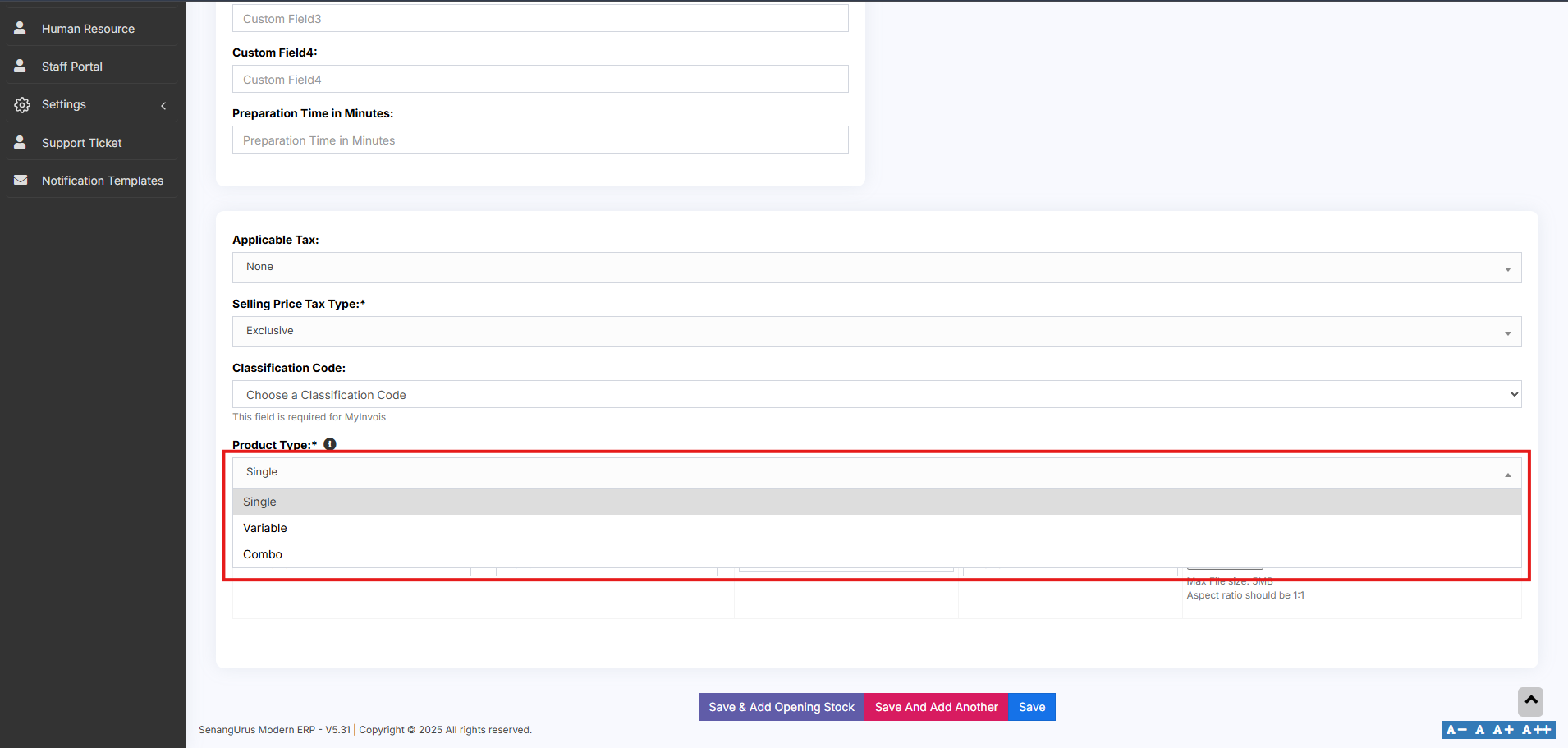](https://docs.senangurus.com/uploads/images/gallery/2025-10/72eimage.png) **Step 2: Enter Pricing Details** You will need to provide the following: - **Default Product Price** – This can be entered **inclusive** or **exclusive** of tax based on your business preference. - **Profit Margin %** – Enter the desired **Profit Margin** (e.g., 20%). [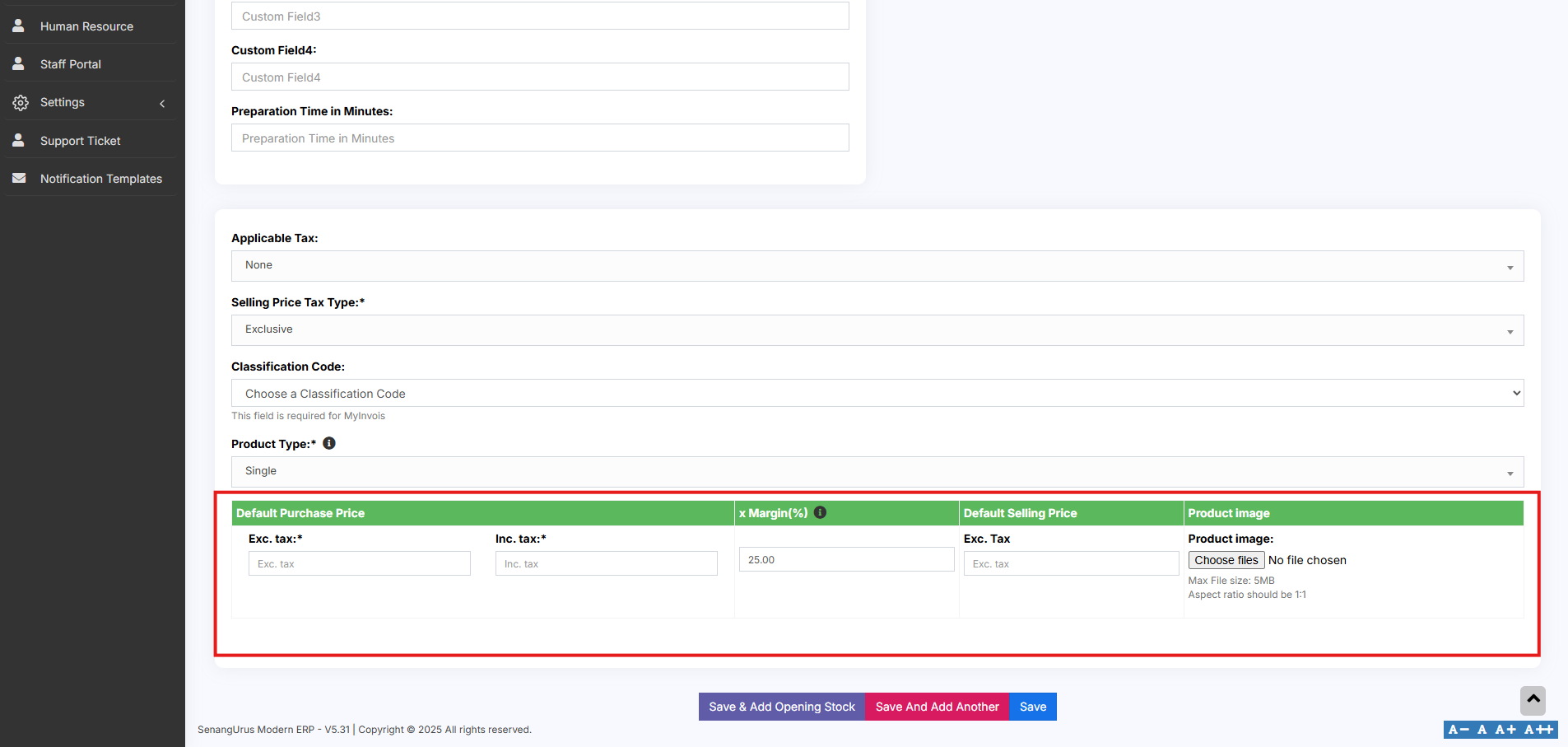](https://docs.senangurus.com/uploads/images/gallery/2025-10/DBwimage.png)You can set a **default profit margin** in **Settings → Business Settings** to avoid entering it every time.
**Step 3: Auto Calculation of Selling Price** - The system will **automatically calculate the Selling Price (excluding tax)** based on the profit margin and default cost price. **Step 4: Manual Price Adjustment (Optional)** - You can also **manually enter the Selling Price**. - The system will then **auto-adjust the profit margin** based on the entered value.This flexibility ensures that pricing can be either profit-driven or fixed-price as needed.
### **Variable Product:** The **Variable Product** type is used for products that come with **variations**, such as **size**, **color**, **design**, **flavor**, etc. [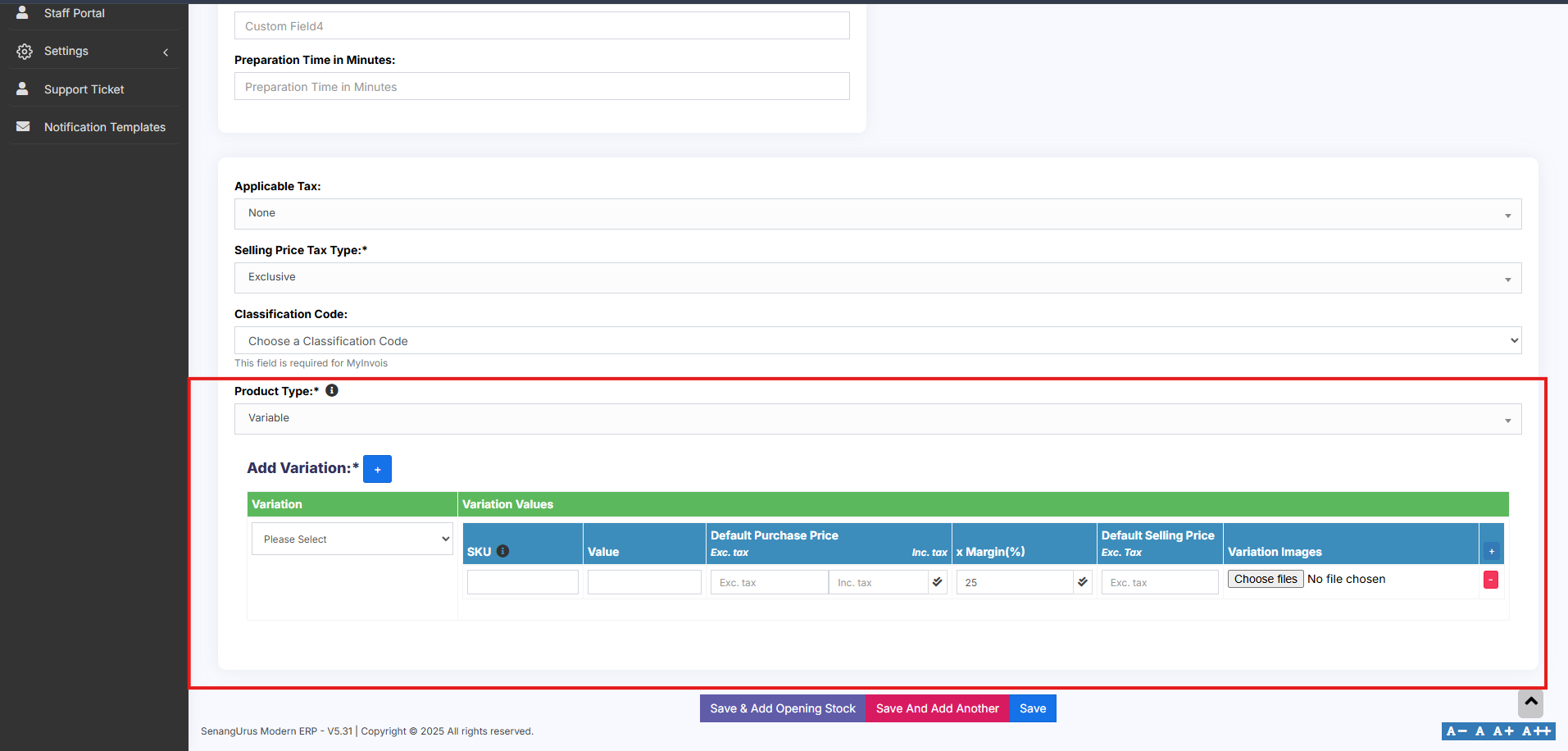](https://docs.senangurus.com/uploads/images/gallery/2025-10/zCAimage.png) Follow the steps for adding the product as mentioned above, then follow the steps given below for adding variable type **Step 1: Use for Products with Variations** - Select **Variable** as the **Product Type** when a product has one or more attributes that vary. **Step 2: Define Variation Templates** - Create and manage **Variation Templates** from **Products → Variations**.Templates save time by allowing you to reuse common sets of variations (like Small/Medium/Large or Red/Blue/Green).
**Step 3: Add Product Variations** - Once you select **Variable Product**, additional fields will appear for entering variation-specific details. - From the **dropdown**, choose the desired **Variation**. - The system will **auto-populate** the variations values based on the selected variation. **Step 4: Apply Purchase Price, Selling Price, or Profit Margin** - Enter the **Purchase Price**, **Selling Price**, and **Profit Margin** for each variation. > To apply the **same Purchase Price**, **Selling Price**, or **Profit Margin** across all variations, follow the steps below: - Click on the **double tick icon** located next to the first variation entry. - This will copy the entered values to all variations instantly. For detailed steps on creating and managing variations, refer to the [adding variations](https://docs.senangurus.com/books/senangurus-business/page/variations) document. ### **Combo or Bundle Product** Combo Products, also known as Bundle Products, are used to combine multiple individual products into a single product. For example, a **“Computer Set”** can be created as a bundle that includes: - - 1 PC Monitor - 1 PC CPU - 1 PC Keyboard - 1 PC Mouse > When a customer buys the **Computer Set**, they receive all of the above components as part of one product. **Stock Calculation for Combo products.** - The available stock for a bundle depends on the **lowest available quantity** of any individual product in the combo. - **Example:** - PC Monitor: 5 - PC CPU: 4 - PC Keyboard: 10 - PC Mouse: 50 - Stock of **Computer Set** will be **4**, based on the product with the lowest quantity (CPU). **Stock Management on Sale** - When a **Combo Product** is sold, the stock of **each individual product** in the bundle is automatically **deducted**. - This ensures accurate inventory tracking for all bundled items. **Selling and Purchasing Rules for Combo products** - **Individual Products** in the bundle can still be sold **separately**. - **Combo Products cannot be purchased** directly from suppliers. Only the **individual products** within them can be purchased. [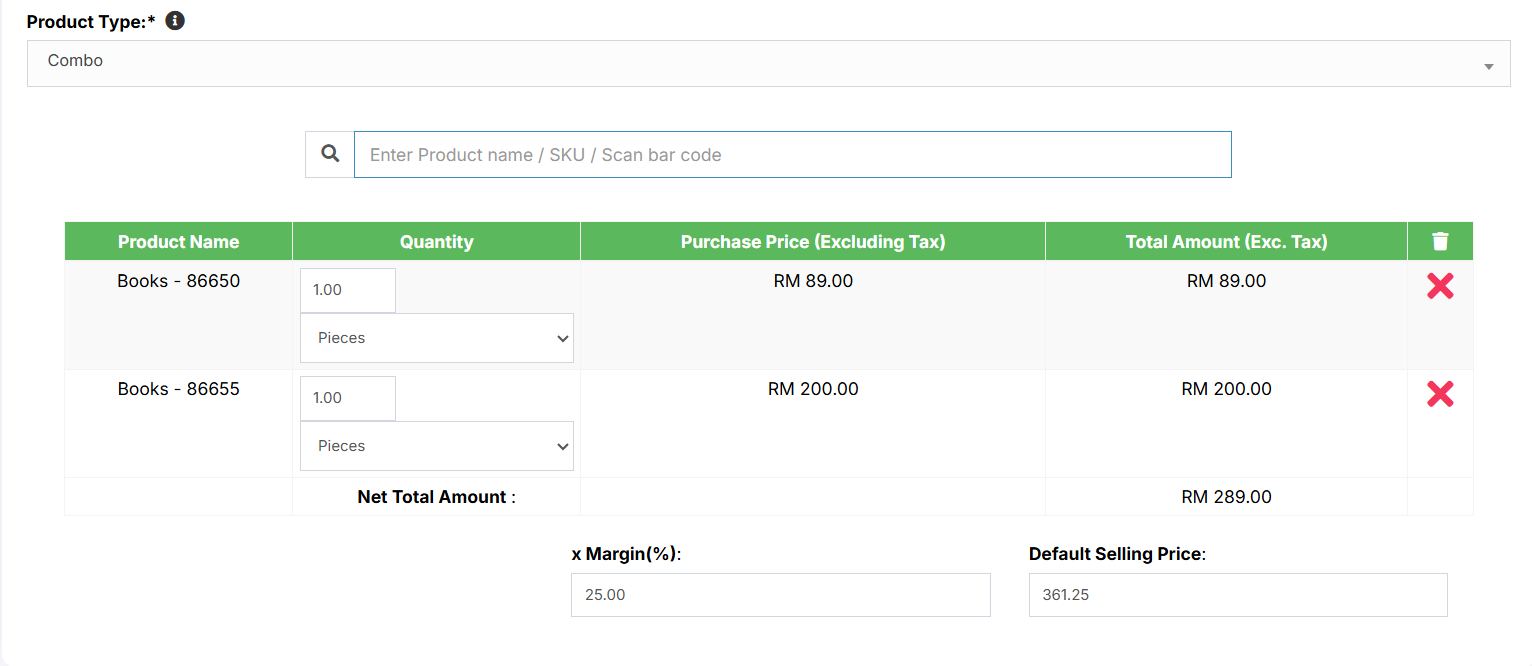](https://docs.senangurus.com/uploads/images/gallery/2025-10/fFpimage.png) Adding a bundle product ### **Adding a Combo or Bundle Product** Follow the steps for adding the product as mentioned above, then follow the steps given below **Step 1: Select Product Type** - Choose **Combo** as the **Product Type**. **Step 2: Select Products for the combo** - Select the required products that are to be sold as a combo and add the required quantity for each product. Now save it # Adding Products with multiple variations: If you have products with **multiple variations** (e.g., a shirt that has both **color** and **size**), there are a couple of effective ways to manage them in the system: **Solution 1: Create a Combined Variation** To create combined variation follow these steps - Create a variation with a combined name such as **“Color-Size”**. - Add combined variation values like: - **Red-Small** - **Red-Medium** - **Red-Large** - **Blue-Small**, etc. - While adding the product (e.g., **Shirt**), select this **combined variation**.This method is simple and works well when all combinations are fixed and known.
**Solution 2: Create Multiple Products** To create multiple products follow these steps - Create separate products for each main variation (e.g., **Shirt-Red**, **Shirt-Green**, **Shirt-Blue**). - For each of these, add **size** as the second variation (e.g., Small, Medium, Large). - Once you’ve added the first product (e.g., **Shirt-Red** with sizes), use the **Duplicate Product** action to create other color variants without re-entering all data.This method provides flexibility when dealing with larger sets of unique combinations and allows better inventory control.
### Select Required variations: When adding a **Variable Product**, you can choose **only the required variation values**. Follow the steps given below 1. On the **Add/Edit Product** screen, select the **Product Type** as **Variable**. 2. Select the **Variation Name** (e.g., **Color** or **Size**). 3. A **dropdown** will appear, allowing you to pick **specific variation values** applicable to that product. [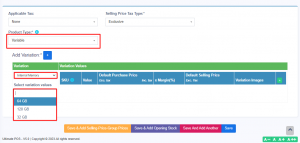](https://ultimatefosters.com/wp-content/uploads/2018/01/variationvalues.png)This option is available only in POS version 5 and above.
### Changing **Default** SKU length for Products: To change the length of auto-generated SKUs follow the steps: - Open the file: `pos/app/Utils/ProductUtil.php` - Search for the function: `generateProductSku` - Modify the default value from **4** to your desired SKU length ### Assigning/remove locations of multiple products at once: 1. Go to List Products and select the required products. 2. You can find two button at the end of the list. 3. To Add products to a location, click on **Add to Location** button and select the location. 4. Similarly to remove products from a location, click in **Remove from Location** button and select location to be removed. [](https://docs.senangurus.com/uploads/images/gallery/2025-10/assignproduct.png) ### Deactivating & Activating Product: 1. Go to List Products and select the required products. 2. You can find a button at the end of the list. 3. To Deactivate products, click on **Deactivate Selected** button to deactivate the selected products. 4. To later Activate the deactivated products in step 3, click on **Actions** button of the product deactivated and click on **Reactivate** option. [](https://docs.senangurus.com/uploads/images/gallery/2025-10/deactivatingproduct.png) ### Using Product barcode: **Question:** How can we use the product’s barcode instead of creating and printing new for every product? How can we use the brand’s barcode of the product instead of creating and printing new for every product? **Answer:** When creating a product, in the SKU field enter the barcode number of the product. This barcode will be used to identify the product in all screens like POS, Sales, purchases, reports, and others. ### How to add a product that already has a Barcode? Adding products that already have a barcode, follow the same steps as adding any other products. 1. Go to add products 2. Fill in all the product details 3. **IMPORTANT:** in the SKU field scan or enter the barcode of the product. ### Adding product quantity or adding product stock For systematically managing your business, product quantities can be added in 3 ways: 1. [Adding Opening stock](https://docs.senangurus.com/books/senangurus-business/page/opening-stock) 2. [Adding purchases](https://docs.senangurus.com/books/senangurus-business/chapter/purchases) 3. Manufacturing product: Useful for manufacturers, required [manufacturing module.](https://ultimatefosters.com/recommends/manufacturing-module-ultimatepos/ "Manufacturing module for UltimatePOS") ### How to Add Products from One Business to Another or Bulk Import Existing Products into a Newly Installed System To transfer products between businesses or import existing products in bulk into a new POS system, follow these steps: 1. Use the **Download Excel** feature in the **List Products** section to export the product list. 2. Open the downloaded file and ensure that all data is correctly formatted. 3. Use the **Import Products** feature to upload the exported data into the POS system. **Note:** When importing, make sure to copy and enter the data into each column provided in the downloaded Excel file according to the **Import Product Template.** ### Video Demonstration: