# Product Units
Different Products have different units. SenangUrus Business allows you to add different units for products.
### Adding Units
1. Go to Units
2. Give the unit name, a short name, and choose if want the unit to allow decimals.
Example:
**Name**: Meter
**Short name**: Mtr.
**Allow Decimal**: Yes.
[](https://docs.senangurus.com/uploads/images/gallery/2025-10/RPfimage.png)
Allowing decimal allows you to purchase/Sell the product in decimal and vice-versa.
### Multiple Units:
This can be useful if you purchase products in a different unit and sell it in a different unit.
For example: Purchase in dozens and sell in pieces.
Or purchase in boxes and sell in pieces.
**Steps:**
1. Add the lower unit from Add Unit Screen. For example pieces.
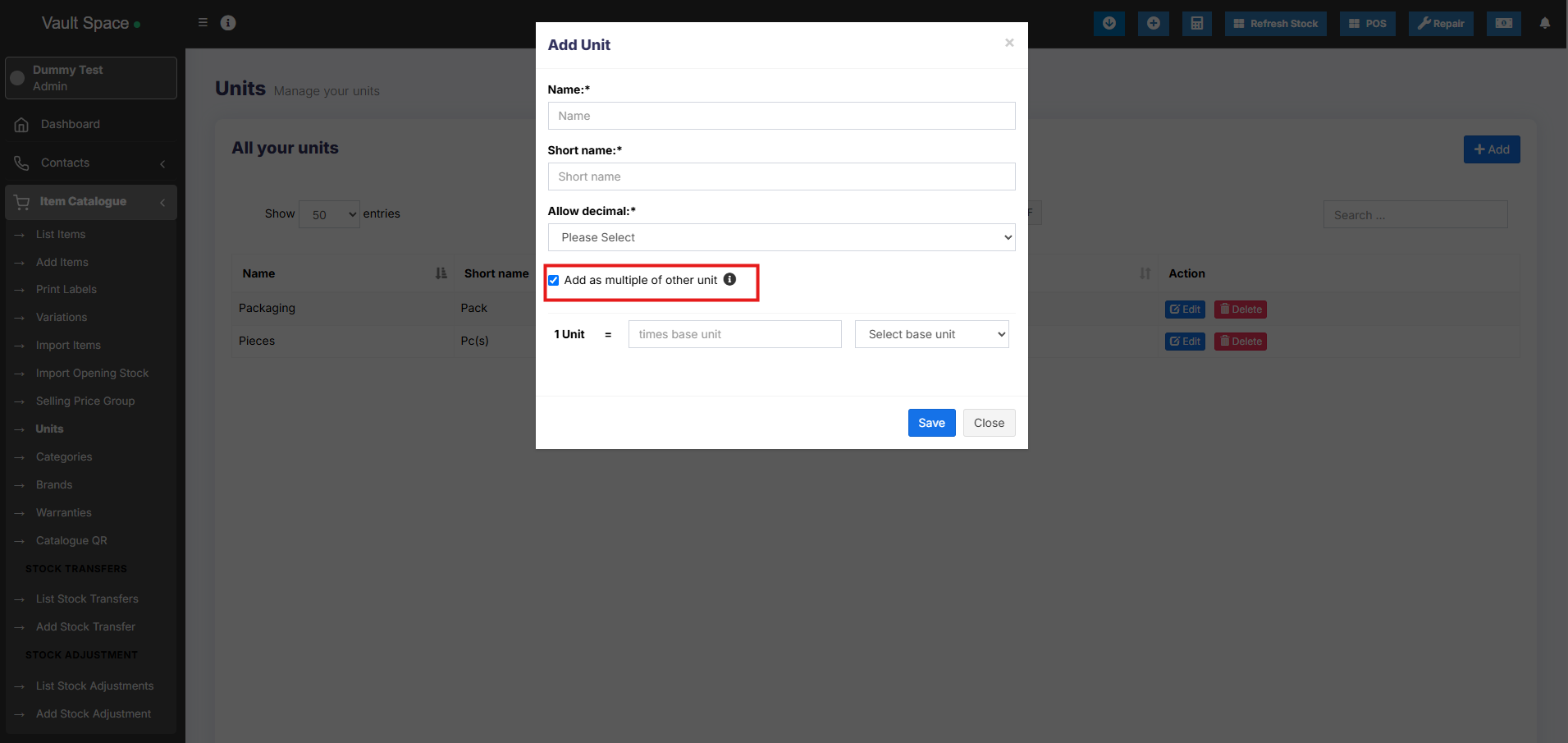
2. Add the higher unit as per the screenshot:
- Check “Add as multiple of another unit”
[](https://docs.senangurus.com/uploads/images/gallery/2025-10/sVCimage.png)
- Provide the conversion Details.
3. Use the unit in Add/Edit Product. While adding/editing purchase/ sale you can see the dropdown for units. Select the desired unit and it will change the unit purchase/sales price accordingly.
**NOTE**: You will not see the main Units (Dozen in this example) in the Add-Product Unit dropdown, select piece as the unit of product. All purchases/sales get saved in the lower unit (pieces in the above example). So after adding purchases/sales if you edit the conversion details, it will affect the purchases/sales quantity accordingly.
### Selecting relevant Sub Units for a product
For some products not all sub-units will be required. Suppose for example you sell Oranges only in Dozens or only in pieces then it will be useful.
Enable it from Business settings ->Products -> Enable relevant sub-units
Now when adding products select the Unit for the products and it will give option to select multiple applicable sub-units. Selecting the sub-units will allow you to do purchases or sales on this selected sub-units.
### Secondary Units:
Secondary units can be added to products. A secondary unit can be used if a particular product’s subunit may vary each time. For example, 1 piece of stone can be 10 kg or 20 kg, or 30 kg.
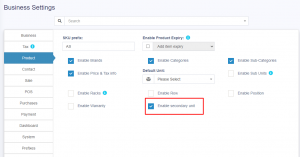
To enable this go to Settings-> Business Settings – > Products.
[](https://ultimatefosters.com/wp-content/uploads/2018/01/enablesecunit.png)
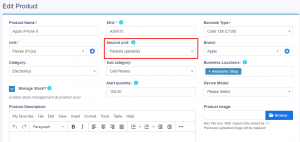
On enabling this, a secondary unit label will be shown in add/edit products screen.
[](https://ultimatefosters.com/wp-content/uploads/2018/01/addeditsecunit.png)
Selecting this product in the purchase/sale/POS screen will also show the secondary unit label.
The details of secondary units for products are shown in the product stock history of that product.
**NOTE**: The secondary unit is not considered for calculation. It is only used for the user’s knowledge of tracking the products with varying subunits.
**NOTE**: Available only in version 4.7.8 and above.