# Lot number
*(Not available in SenangUrus-Enterprise)*
#### [What is Lot Number?](https://en.wikipedia.org/wiki/Lot_number)
### Enabling Lot Number
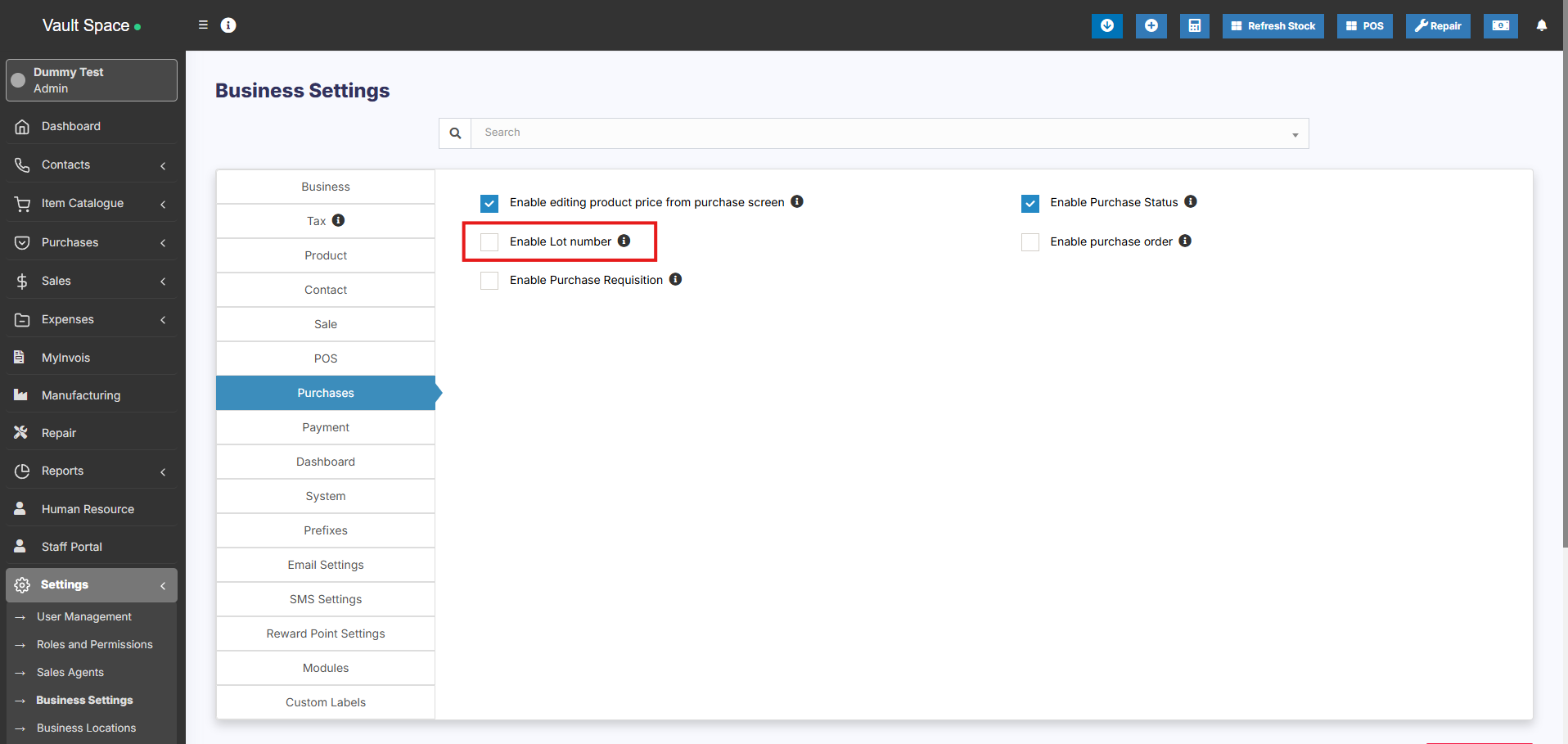
To **enable Lot Number tracking** in the system, follow the steps below:
1. Go to **Settings → Business Settings → Purchases**
2. Check the **Enable Lot Number** checkbox
3. Click **Update Settings** to save the changes
[](https://docs.senangurus.com/uploads/images/gallery/2025-10/JlTimage.png)
Once enabled, you’ll be able to assign **Lot Numbers** during both purchases and opening stock entries.
### Two Methods to Add Lot Numbers
#### Method 1: Adding Lot Number from Purchases
- When adding a **Purchase Entry**, the system will display a **Lot Number** field for each product.
- Enter the **Lot Number** manually during stock entry.
#### Method 2: Adding Lot Number from Opening Stock
- When adding **Opening Stock**, a **Lot Number** field will also be displayed for each item.
- Fill in the appropriate **Lot Number** for accurate tracking.
### Selling products from specific Lot
Refer to the [POS selling documentation](https://docs.senangurus.com/books/senangurus-business/page/pos-screen) Lot number description.
### Displaying product lot number in the invoice
1. Make sure the lot number feature is enabled as mentioned above.
2. Go to invoice layout and enable “Show lot number”
3. If the lot number is added when adding Purchase or Opening stock then when making sales it will display the lot number & product expiry dropdown. Select the lot number which you want to sell. Then in the print invoice, it will show the lot number.