# Label weighing scale
### Label weighing scale integration
A Label weighing scale generates a barcode based on the configuration of Prefix, Product SKU length, Quantity integer part length & Quantity fractional part length.
### Enabling & setting it
To enable weighing scale integration in SenangUrus ERP, do the below settings:
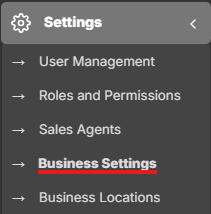
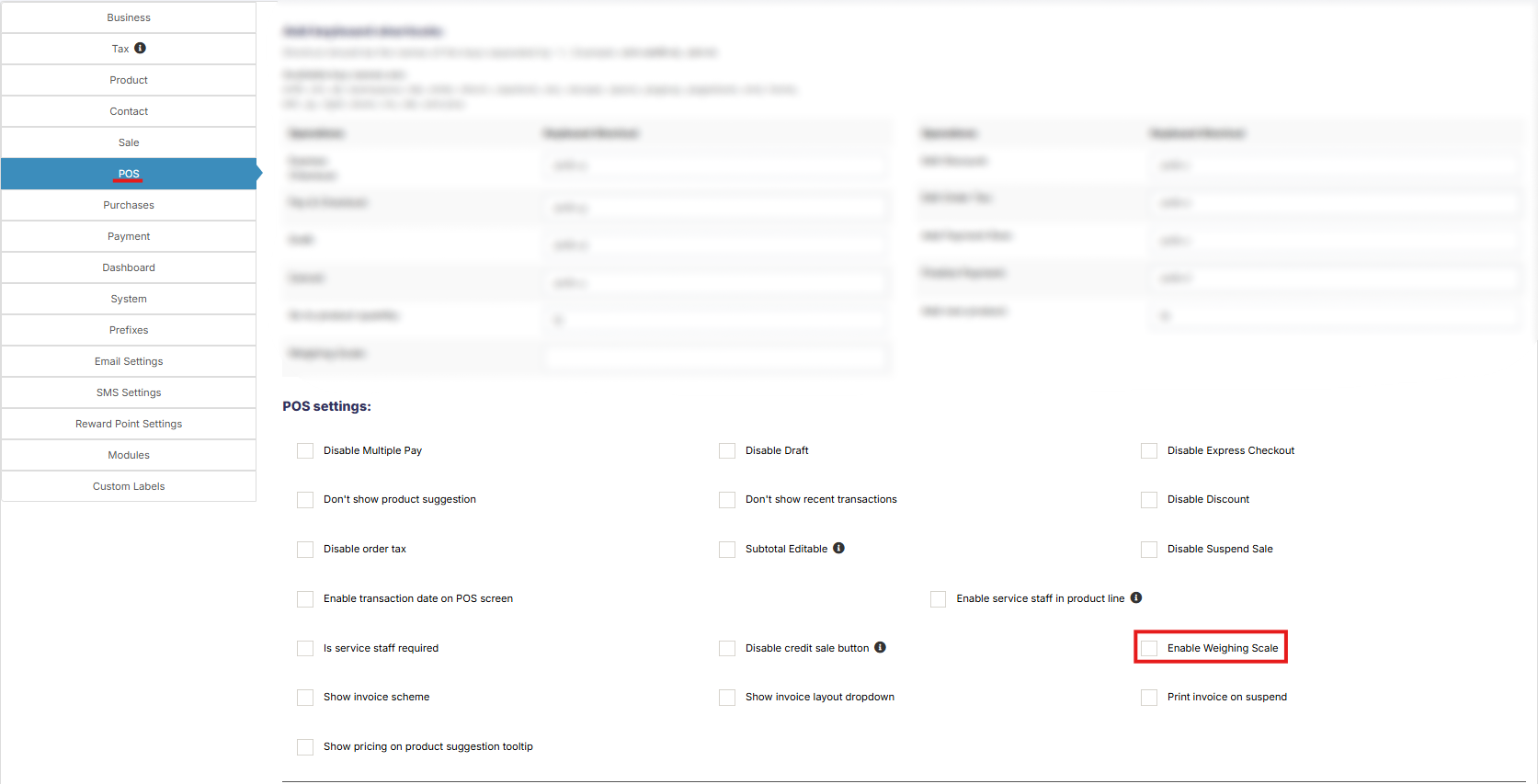
1. Go to **Settings** -> **Business Settings** -> **POS** -> Check **Enable Weighing scale** and save it.
[](https://docs.senangurus.com/uploads/images/gallery/2025-10/f5Fscreenshot-2025-10-13-144405.png)
[](https://docs.senangurus.com/uploads/images/gallery/2025-10/screenshot-2025-10-13-164358.png)
2. Below it provide the setting for the weighing scale.
1. Prefix
2. Product SKU length
3. Quantity integer part length
4. Quantity fractional part length
And save it.
3. Go to the POS screen, click on the weighing scale button present next to the product SKU search field, on clicking, it will open a modal where you can scan/enter the barcode generated by the weighing scale. On Successful match of settings and barcode, the product will be added as per the specified quantity in the barcode.
4. You can add a shortcut key for weighing scale by going to Settings -> Business Settings -> POS