# Import Sale
### Import Sale
To add bulk sales to the system, you can use this feature.
### Steps to import sale:
[](https://docs.senangurus.com/uploads/images/gallery/2025-10/ljKimage.png)
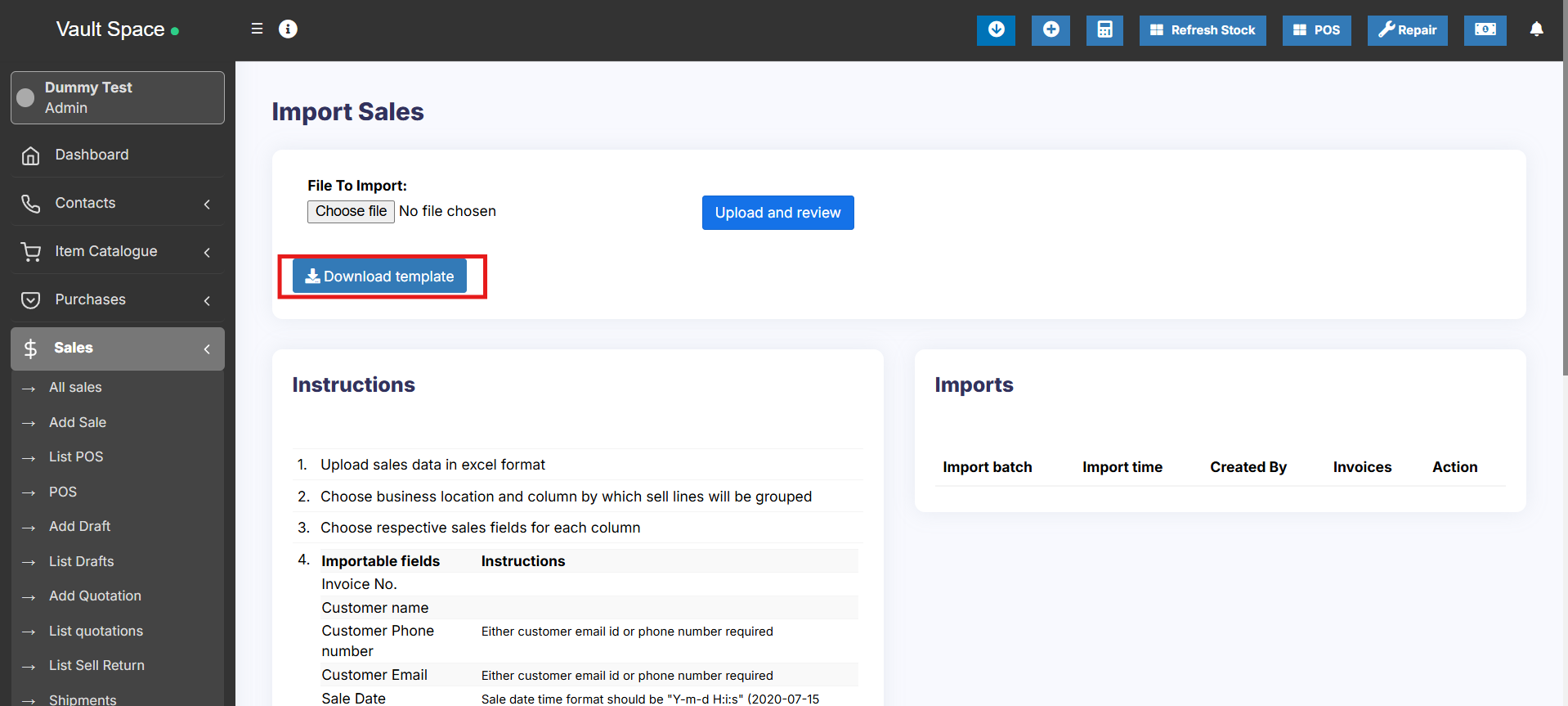
Go to Sale > Import Sale.
Click the ‘Download Template’ button to download the template file.
Once downloaded, open it and add the required details. While adding the details follow the instructions mentioned on the import sale page itself.
Save the excel file and upload it by clicking the choose file button and pressing submit button.
**NOTE:** It may display some error after uploading if some data added in the excel file are not as per mentioned in the instructions.
Change it accordingly and proceed.
### “Group sell line by” field in import sale:
While importing an Excel file for import sale you have to select the option “**Group Sell Line By**“.
This field is used for the system to know which lines need to be in a single sale.
For example, if you add an **Invoice\_Number** column in the Excel import file, then all lines from one sale will have the same **Invoice\_Number**.
In this case, you need to select **Invoice\_Number** option in the **“Group Sell Line By”** dropdown field.
### “**You cannot select a field twice**” Issue and Solution:
You may encounter this issue while you import an Excel file using the Sale Import feature.
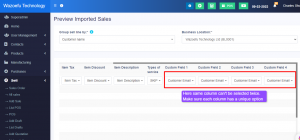
This issue happens when the same option name is chosen for multiple columns in the import table
[](https://ultimatefosters.com/wp-content/uploads/2023/02/importsale1.png)
If you want to remove any column during import, you can select the **SKIP** option in the dropdown.