# Enable or Disable Auto Sending of notifications
### Enabling auto-sending of SMS & Email to customer on New Sales:
[](https://docs.senangurus.com/uploads/images/gallery/2025-10/MBbimage.png)
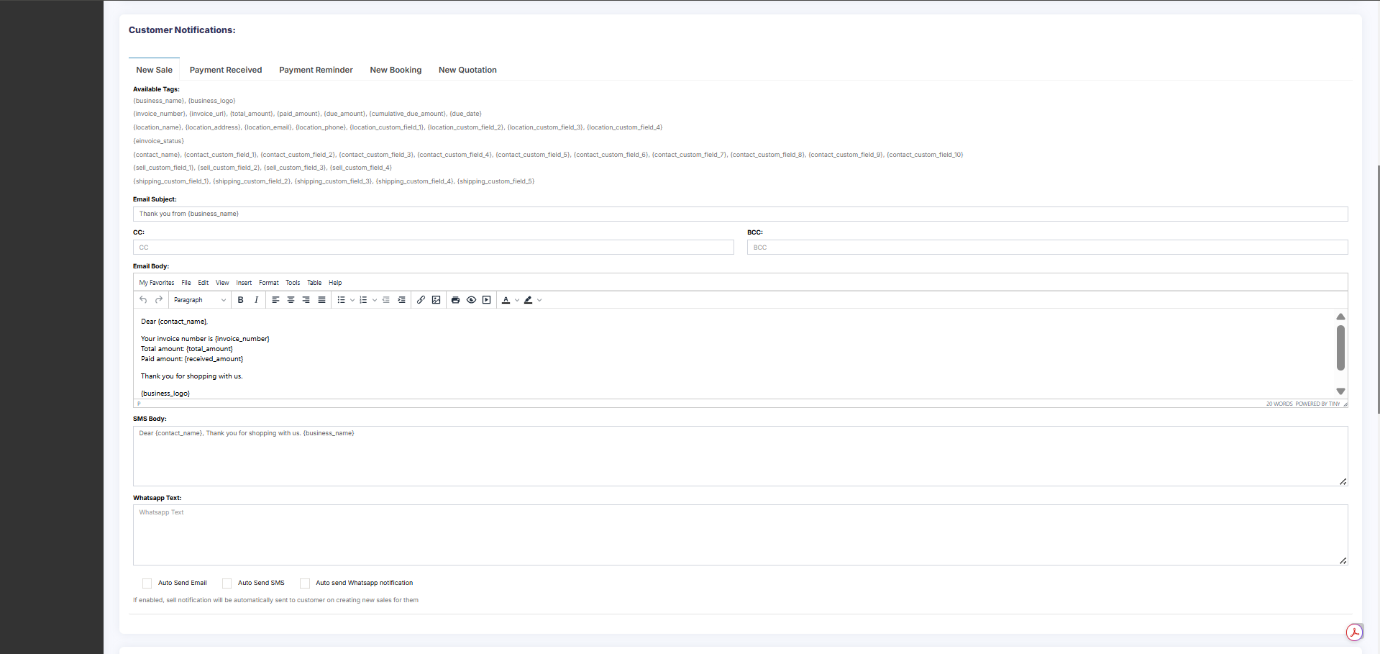
1. First, setup the Email SMTP and/or SMS details in Business settings.
1. [SMS Documentation](https://docs.senangurus.com/books/senangurus-business/page/notifications-settings-email-sms-configuration)
2. [Email SMTP Documentation](https://docs.senangurus.com/books/senangurus-business/page/setting-up-emailsmtp-for-forgot-password-other-email-notifications)
2. Go to **Notification Template**
3. Under **Customer Notification** you will see **New Sales** notification.
4. There you will find the option to enable &
5. Now when ever you make a sales a Email or SMS notification will be send to customer.
If there is any error in Email or SMS configuration then sales will not get submitted, so test it properly.
Email notification will only get send in case the customer have a valid email present
Similarly SMS will only get send if the mobile number is present.
### Enabling auto-sending of Whatsapp Notification on New Sale:
[](https://docs.senangurus.com/uploads/images/gallery/2025-10/autowhatt.png)
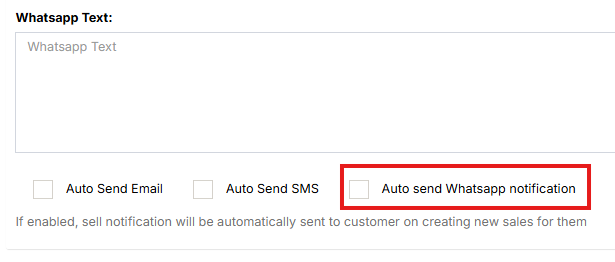
To enable automatic WhatsApp notifications, enable the ‘**Auto send Whatsapp Notification**‘ check box under **Customer Notification > New Sale.**