# Business Settings
Business Settings allows you to set some of the common business-related information.
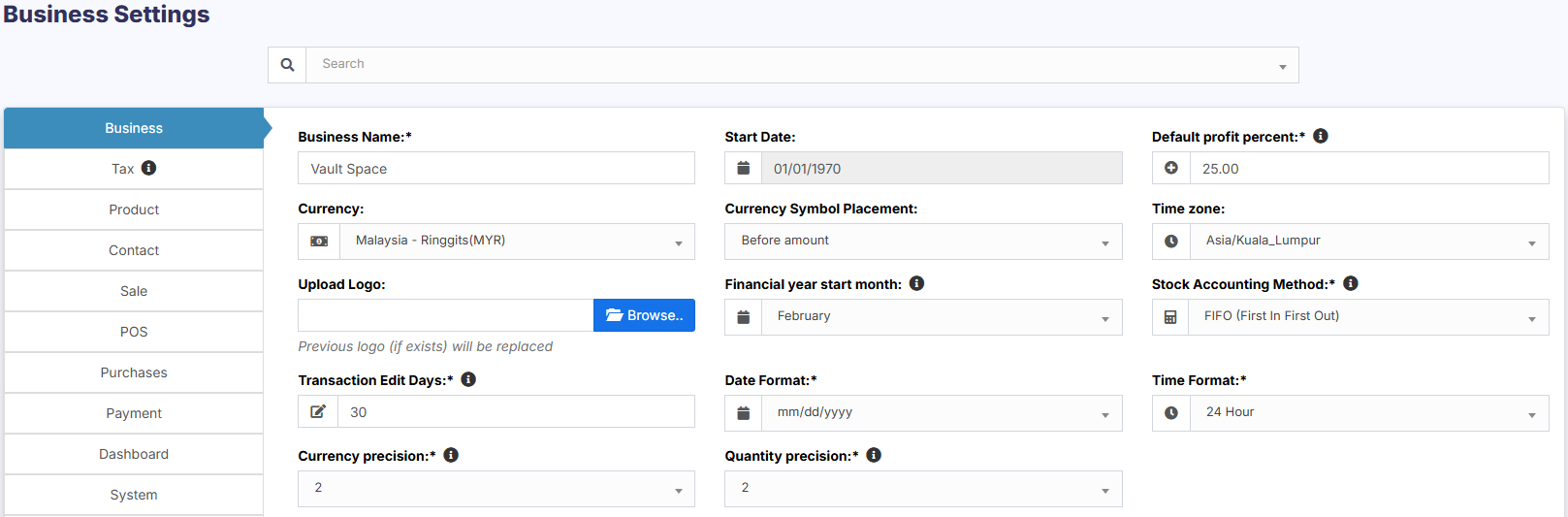
**Here you can change:**
[](https://docs.senangurus.com/uploads/images/gallery/2025-10/Wrkimage.png)
- Business name
- Start Date
- Set Default Profit margin
- Currency
- Timezone
- Logo
- **Financial year**: For some countries, the financial year starts from January and for some it stars on April. Here you can set the appropriate option for your country.
- Tax information
- Product SKU prefix: Enable this feature to generate a prefix for Product SKU. Once enabled, while adding a new product the SKU field with add this prefix along with the input given or if left empty will autogenerate a value along with this prefix.
- Default Sales discount
- Default Sales tax
- **Business Setting** > **Contact** > **Default credit limit**: The credit limit provided here will be used as default value when creating a customer or supplier
- **Business Setting** > **Sale** > **Default Sale Discount**: The default discount will be used for all sales in POS & Add sales screen.
### **Sales:**
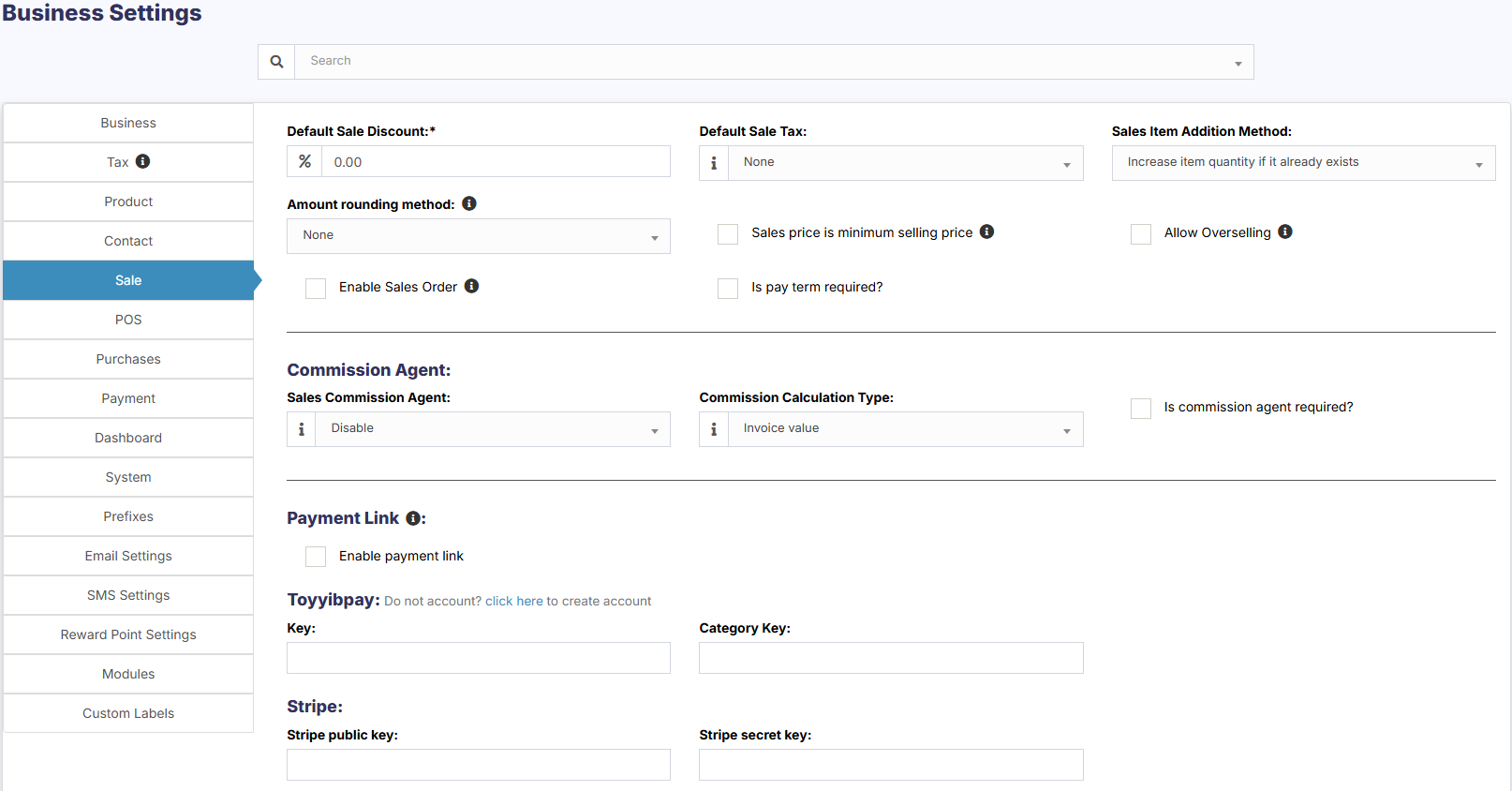
#### Sales Item Addition Method:
1. It has 2 options: “Add item in new row” & “Increase item quantity if it already exists”
2. This option is related to POS & Sales screen when a new product is added.
3. Add item in new row: It will always add a product in new row
4. Increase item quantity if it already exists: If the product already exists in the cart it will increase its quantity else it will add it in a new row.
[](https://docs.senangurus.com/uploads/images/gallery/2025-10/4qPimage.png)
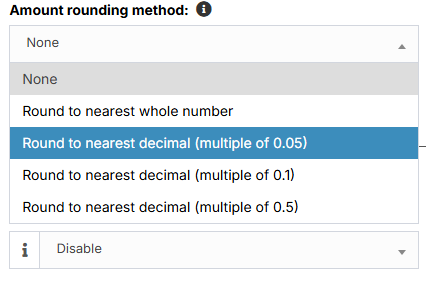
#### Amount rounding method:
The price of the products can be taken as a whole number or as a rounded decimal value by selecting the particular roundoff method. If none is selected the value is taken as a whole number.
[](https://docs.senangurus.com/uploads/images/gallery/2025-10/BW2image.png)
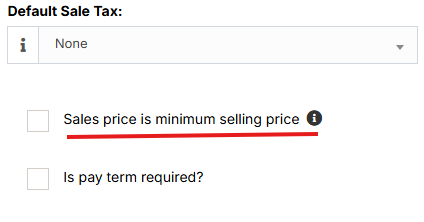
#### Sales price is minimum selling price:
If this option is enabled then the product cannot be sold at a price lower than the selling price set for the product.
It can be sold at a higher price but not at a lower price.
[](https://docs.senangurus.com/uploads/images/gallery/2025-10/K4Limage.png)
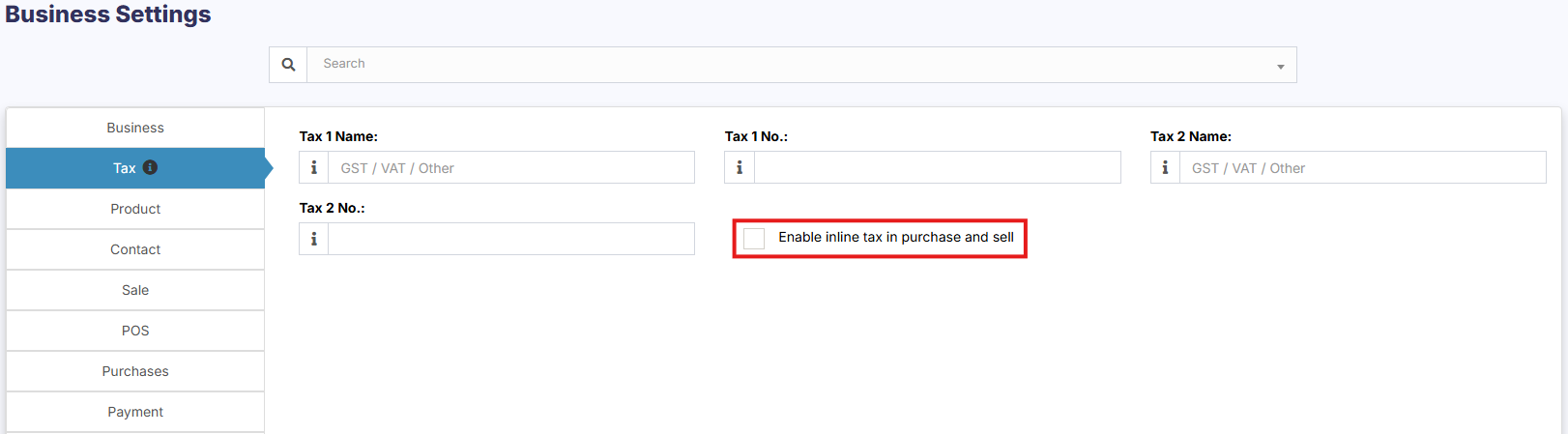
#### Enable inline Tax:
To display the price inc. tax on the POS screen, kindly enable the check box in the Business Settings->Tax.
[](https://docs.senangurus.com/uploads/images/gallery/2025-10/iQBimage.png)
#### Enable Sales Order:
This will enable the [sales order](https://docs.senangurus.com/books/senangurus-business/page/sales-order) feature.
[](https://docs.senangurus.com/uploads/images/gallery/2025-10/screenshot-2025-10-13-221307.png)
#### Default Sale Discount:
The default sale discount can be added to products in **Business Settings** -> **Sale**
[](https://docs.senangurus.com/uploads/images/gallery/2025-10/screenshot-2025-10-13-221552.png)
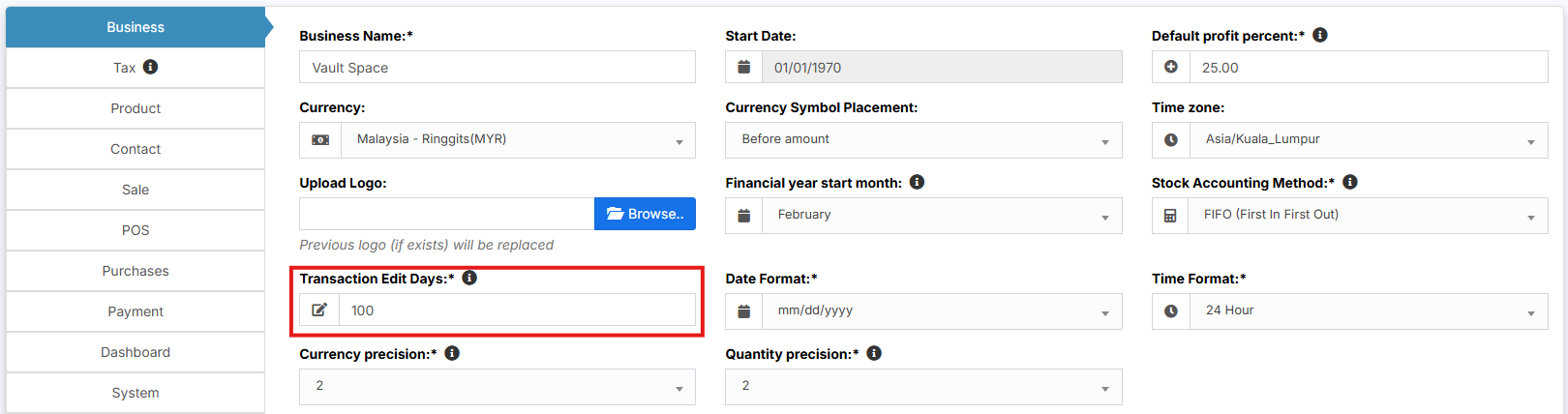
#### Limit for Transaction Edit:
**How to edit transactions for more than 30 days?**
In order to increase the limit for editing the transaction, set the number of days in the business settings.
[](https://docs.senangurus.com/uploads/images/gallery/2025-10/raRimage.png)
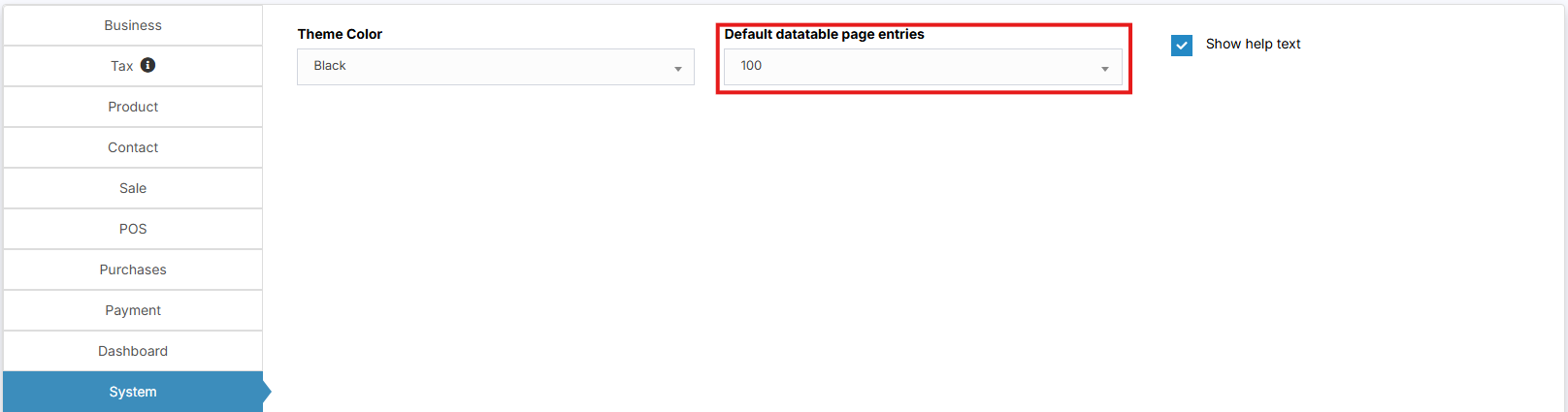
#### Data table Entry Selection:
The default number of entries in the data tables can be selected in Business **Settings** -> **System**.
[](https://docs.senangurus.com/uploads/images/gallery/2025-10/XHTimage.png)
#### Allow Overselling of Products:
In some cases, the products need to be sold even when they are out of stock. In such cases, you can enable the “**Allow Overselling**” Option from the **Business Settings > Sale**.
[](https://docs.senangurus.com/uploads/images/gallery/2025-10/YM8image.png)
This will allow you to add sales for non-stock products.
If the sale is added for products that are out-of-stock using the Allow Overselling Option, then the profit will be calculated as negative for those products.
#### Video Demonstration:
[](https://drive.google.com/file/d/1NO6BTn8O3ejw8MU3Ksx8iouUneaSnaVH/view)