# Tax Settings
# Tax Rates, Tax Groups & Disabling tax
### Tax Rates
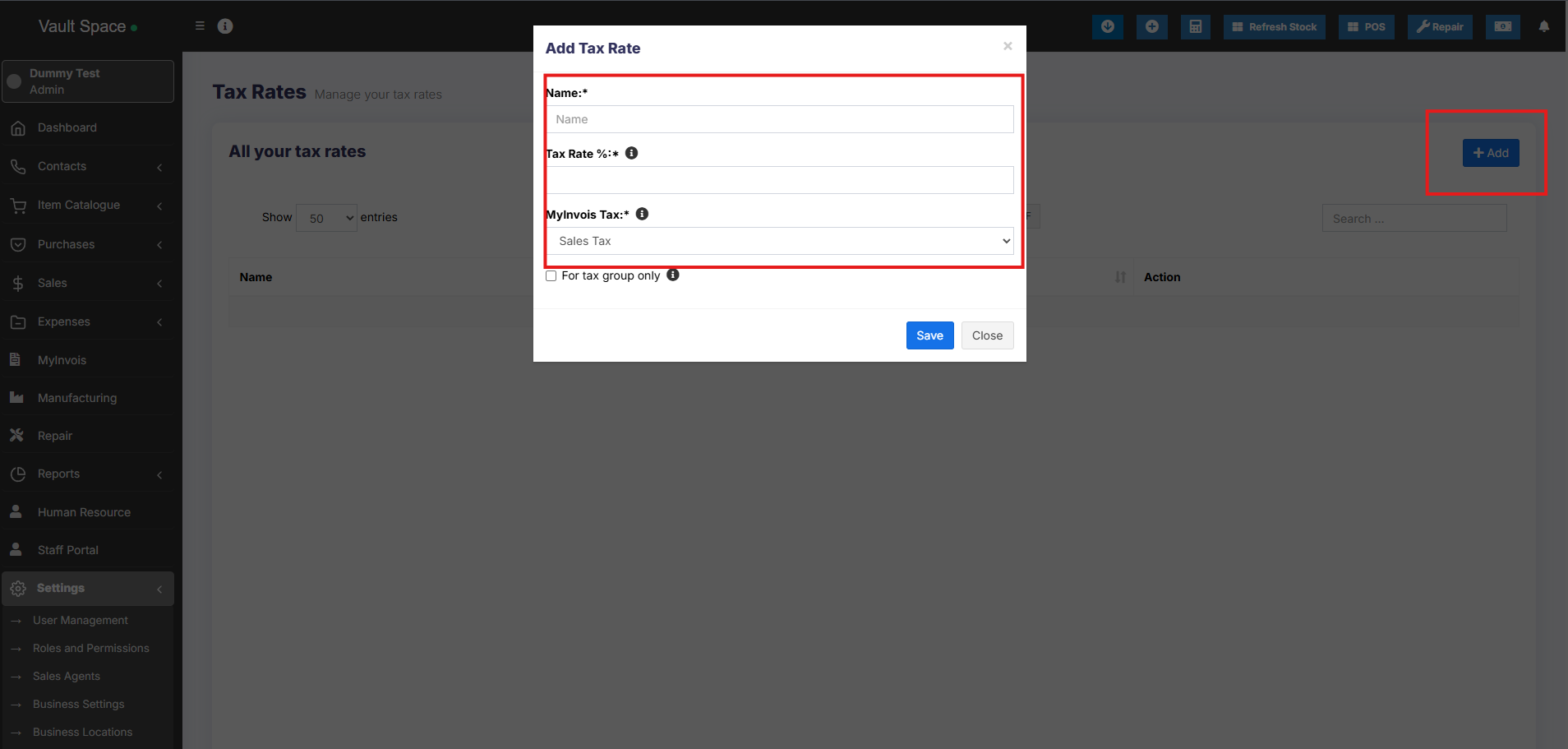
1. To add new tax go to Settings -> Tax Rates -> Add
2. Add a descriptive name (eg: “VAT@5%”) and specify the “Tax Rate%”
[](https://docs.senangurus.com/uploads/images/gallery/2025-10/Gpqimage.png)
### Tax Groups
1. Sometime you will need to apply multiple taxes to an invoice or purchase. So you should create tax groups by combining multiple taxes.
2. To add a Tax Group – Click on Add Button, Give a meaningful name, select the tax you want to use in this tax group.
3. The tax rate of tax group will be the sum of tax rates of Sub-taxes added.
4. If sub-tax is edited the corresponding tax group’s tax rate will also get updated accordingly.
5. You cannot delete a Tax if it is used in a Tax Group.
### Disable Tax
1. Don’t add Tax Rates in settings
2. Go to Settings – Business Settings.
1. Uncheck “**Enable inline tax in** purchase **and sell**“
[](https://docs.senangurus.com/uploads/images/gallery/2025-10/XEOimage.png)
If you disable the inline tax in the purchase and sell, the Price Inc tax column will not be shown in the POS screen.
# Inline tax & invoice tax
## Printing Inline Tax in Product Line in Invoice
Inline tax will be printed in product line only using Detailed Invoice design.
Follow the steps mentioned below
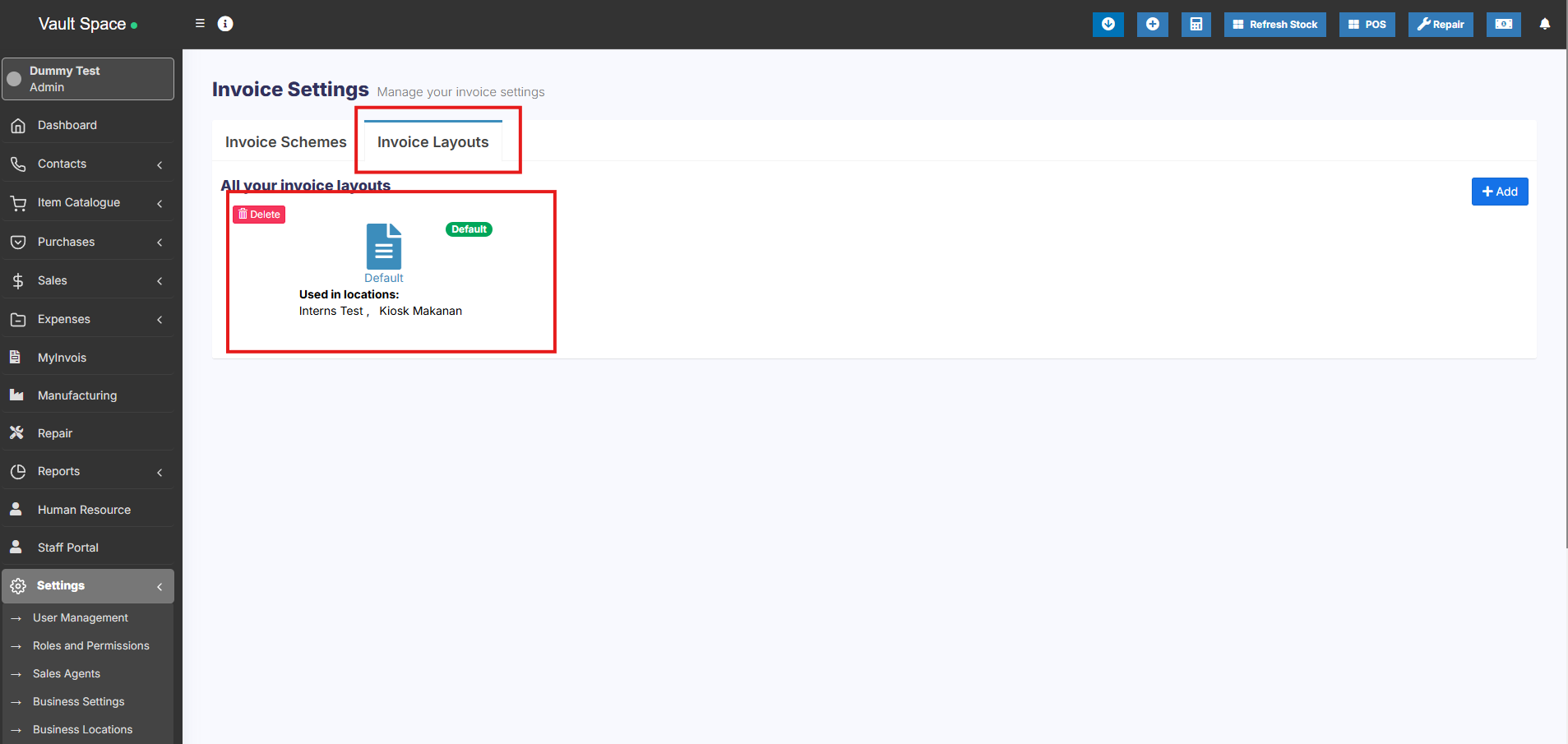
**Step 1:** Go to **Settings > Invoice Settings > Invoice Layout**. Select “**Detailed Invoice**” in the Design Dropdown.
[](https://docs.senangurus.com/uploads/images/gallery/2025-10/oQ2image.png)
**Step 2:** Also enable the **“Tax label”** field in the same invoice layout settings.
**Step 3:** Save the changes. Now if you add the inline tax during a sale, it will be printed on the product line in the invoice.