Tax Settings
Tax Rates, Tax Groups & Disabling tax
Tax Rates
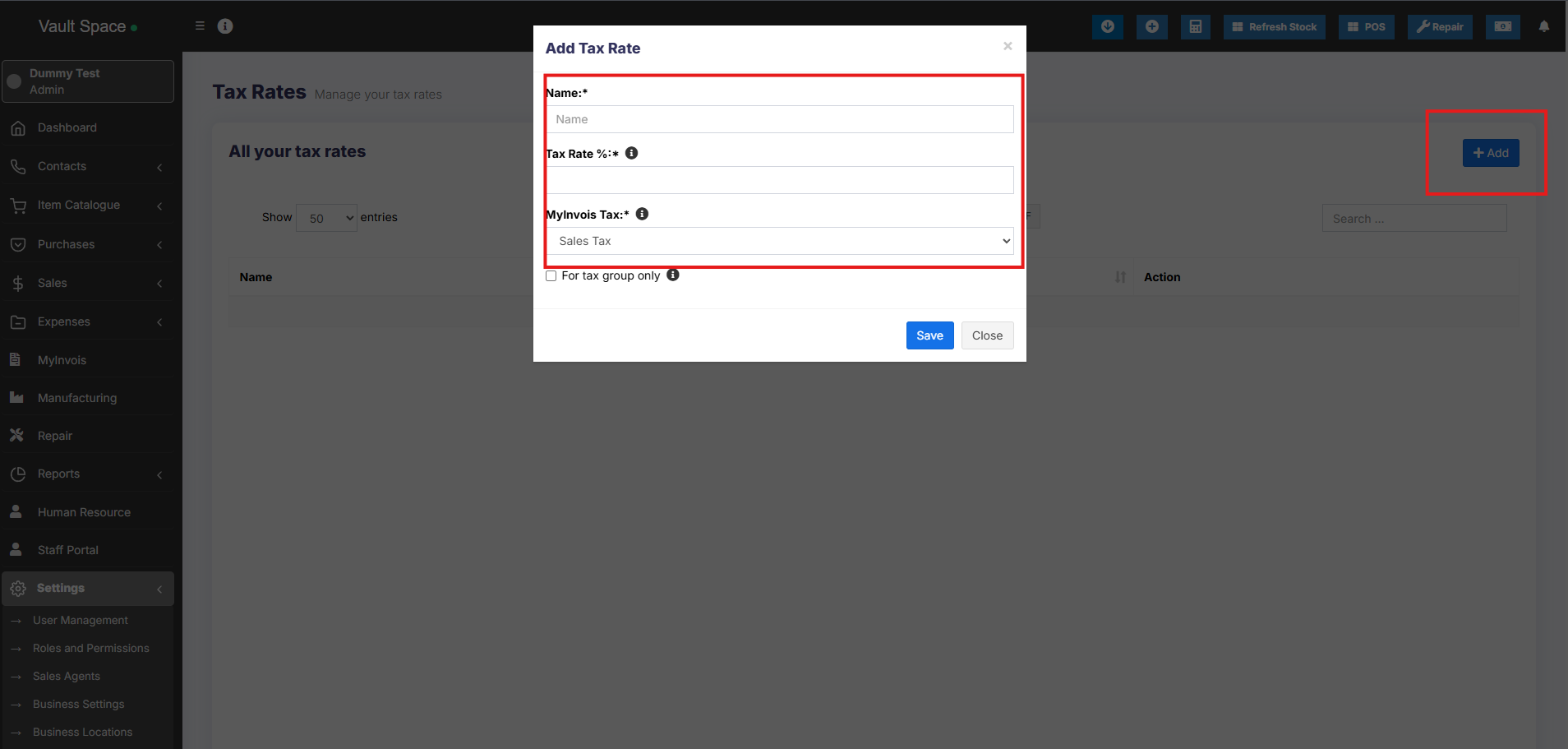
- To add new tax go to Settings -> Tax Rates -> Add
- Add a descriptive name (eg: “VAT@5%”) and specify the “Tax Rate%”
Tax Groups
- Sometime you will need to apply multiple taxes to an invoice or purchase. So you should create tax groups by combining multiple taxes.
- To add a Tax Group – Click on Add Button, Give a meaningful name, select the tax you want to use in this tax group.
- The tax rate of tax group will be the sum of tax rates of Sub-taxes added.
- If sub-tax is edited the corresponding tax group’s tax rate will also get updated accordingly.
- You cannot delete a Tax if it is used in a Tax Group.
Disable Tax
- Don’t add Tax Rates in settings
- Go to Settings – Business Settings.
- Uncheck “Enable inline tax in purchase and sell“
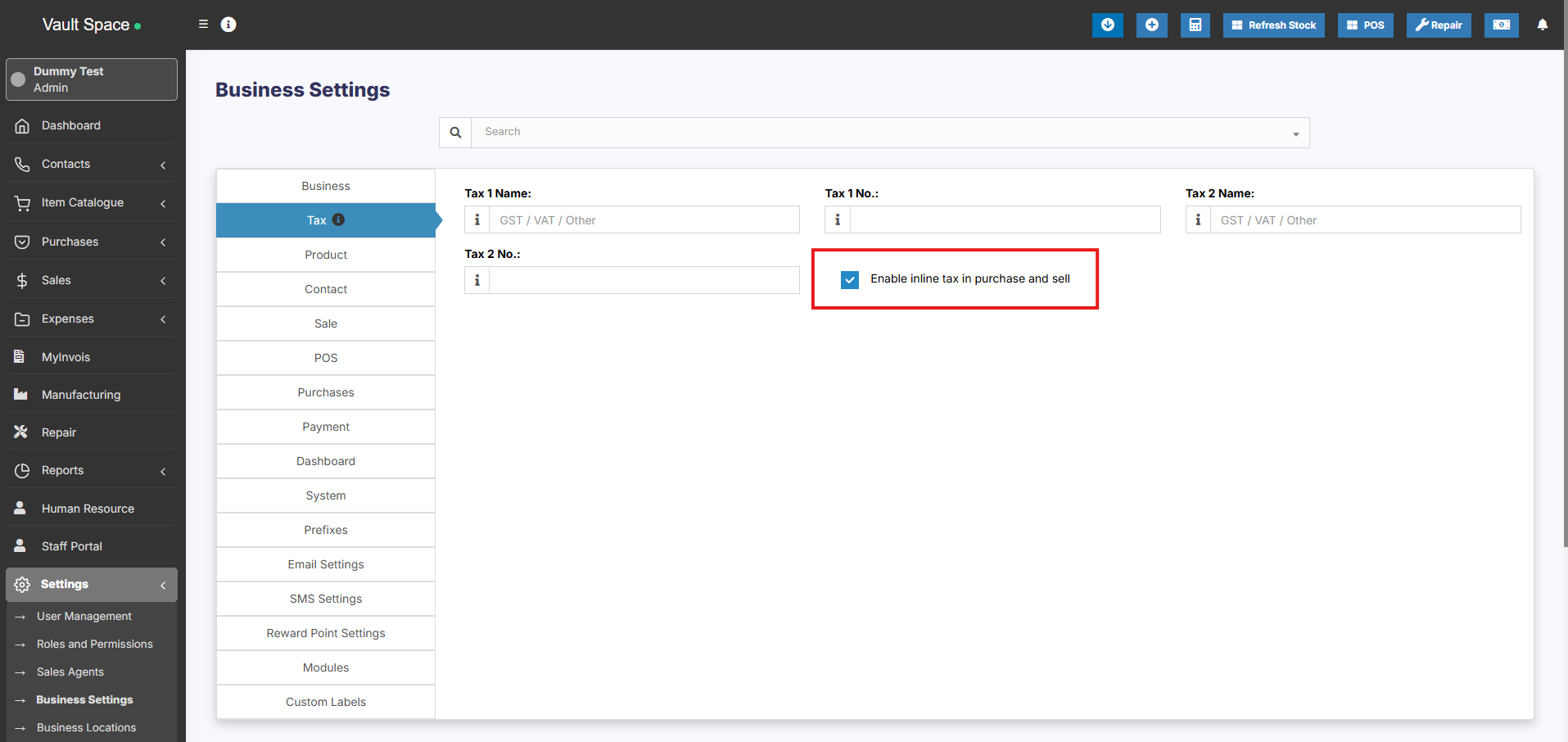
If you disable the inline tax in the purchase and sell, the Price Inc tax column will not be shown in the POS screen.
Inline tax & invoice tax
Printing Inline Tax in Product Line in Invoice
Inline tax will be printed in product line only using Detailed Invoice design.
Follow the steps mentioned below
Step 1: Go to Settings > Invoice Settings > Invoice Layout. Select “Detailed Invoice” in the Design Dropdown.
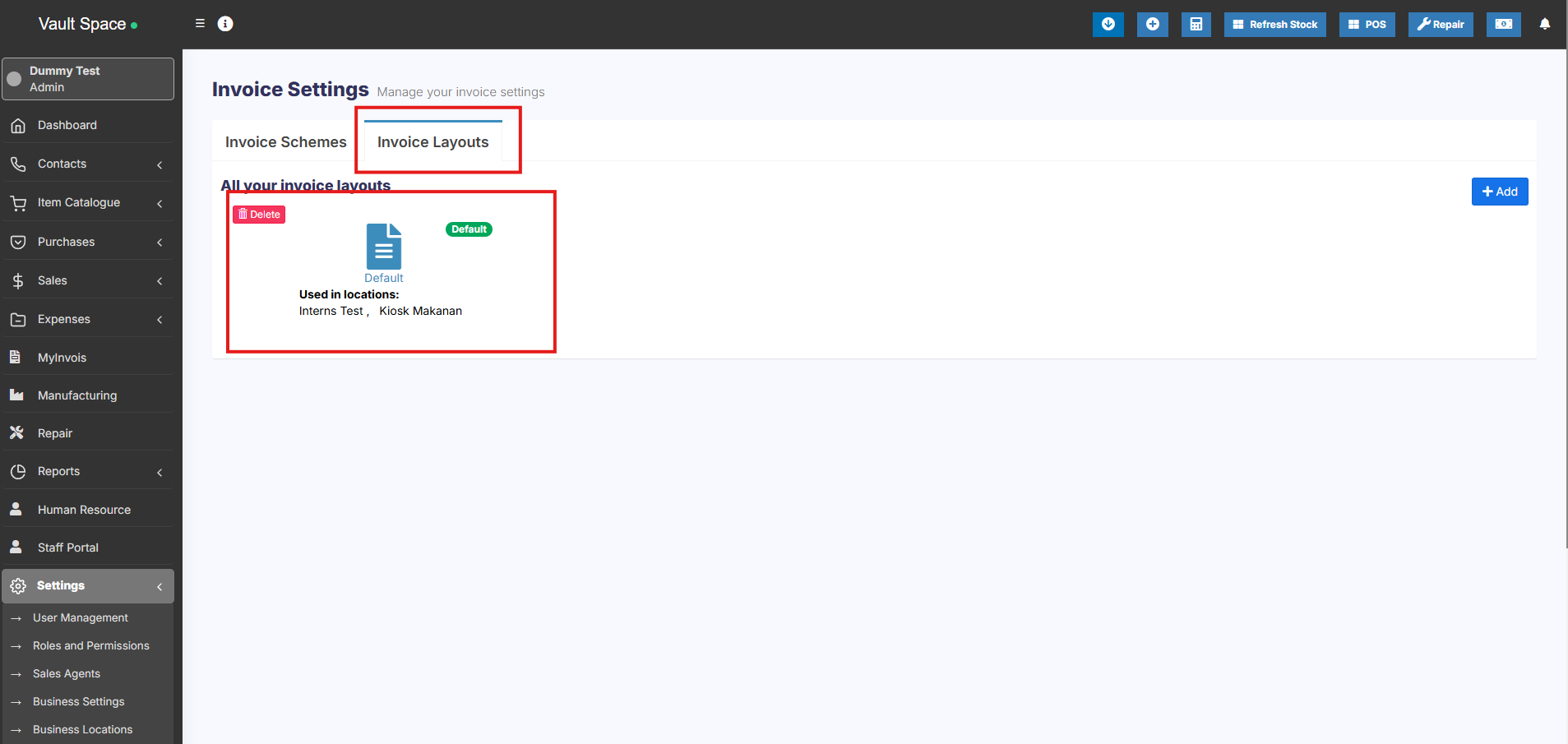
Step 2: Also enable the “Tax label” field in the same invoice layout settings.
Step 3: Save the changes. Now if you add the inline tax during a sale, it will be printed on the product line in the invoice.