Settings
- How to Search in Settings?
- Business Settings
- Setting Invoice Scheme
- Adding a new Label or barcode settings
- Changing the custom fields labels
- Changing Application/theme Color
How to Search in Settings?
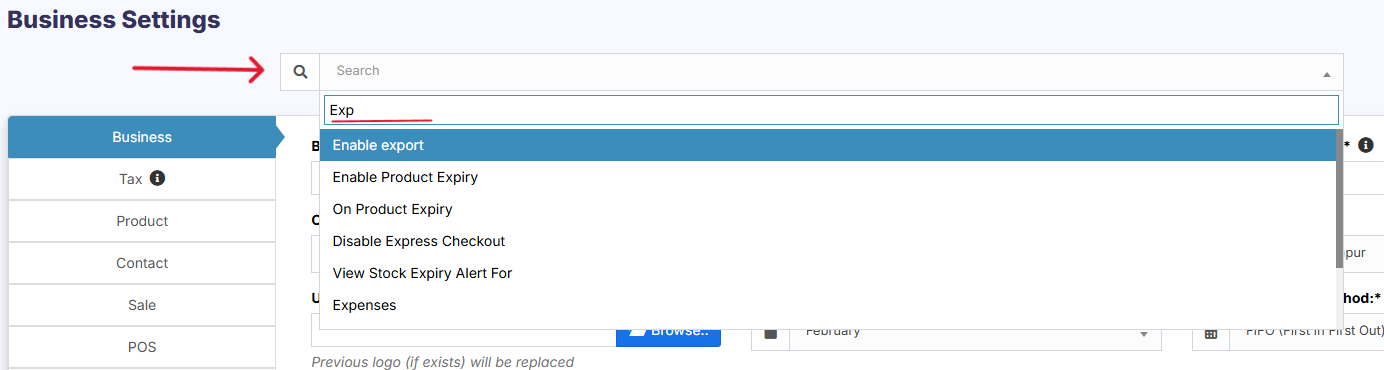
Settings is overwhelming. There are a lot of options in here. So in SenangUrus ERP we implemented as easy way to search for any option. Follow the screenshot below.
Business Settings
Business Settings allows you to set some of the common business-related information.
Here you can change:
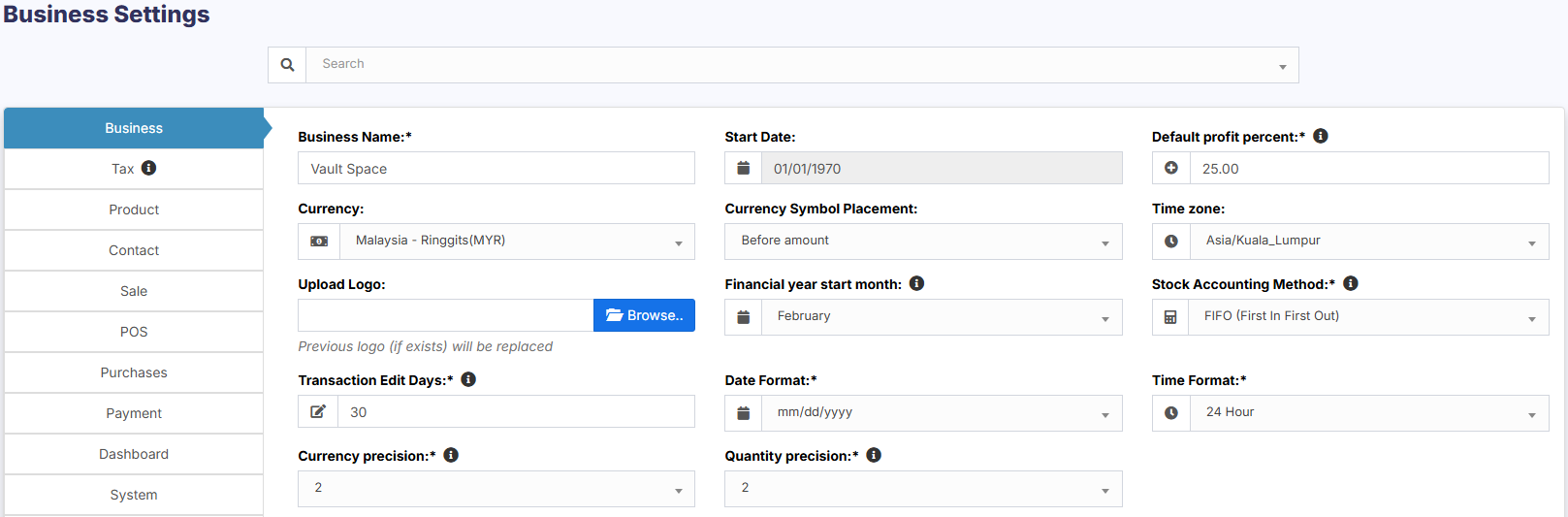
- Business name
- Start Date
- Set Default Profit margin
- Currency
- Timezone
- Logo
- Financial year: For some countries, the financial year starts from January and for some it stars on April. Here you can set the appropriate option for your country.
- Tax information
- Product SKU prefix: Enable this feature to generate a prefix for Product SKU. Once enabled, while adding a new product the SKU field with add this prefix along with the input given or if left empty will autogenerate a value along with this prefix.
- Default Sales discount
- Default Sales tax
- Business Setting > Contact > Default credit limit: The credit limit provided here will be used as default value when creating a customer or supplier
- Business Setting > Sale > Default Sale Discount: The default discount will be used for all sales in POS & Add sales screen.
Sales:
Sales Item Addition Method:
- It has 2 options: “Add item in new row” & “Increase item quantity if it already exists”
- This option is related to POS & Sales screen when a new product is added.
- Add item in new row: It will always add a product in new row
- Increase item quantity if it already exists: If the product already exists in the cart it will increase its quantity else it will add it in a new row.

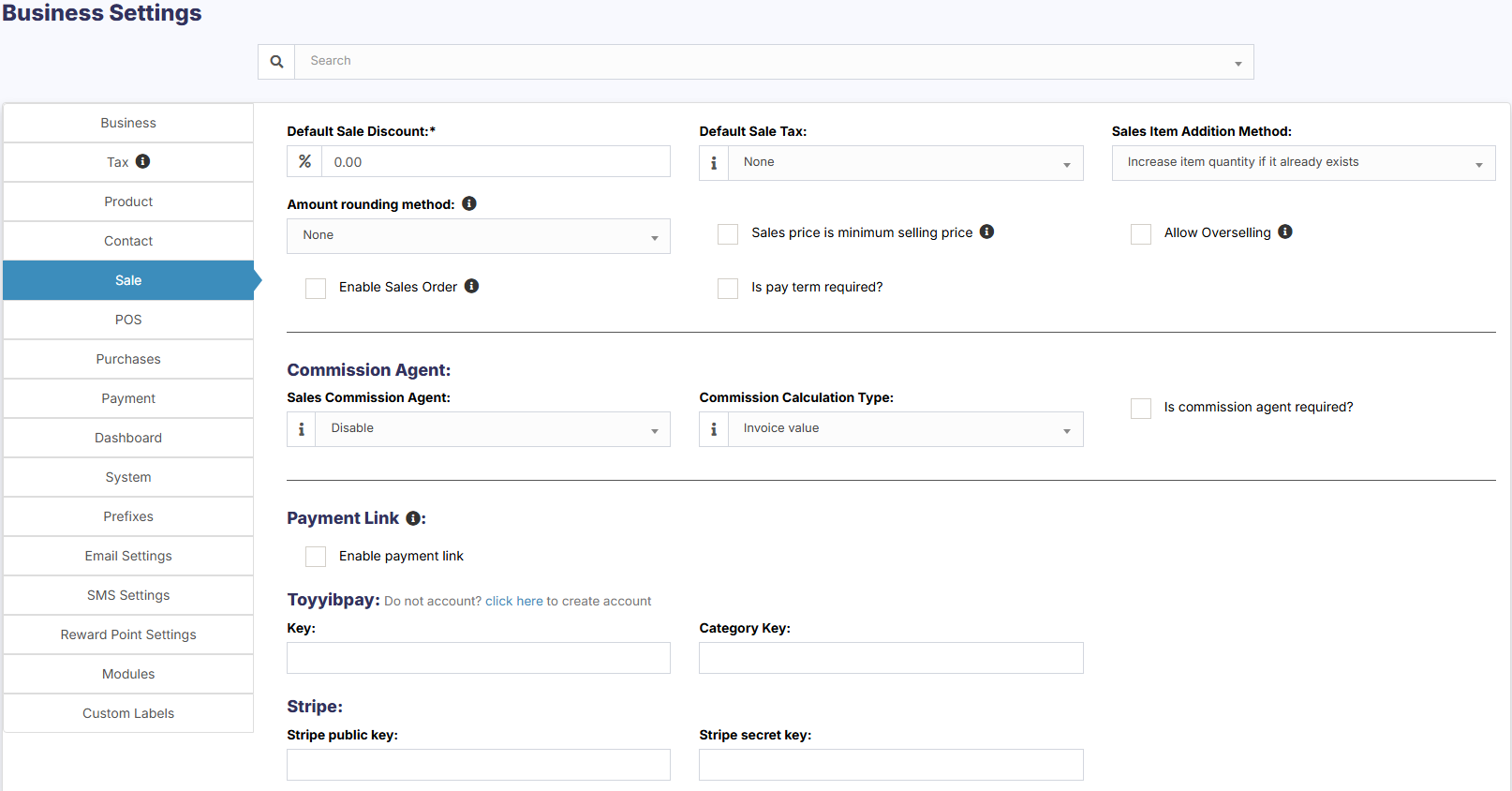
Amount rounding method:
The price of the products can be taken as a whole number or as a rounded decimal value by selecting the particular roundoff method. If none is selected the value is taken as a whole number.
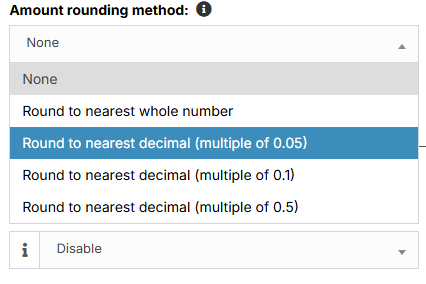
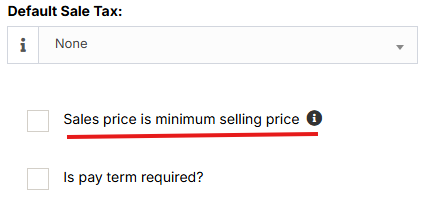
Sales price is minimum selling price:
If this option is enabled then the product cannot be sold at a price lower than the selling price set for the product.
It can be sold at a higher price but not at a lower price.
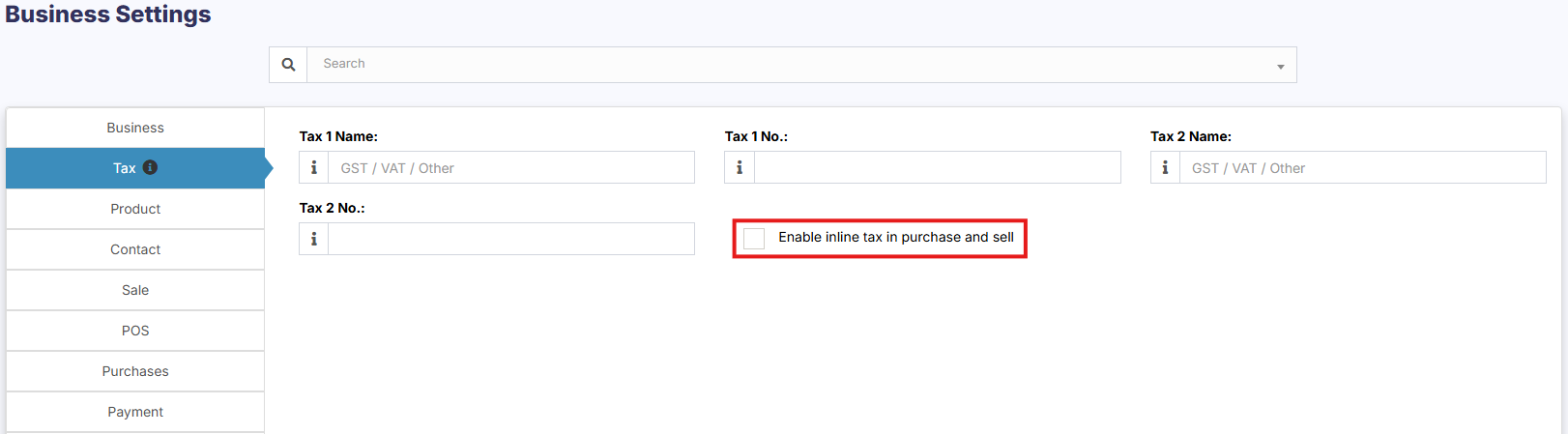
Enable inline Tax:
To display the price inc. tax on the POS screen, kindly enable the check box in the Business Settings->Tax.
Enable Sales Order:
This will enable the sales order feature.

Default Sale Discount:
The default sale discount can be added to products in Business Settings -> Sale

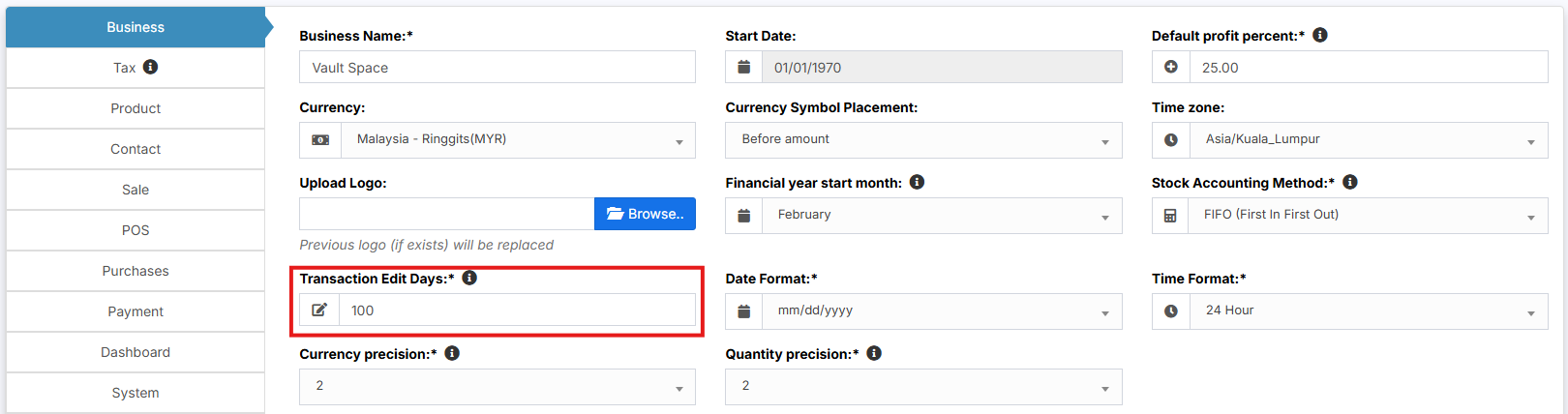
Limit for Transaction Edit:
How to edit transactions for more than 30 days?
In order to increase the limit for editing the transaction, set the number of days in the business settings.
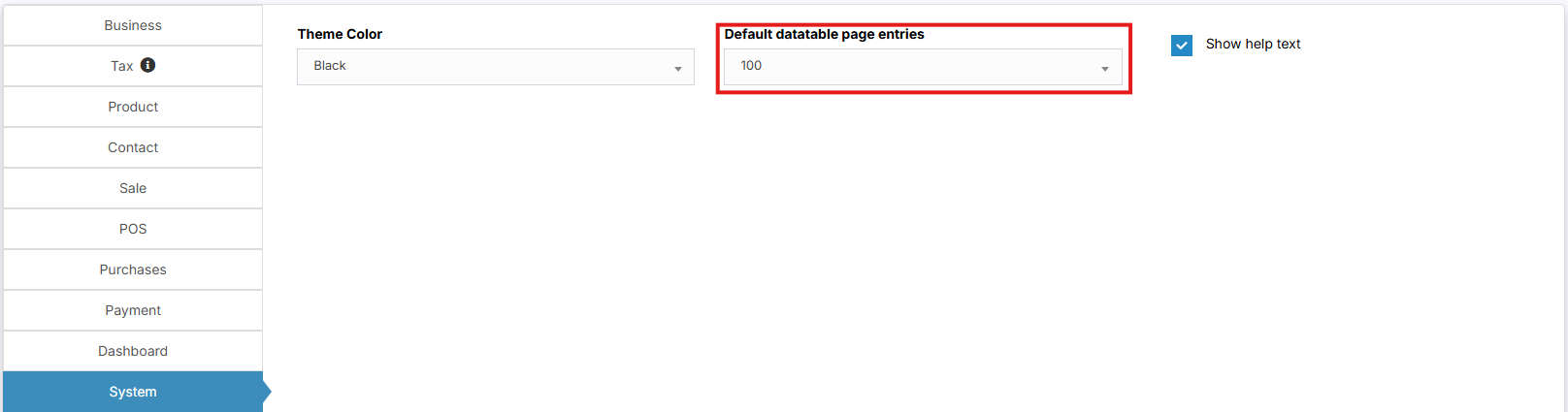
Data table Entry Selection:
The default number of entries in the data tables can be selected in Business Settings -> System.
Allow Overselling of Products:
In some cases, the products need to be sold even when they are out of stock. In such cases, you can enable the “Allow Overselling” Option from the Business Settings > Sale.

This will allow you to add sales for non-stock products.
If the sale is added for products that are out-of-stock using the Allow Overselling Option, then the profit will be calculated as negative for those products.
Video Demonstration:
Setting Invoice Scheme
With SenangUrus ERP you can configure the format for your invoice number.
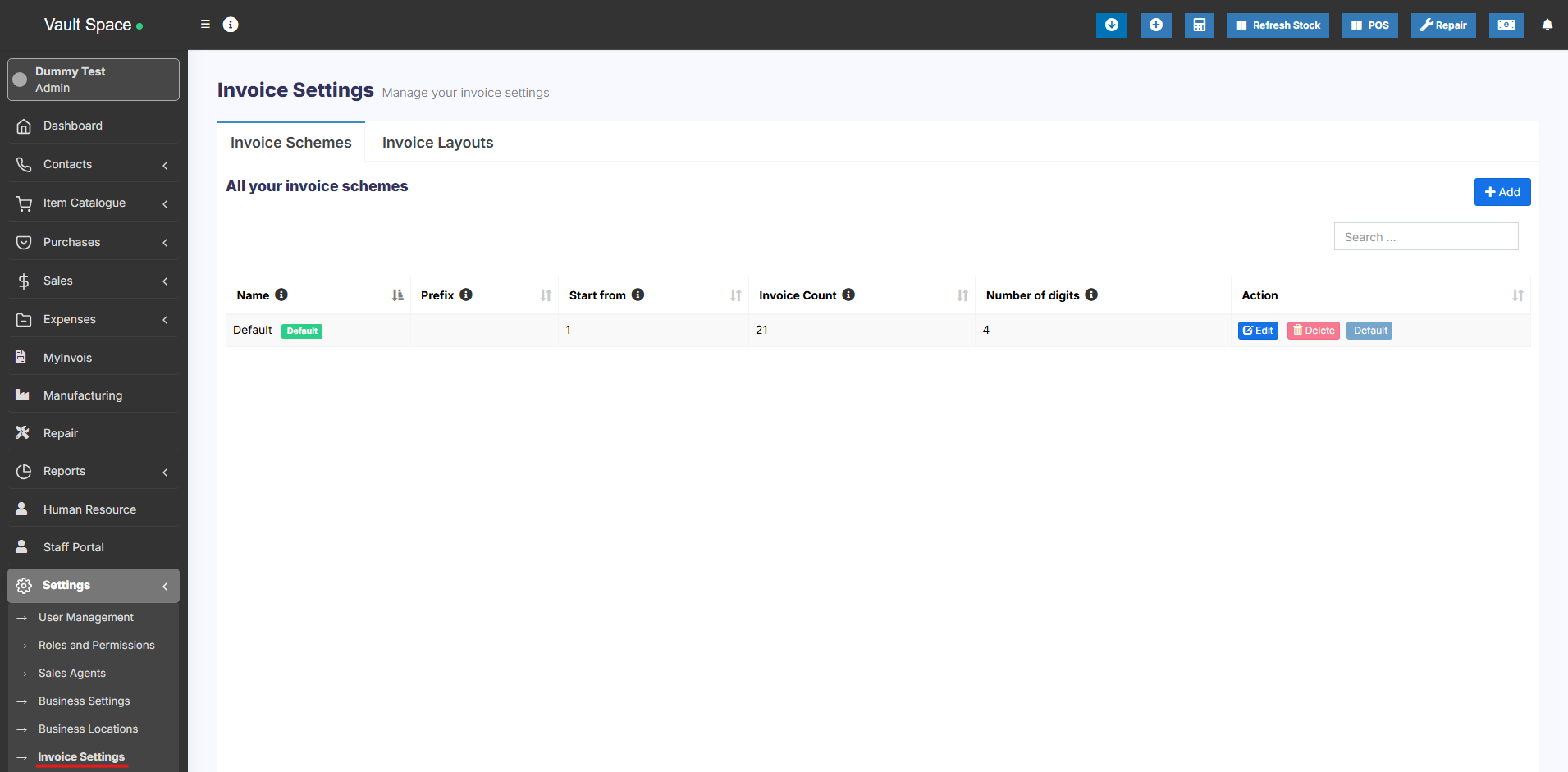
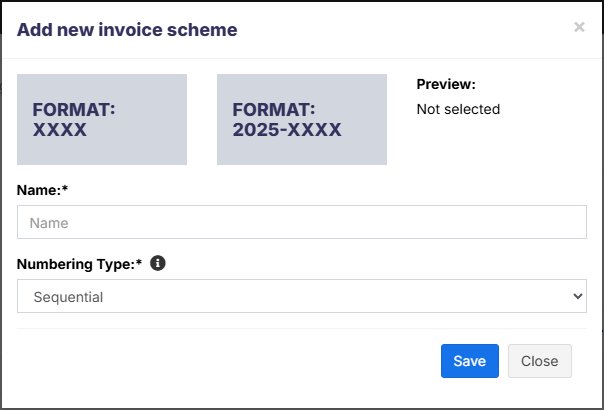
To configure go to Settings -> Invoice settings
- Click on Add and select a scheme format.
Format can be XXXX or <year>-XXXX - You can also provide a custom prefix, invoice start number, number of digits in the invoice number.
- The preview box will display the preview according to the chosen option.
- You will need to set a default invoice scheme for a business to use it.
Adding a new Label or barcode settings
SenangUrus ERP comes with some commonly used barcode configurations for you our-of-box. If your barcode configuration isn’t covered then you can easily create a new configuration.
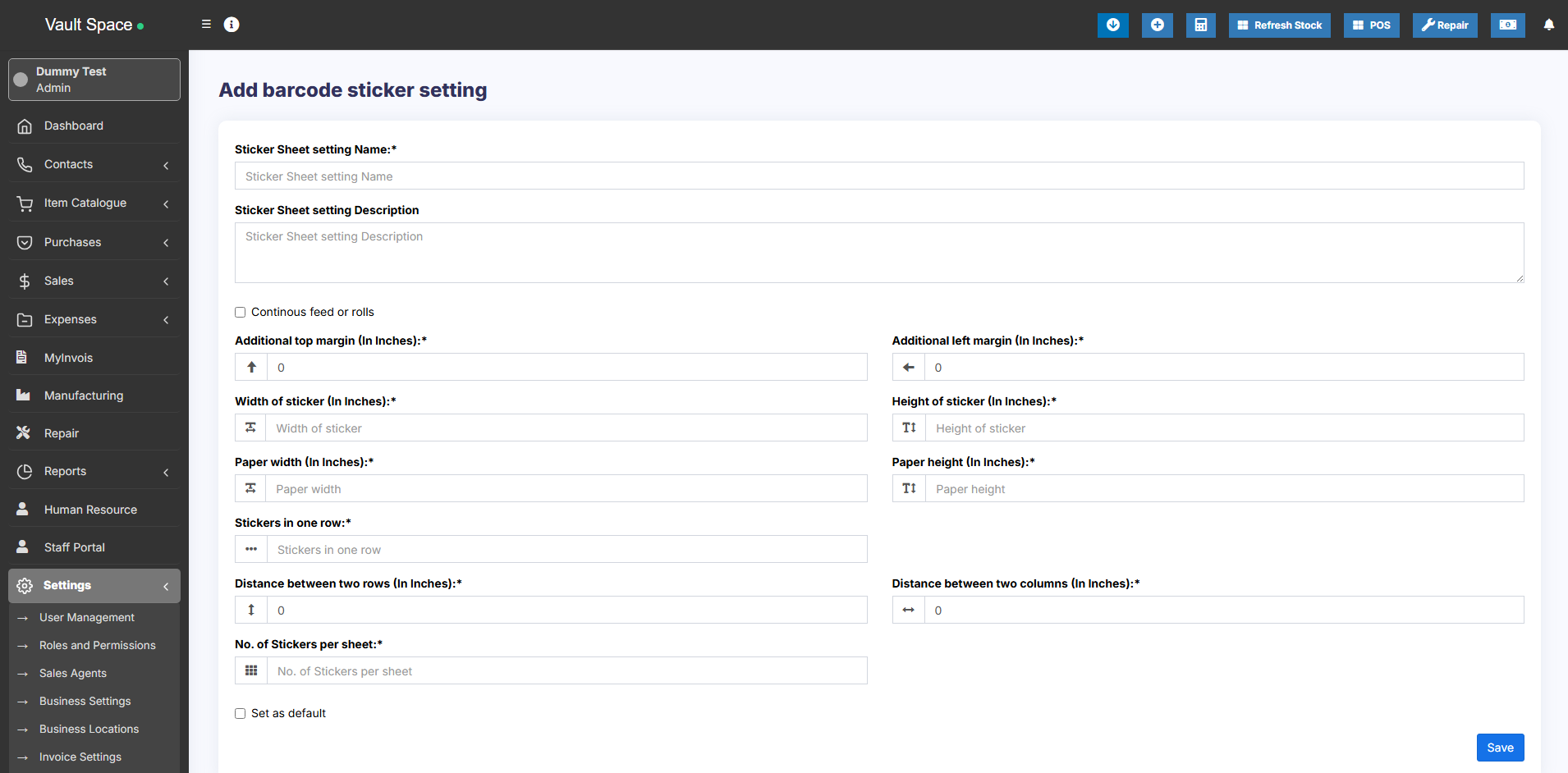
You must have all measurement details of the sticker to create a configuration. All dimensions need to be in inches.
Adding Barcode sticker settings
- Go to settings -> Barcode Settings -> Add
- Enter a descriptive name of the setting. Add some description for your information.
- If you’re using a Roll, then check the “Continues feed or rolls” checkbox.
- Enter Additional top margin (In Inches), Additional left margin (In Inches), width of the sticker, Height of the sticker, Paper width, Paper height, number of stickers in one row, distance between 2 rows, distance between 2 columns and the total number of stickers per sheet.
- Some of this information are not needed for Continues feed or rolls.
You must test you setting by printing a dummy sticker in Purchase – print label option. If something seems wrong then edit the measurement accordingly.
Changing the custom fields labels
To modify the labels of custom fields, go to Settings -> Business Settings -> Custom Labels
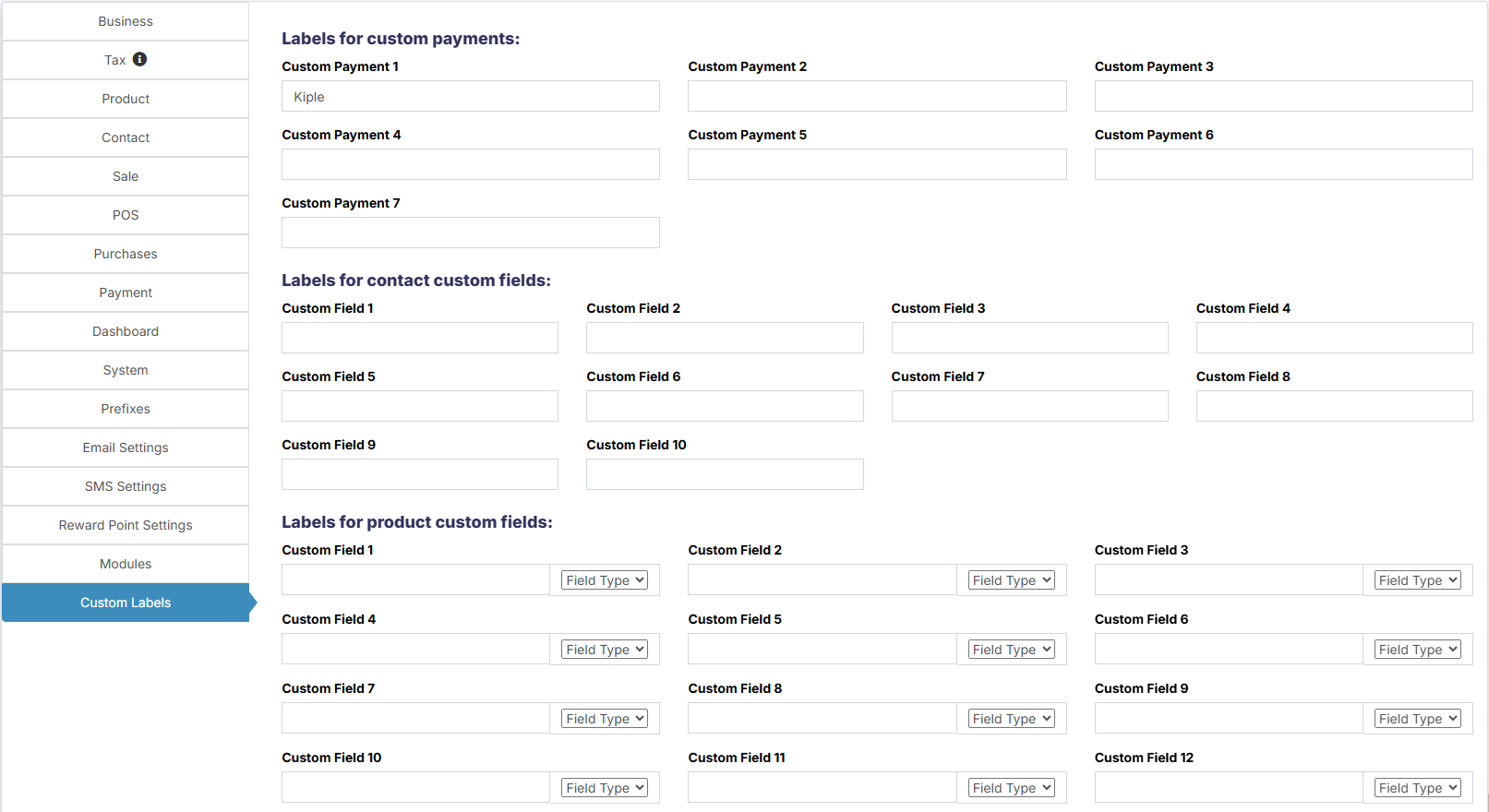
Here you can give names to all custom fields.
Changing Application/theme Color
To change Application or Theme color follow the below steps:
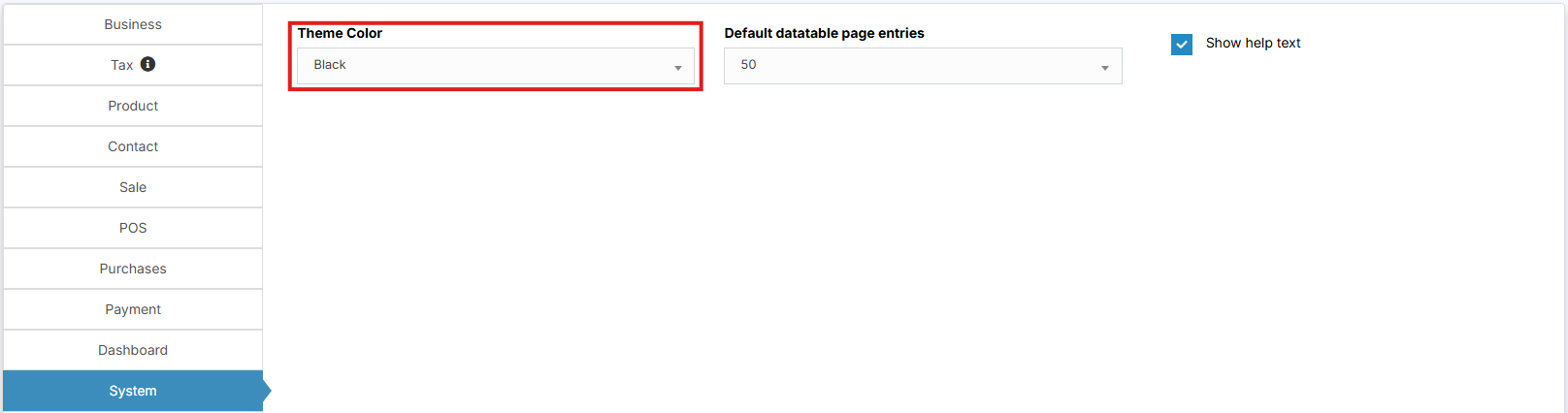
- Go to Settings -> Business Settings -> System (tab)
- Change the Theme Color to your desired color. A total of 11 colors (Light & Dark options) are given