# Reports
# Reports
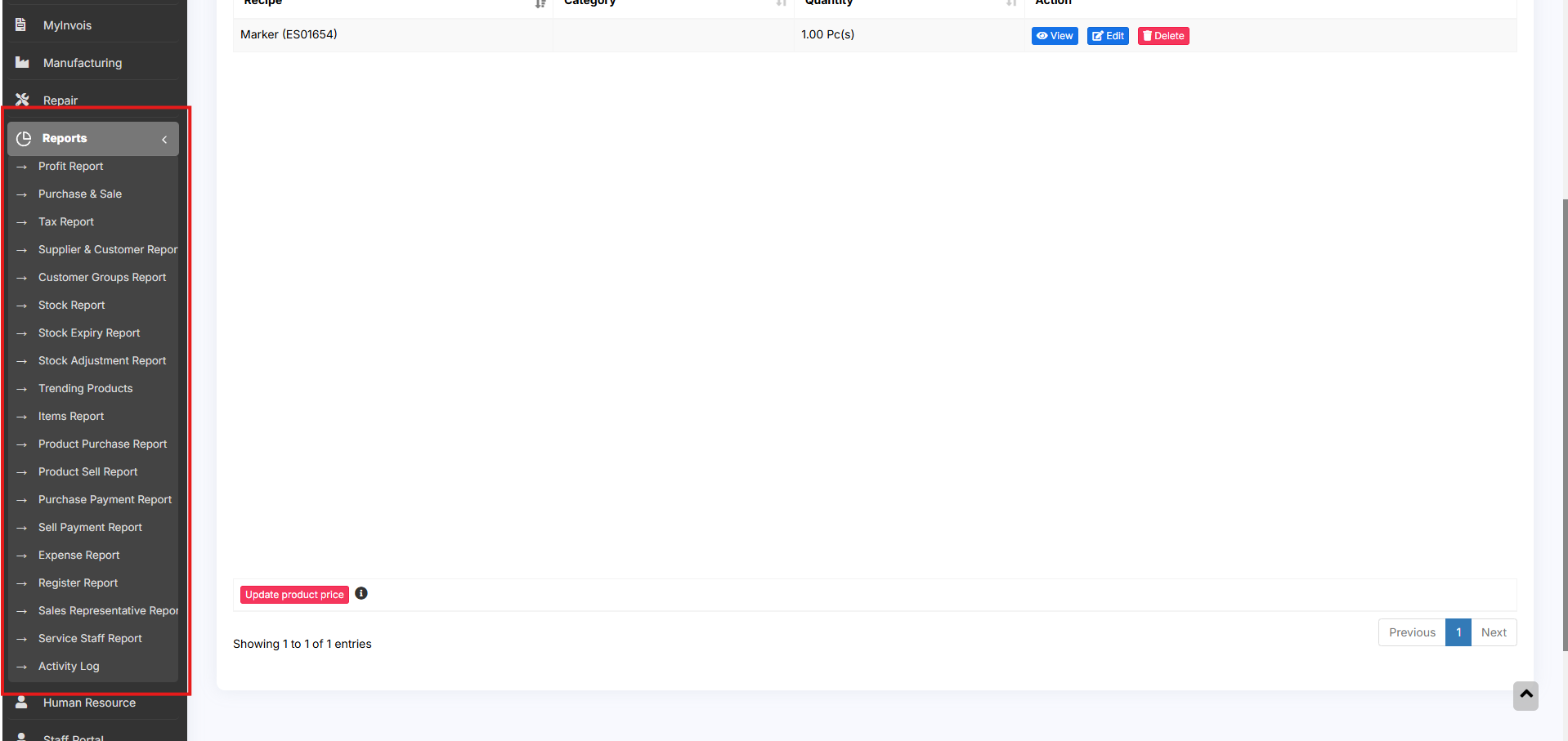
Reports help you to get an overview of your entire business.
To view report click on Reports & Select the report you want to view.
Some Reports come filter relevant options to help you analyze your business better.
[](https://docs.senangurus.com/uploads/images/gallery/2025-10/bIzimage.png)
## Purchase & Sale Report
This report shows the total purchase, Purchase Including tax, Purchases with Dues amount; and Total Sale, Sale Including tax, Sale Due.
[](https://docs.senangurus.com/uploads/images/gallery/2025-10/glRimage.png)
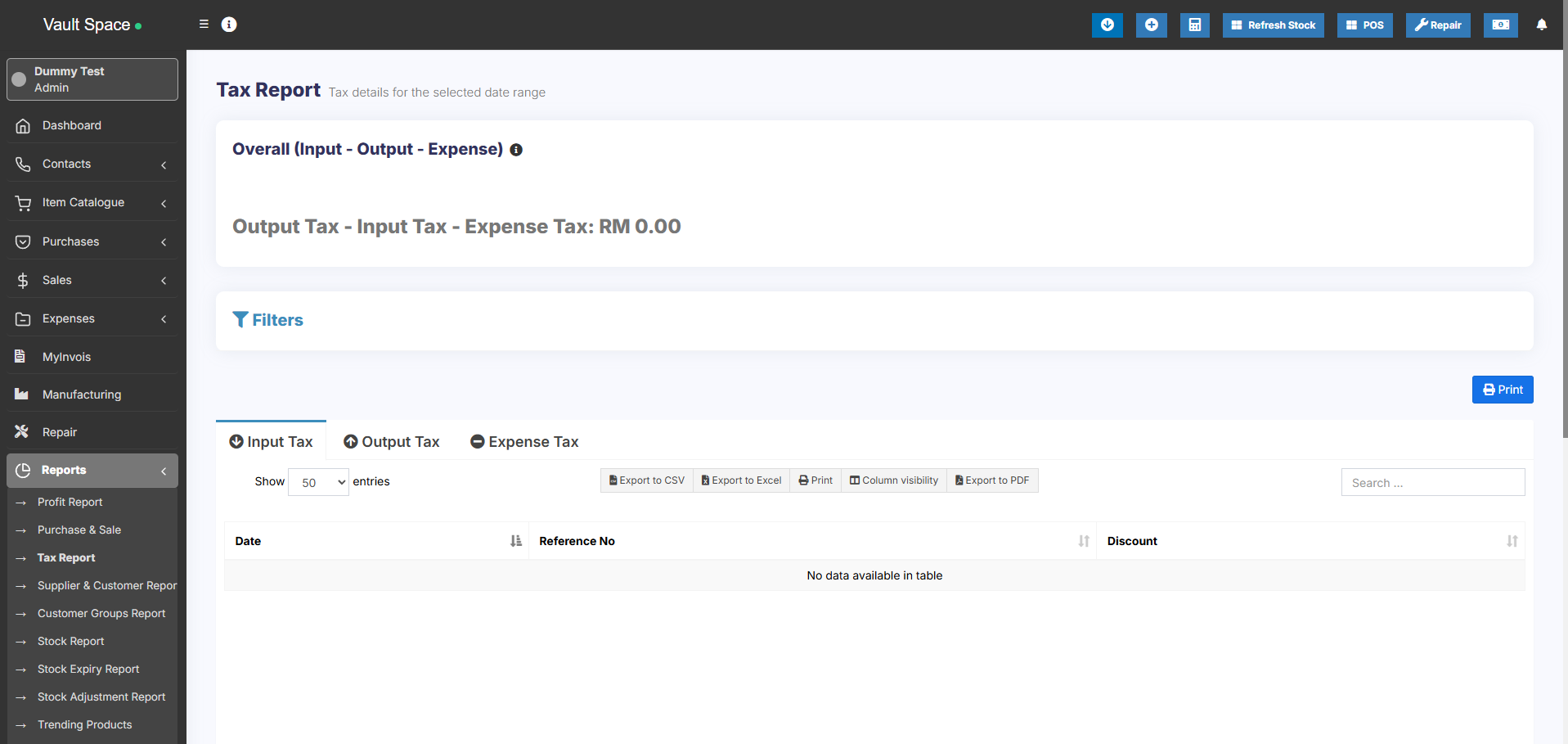
## Tax Reports
Shows the Input & Output Taxes.
[](https://docs.senangurus.com/uploads/images/gallery/2025-10/W9Bimage.png)
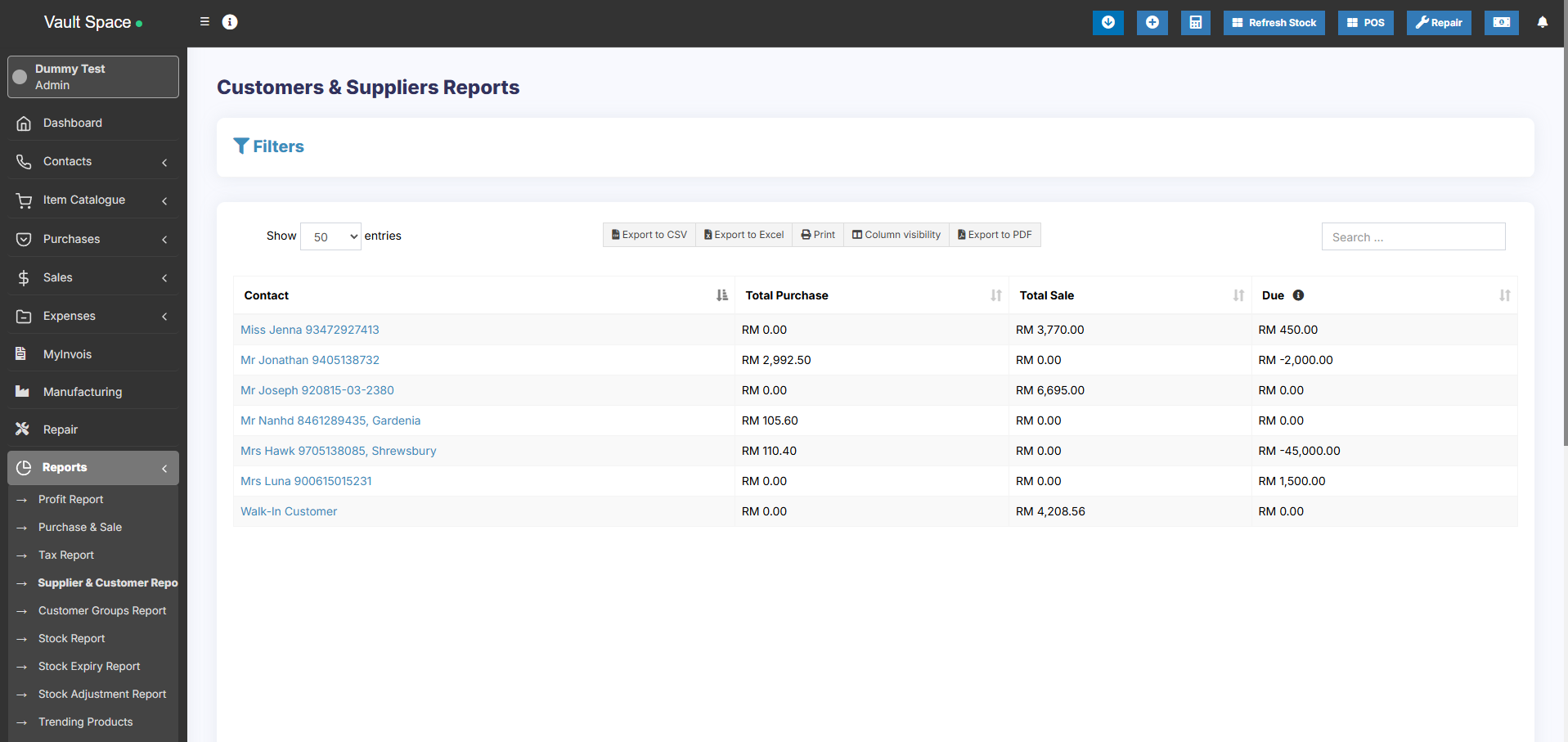
## Contacts Report(Customers & Suppliers Reports)
This report shows the details of Purchase & Sell with all contacts (Suppliers & Customers) and also any Due amount. Positive Due amount indicates payment by contact, negative indicates payments to the contact.
[](https://docs.senangurus.com/uploads/images/gallery/2025-10/ps8image.png)
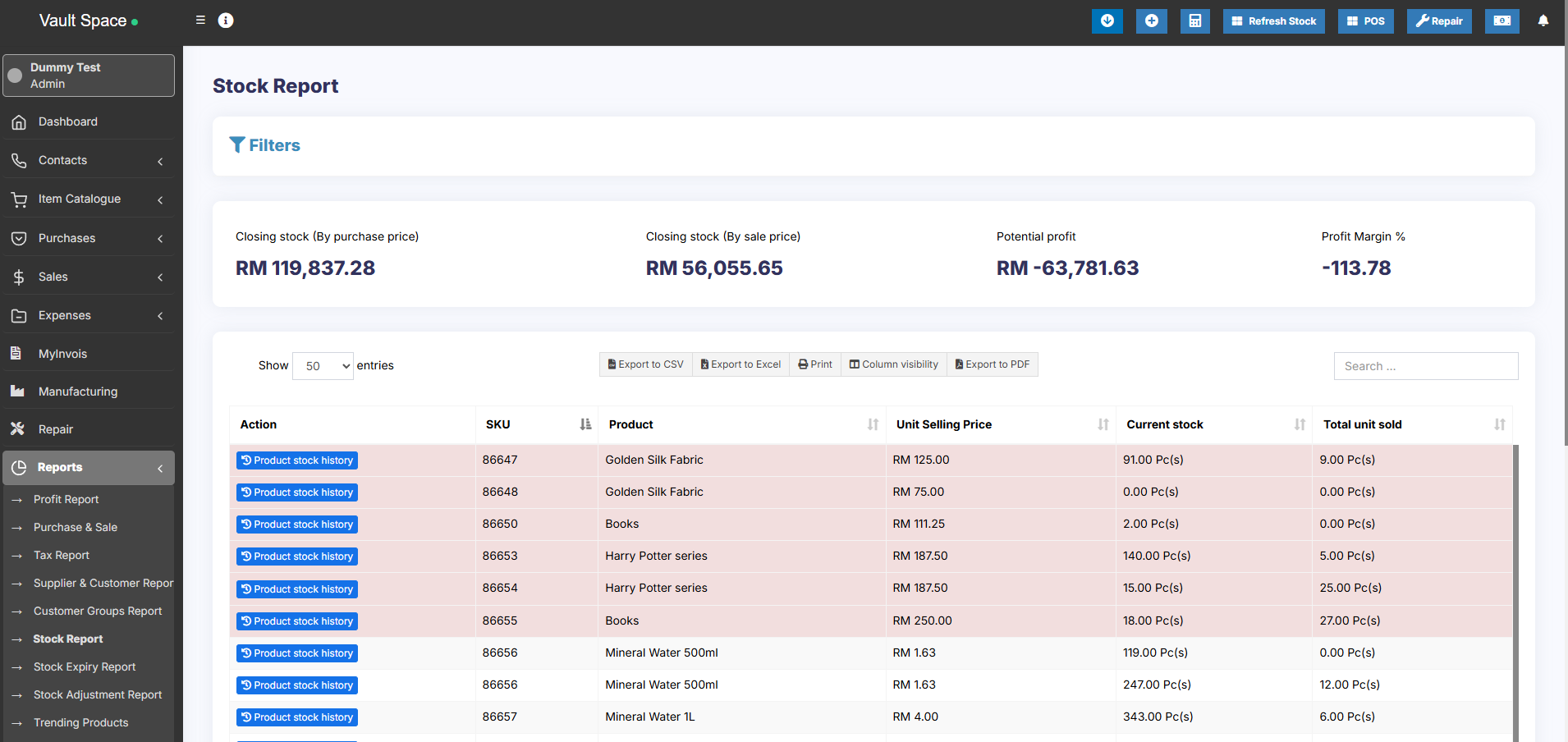
## Stock Report
The stock report displays the stock details. With this, you can track the remaining stock and total sold quantity sold for all products.
**For variable products** – you can click on the Green Plus button before the SKU column to get details stock reports for each product variations.
[](https://docs.senangurus.com/uploads/images/gallery/2025-10/c3mimage.png)
### Stock value by Purchase & sales price
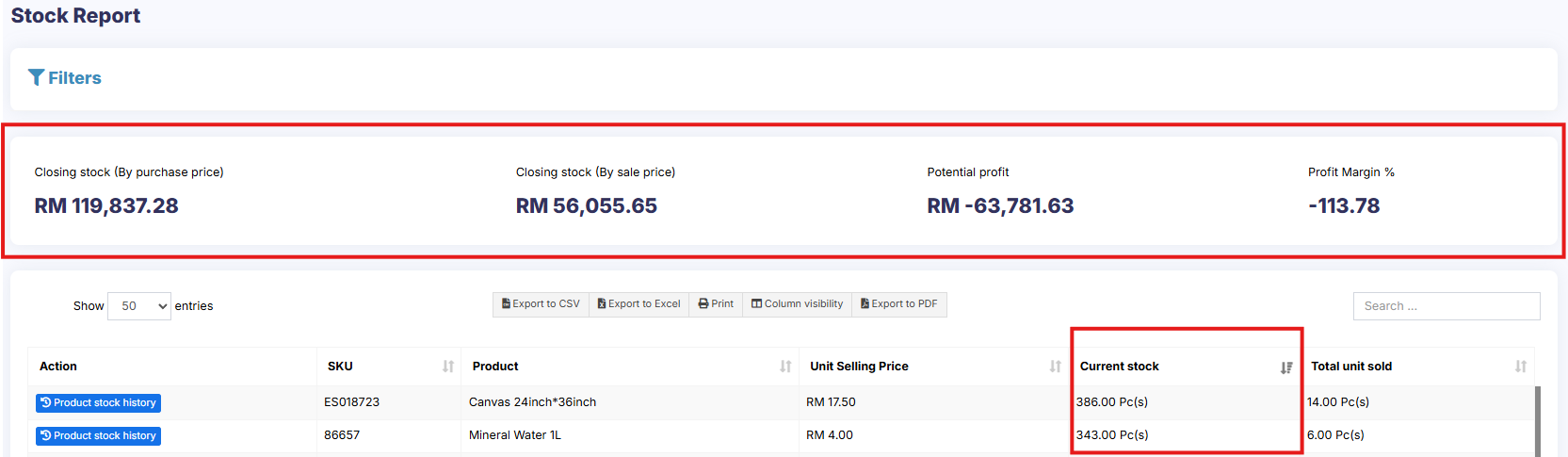
In the stock report, you can also get information about the current stock value based on their purchase price & value based on selling price. Check the below screenshot of stock report.
[](https://docs.senangurus.com/uploads/images/gallery/2025-10/stockvalue.png)
### Tracking product stock report with date
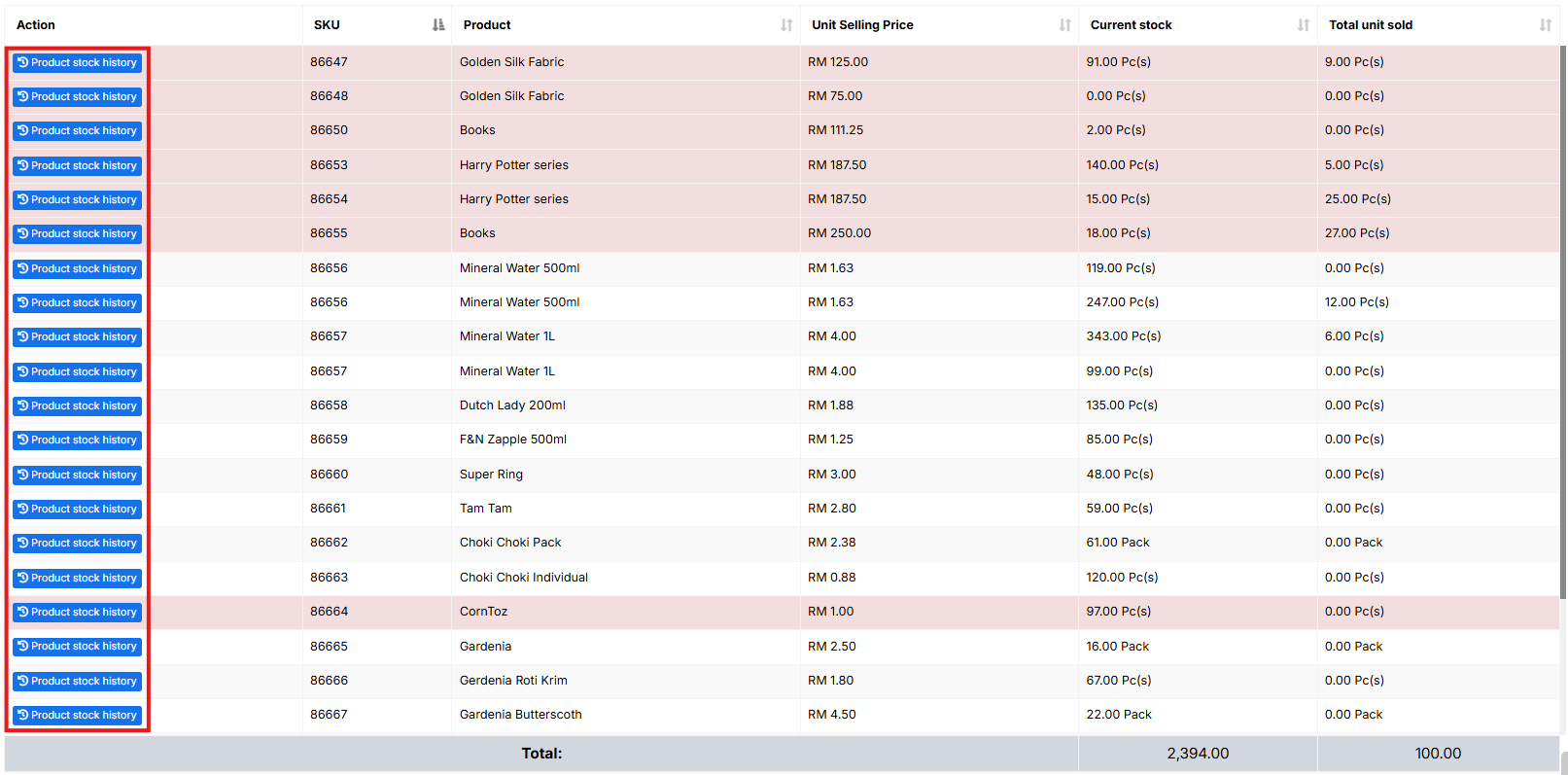
To check the product stock report date wise, use the ‘**product stock history**‘ link in the stock report.
[](https://docs.senangurus.com/uploads/images/gallery/2025-10/product.png)
## Trending Products Report
- This report helps you to determine the demand of the products.
- You can apply different filters to filter the product.
- Select a Business Location to view trends for a particular business location.
- Select Product Category, Sub-Category, Brands, Units, Date Range to filter them.
- Set “*No. of products*” to view the top that amount of product. Using this you can view Top 5, Top10 or any number of top products.
## Expense Report
Expense report helps you to analyze expenses for business locations and also analyze based on expenses categories.
## Register Report
View details of all registers and filter registers based on User and/or Status (Open or Closed)
## Sales Representative Report
- View Sales and Expenses details of Sales representative
- Filter them with User, Business Location, Date Range
## Grouping Invoices in Product Sell Report
Invoices are grouped based on certain criteria in the product sell report for the user’s convenience.
Go to **Reports** > **Product Sell Report** and click the **Grouped** tab.
The criteria used for grouping invoices here are date and product name.
For example; All Butter Cookies sold today will be shown in one row, and Butter Cookies sold yesterday will be shown in another row. Similarly for each product the invoices are grouped based on date and product.
### Video Demonstration: