# Hardware Support
# Barcode Scanner
### How to add Barcode Scanner
Adding a barcode scanner is easy & simple.
- Simply Plug-in the barcode scanner in your computer.
- If there is some driver provided with the scanner then install it.
- Point the cursor to any field in POS where you want to insert the barcode and scan the barcode. The scanner will automatically scan and input the barcode value to the input field.
# Label weighing scale
### Label weighing scale integration
A Label weighing scale generates a barcode based on the configuration of Prefix, Product SKU length, Quantity integer part length & Quantity fractional part length.
### Enabling & setting it
To enable weighing scale integration in SenangUrus ERP, do the below settings:
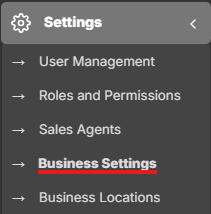
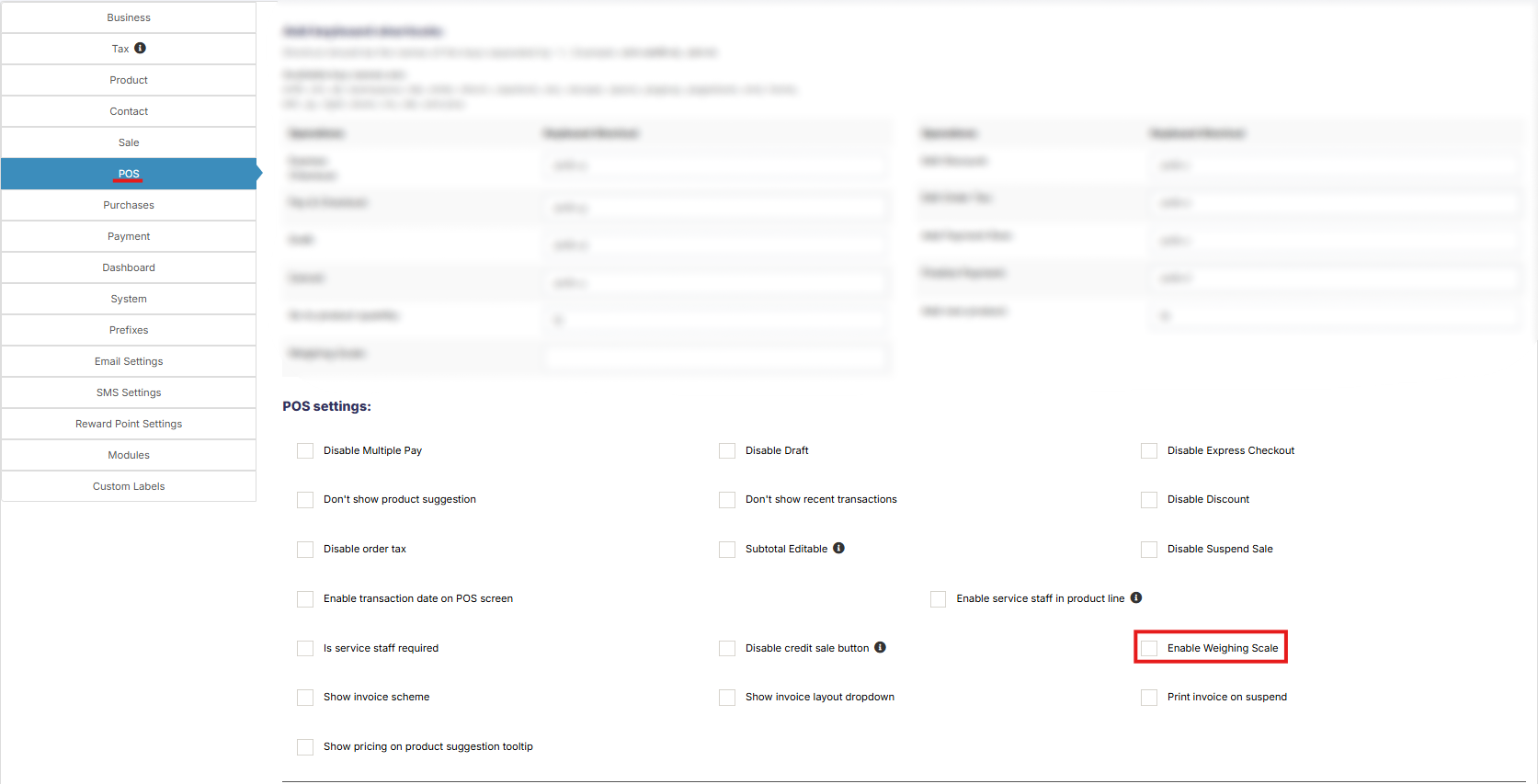
1. Go to **Settings** -> **Business Settings** -> **POS** -> Check **Enable Weighing scale** and save it.
[](https://docs.senangurus.com/uploads/images/gallery/2025-10/f5Fscreenshot-2025-10-13-144405.png)
[](https://docs.senangurus.com/uploads/images/gallery/2025-10/screenshot-2025-10-13-164358.png)
2. Below it provide the setting for the weighing scale.
1. Prefix
2. Product SKU length
3. Quantity integer part length
4. Quantity fractional part length
And save it.
3. Go to the POS screen, click on the weighing scale button present next to the product SKU search field, on clicking, it will open a modal where you can scan/enter the barcode generated by the weighing scale. On Successful match of settings and barcode, the product will be added as per the specified quantity in the barcode.
4. You can add a shortcut key for weighing scale by going to Settings -> Business Settings -> POS
# How to setup printer to open cash drawer automatically?
Your cash drawer can be configured to automatically open when you print a receipt for each transaction. Here are the steps you can take to configure your cash drawer.
1. Plug in the RJ12 connector cable (which looks similar to a phone line) from the cash drawer into your the receipt printer.
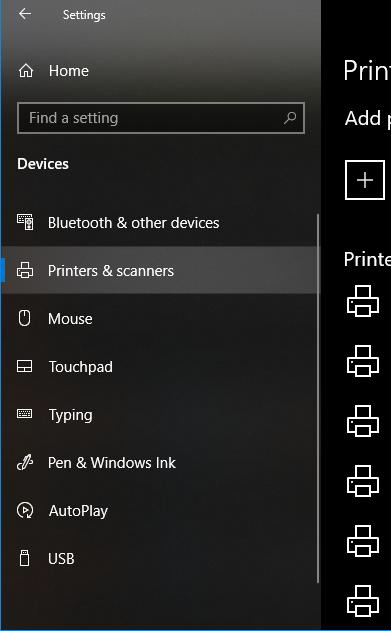
2. Next, go to the **Settings** menu in Windows 10, select **Devices** and select **Printers & Scanners** on the left-hand menu.
[](https://docs.senangurus.com/uploads/images/gallery/2025-10/ehMimage.png)
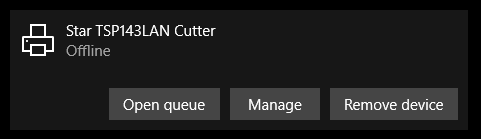
3. Select the printer you’d like to configure, and click on the **Manage** button.
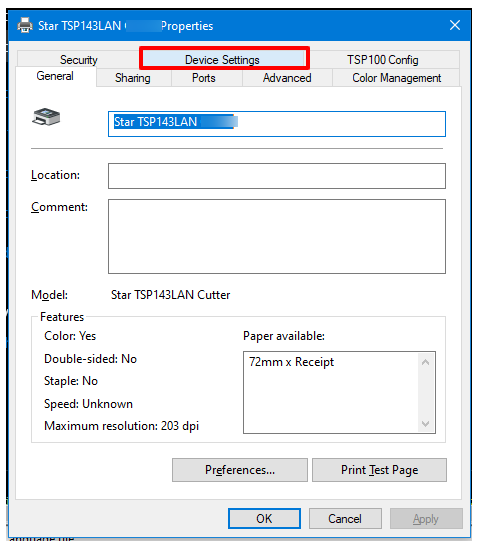
4. Next, click on the **Printer Properties** link and a window will open. From here, select the **Device Settings** tab.
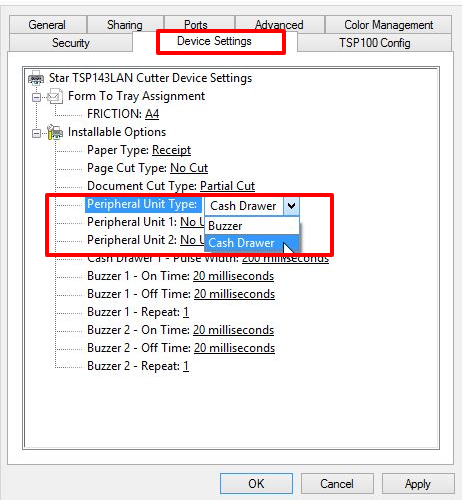
5. Under **Installable Options**, find the **Peripheral Unit Type** and change it to **‘Cash Drawer’**.
6. Change the **Peripheral Unit 1** and **Peripheral Unit 2** fields to **‘Document Bottom’** to have the drawer open after the receipt starts printing.
*If you want the cash drawer to trigger before the receipt prints, select **‘Document Top’** in **Peripheral Unit 1** and **2
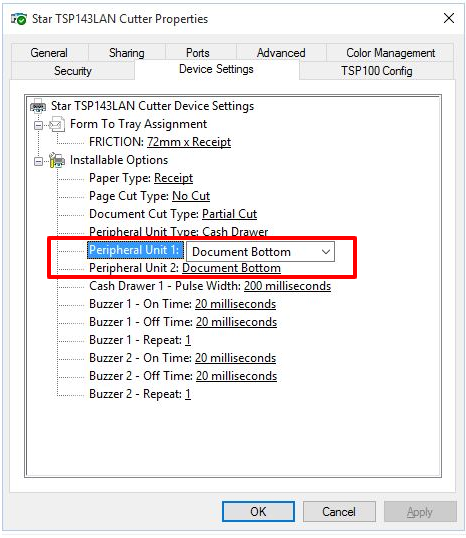***
7. Click **OK** to save these settings and perform a test sale to see if it’s been configured properly.