# Frequenty asked questions, Common Issues & Errors.
# Frequenty asked questions, Common Issues & Errors.
### Datatable or List table not working
Most of the time the list of sales or purchase or unit or category or any other list keep showing **processing…** and doesn’t display the data. Follow these steps to fix this error
1. Login to your cPanel or Directadmin or similar panel.
2. Disable **mod\_security** Or contact your hosting provider to disable mod\_security.
3. After it is disabled refresh the page and you’ll see the list will work.
### How to add Barcode Scanner
Adding a barcode scanner is easy & simple.
- Simply Plug-in the barcode scanner in your computer.
- If there is some driver provided with the scanner then install it.
- Point the cursor to any field in POS where you want to insert the barcode and scan the barcode. The scanner will automatically scan and input the barcode value to the input field.
### Disable Tax
[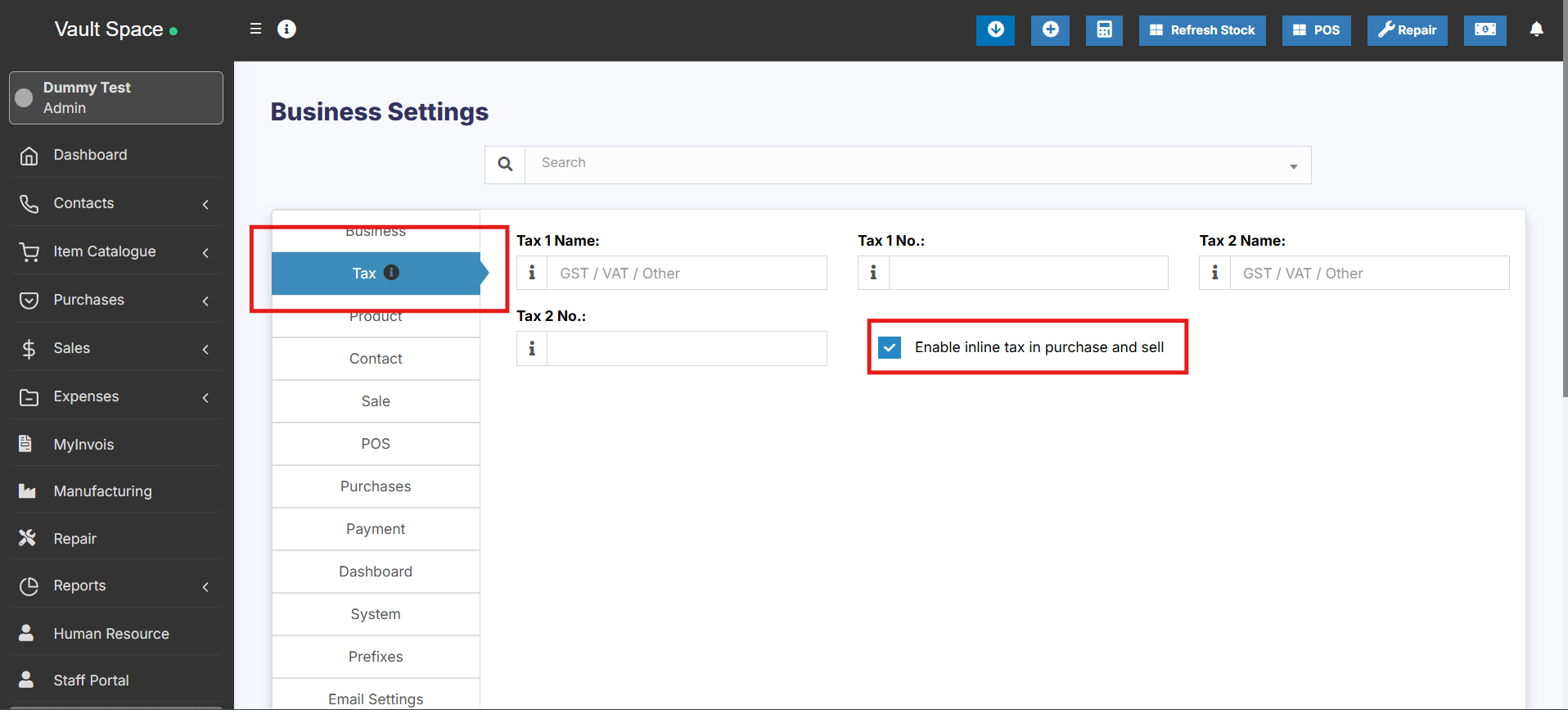](https://docs.senangurus.com/uploads/images/gallery/2025-10/vBpimage.png)
1. Don’t add Tax Rates in settings
2. Go to Settings – Business Settings.
1. Uncheck “**Enable inline tax in** purchase **and sell**“
2. Uncheck “**Enable Price & Tax info**“
3. Select “**Default Sale Tax**” as None
### Disabling Printing of Receipts in POS screen
[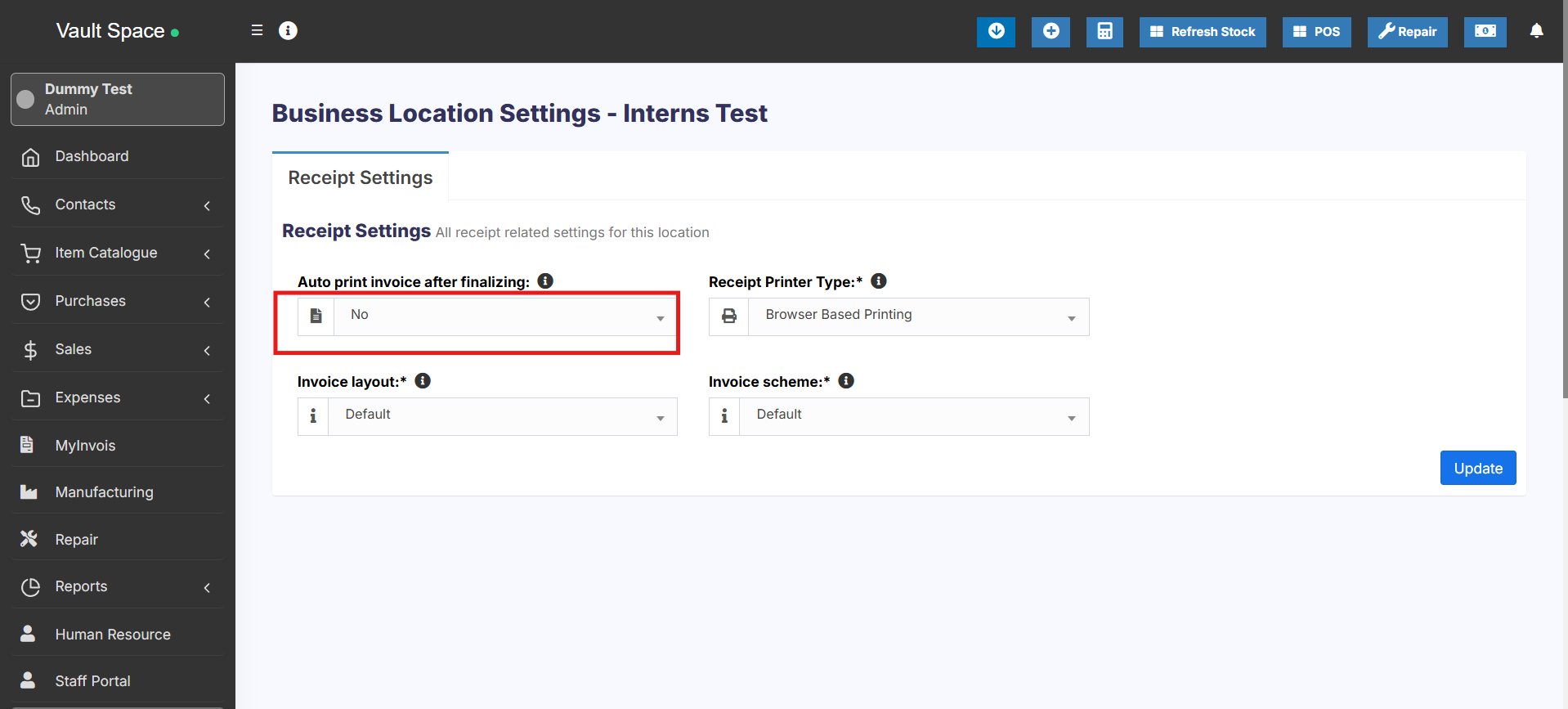](https://docs.senangurus.com/uploads/images/gallery/2025-10/6h0image.png)
To disable printing of receipts, go to Settings -> Business Locations -> Click on Setting for the business location where you have to disable printing, make “**Auto print invoice after finalizing:”** as No.