# Adding & Editing Payment Method or Pay Via options (Custom payments)
# Adding & Editing Payment Method or Pay Via options (Custom payments)
### Payment Methods:
[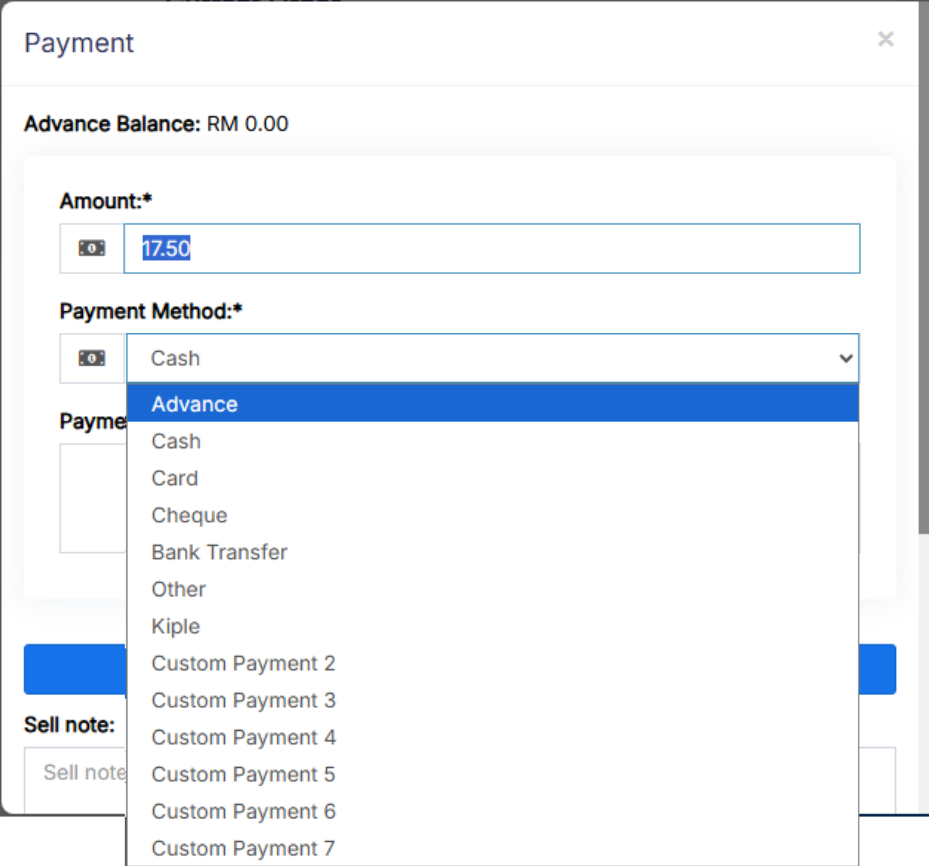](https://docs.senangurus.com/uploads/images/gallery/2025-10/XN4paymethod.png)
In the above screen, you can see “**Pay method**” or **“Pay Via”** options, the same option appears in **POS “Multiple Pay”** popup. With SenangUrus ERP you can add or edit existing payment options.
### **Enabling/Disabling Payment Methods in a business location:**
- In **Settings** -> **Edit business location:** [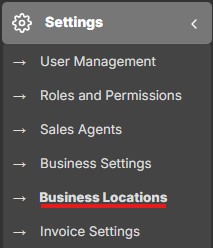](https://docs.senangurus.com/uploads/images/gallery/2025-10/86ximage.png)
[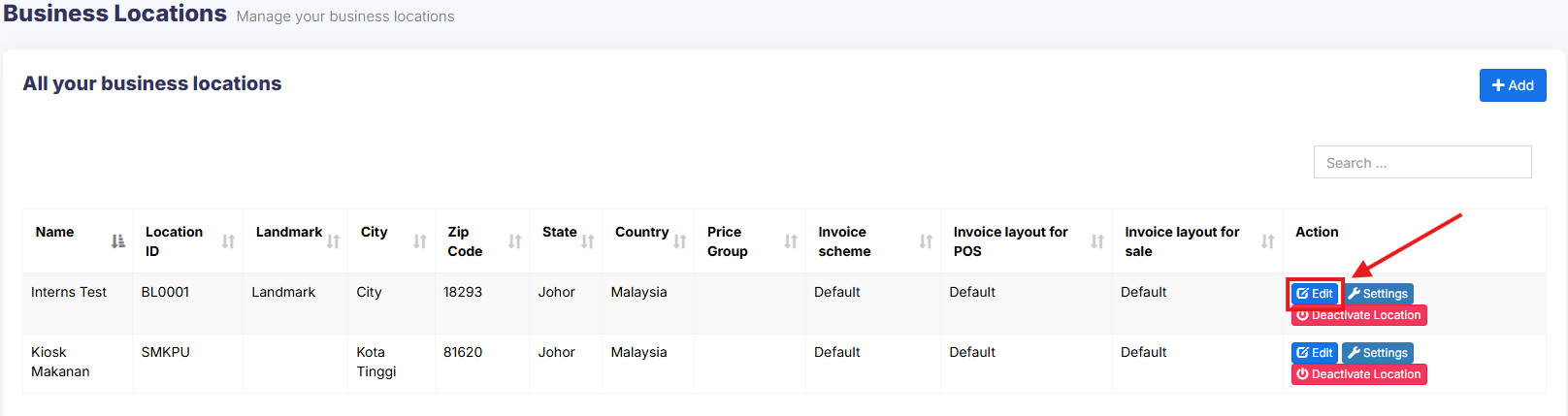](https://docs.senangurus.com/uploads/images/gallery/2025-10/asGimage.png)
you will find a list of all payment methods, you can enable/disable it by checking/unchecking the option.
[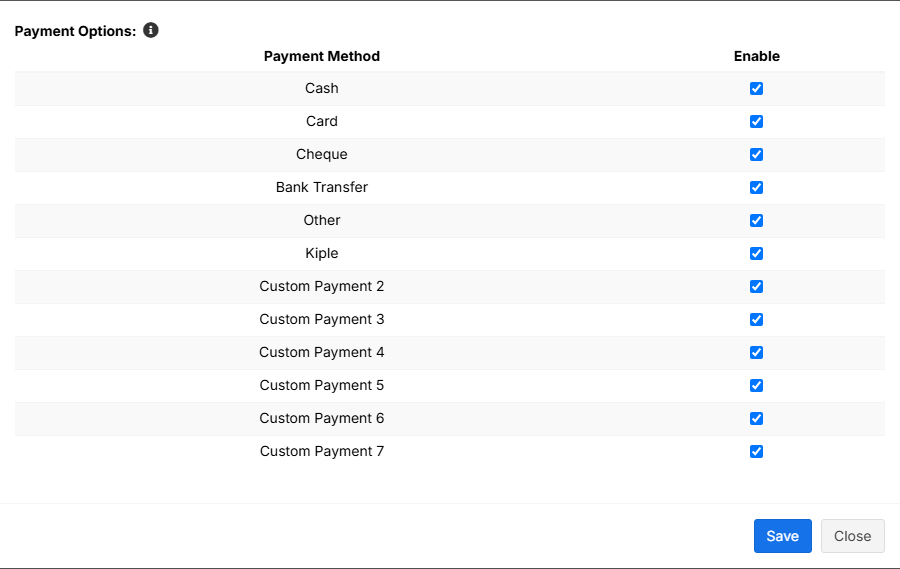](https://docs.senangurus.com/uploads/images/gallery/2025-10/CYBimage.png)
- Set default account for payment methods: [https://ultimatefosters.com/docs/ultimatepos/payment-accounts/setting-default-payment-accounts-for-payment-methods/](https://ultimatefosters.com/docs/ultimatepos/payment-accounts/setting-default-payment-accounts-for-payment-methods/)
### **Editing custom payments labels:**
- By default, the custom payment labels display as “Custom Payment 1” and similar.
- Go to **Settings** -> **Business Settings** -> **Custom Label** -> **Labels for custom payments:** [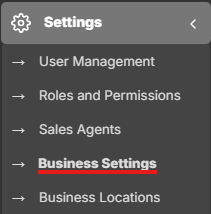](https://docs.senangurus.com/uploads/images/gallery/2025-10/xrmimage.png)
[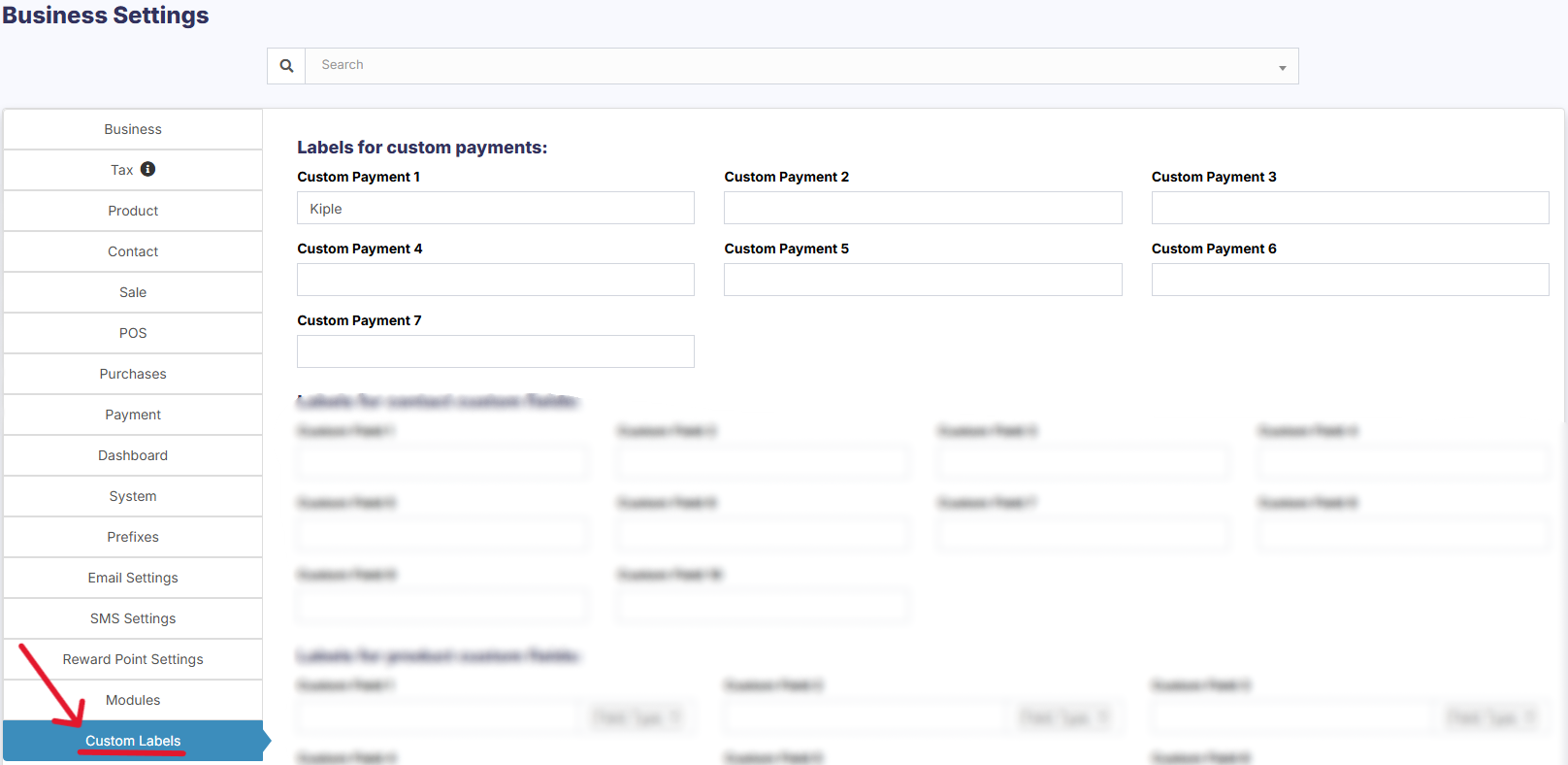](https://docs.senangurus.com/uploads/images/gallery/2025-10/l3Lscreenshot-2025-10-13-144648.png)
- Change ‘Custom Payment 1’ or the others to something you need.
- For example, if we want the labels of custom payment 1 to display as **‘GrabPay’** then it will be like this:
- **‘custom\_payment\_1’ => ‘GrabPay’,**
### **Using custom payments in POS:**
- While making a sale, in POS screen click on the multiple pay button.
- Select the required custom payment method for the payment method field.
[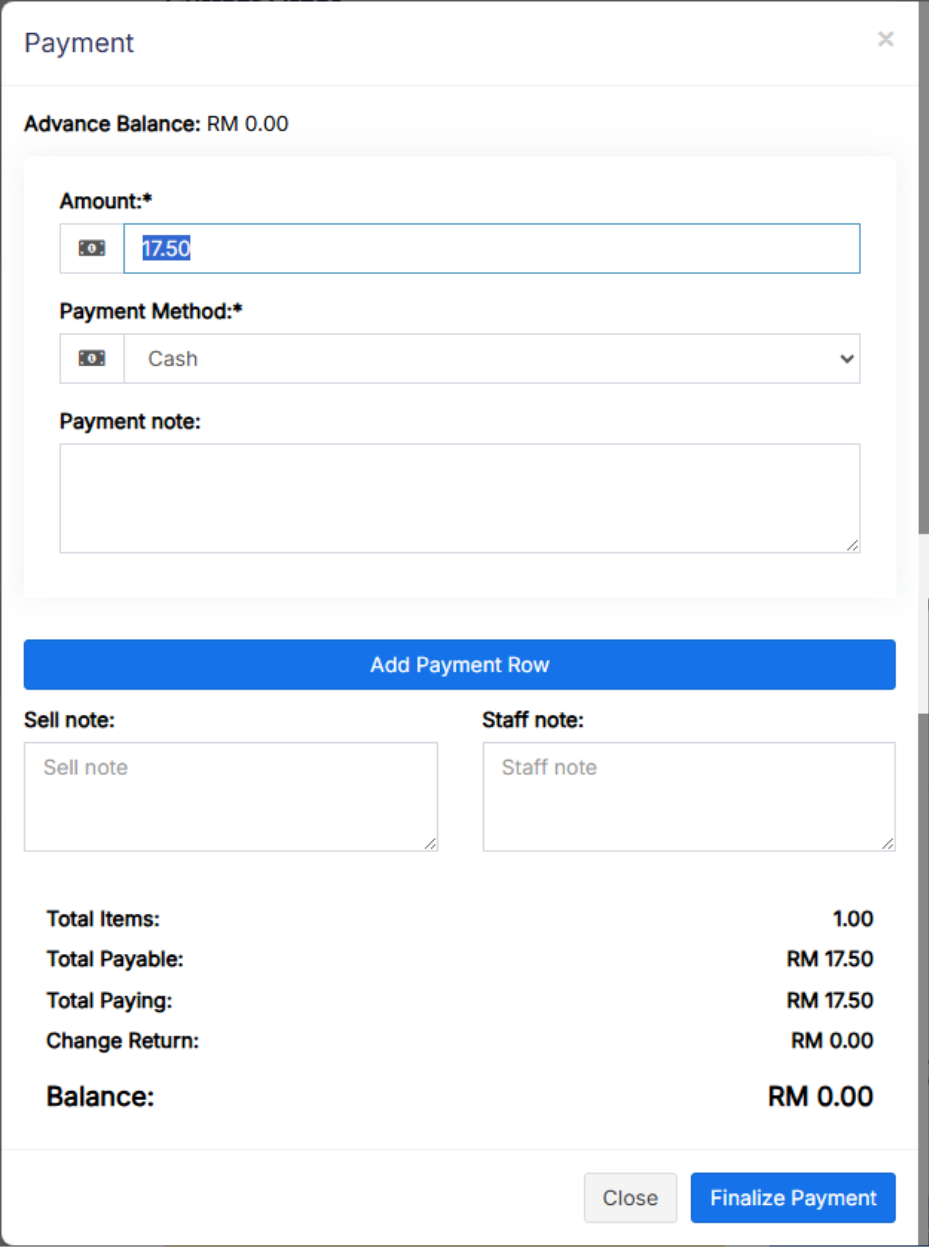](https://docs.senangurus.com/uploads/images/gallery/2025-10/paypos.png)